As an Amazon Associate, we earn from qualifying purchases. Some links on this site are affiliate links at no extra cost to you. Our recommendations are based on thorough research and editorial judgment.

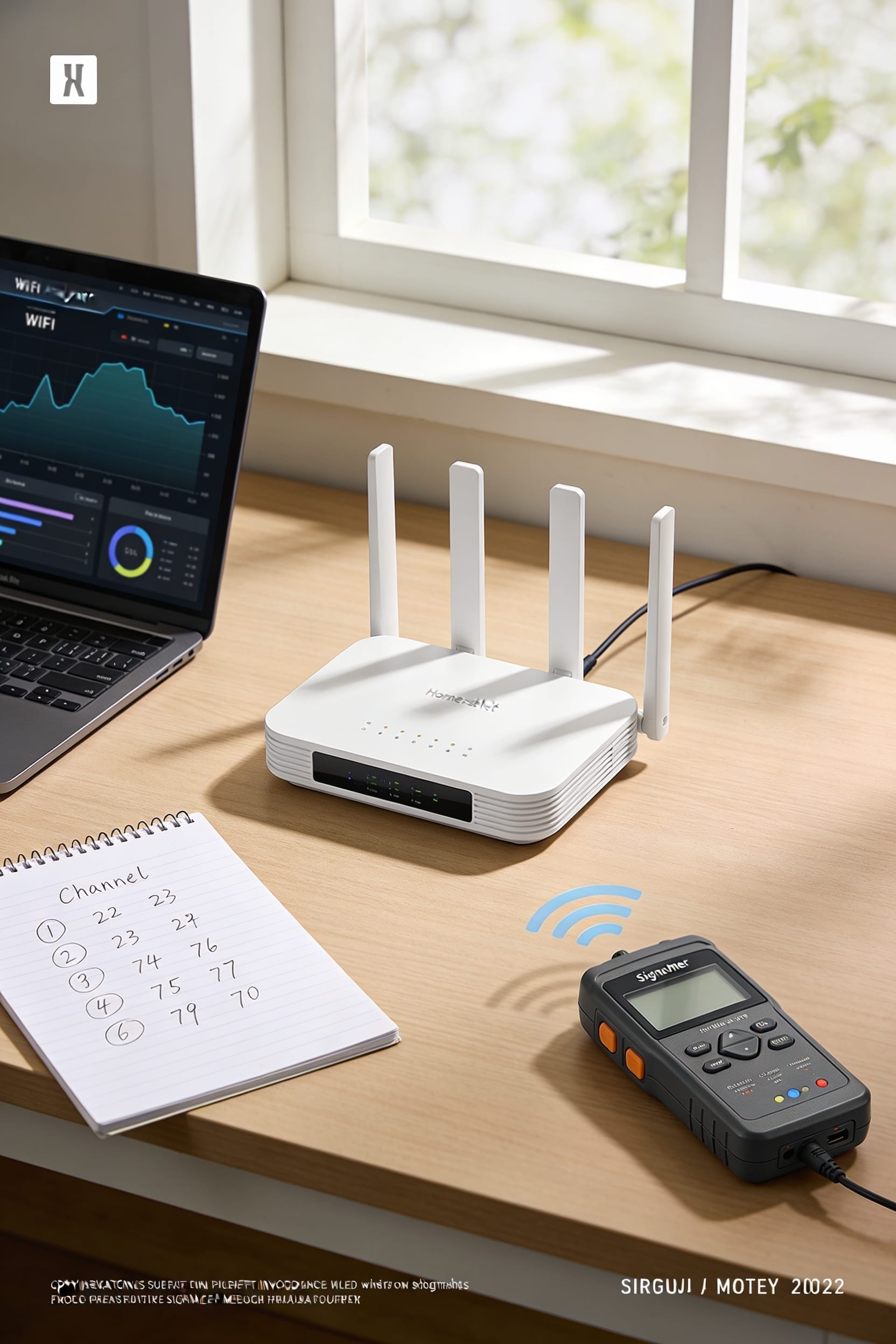
How to Find the Best WiFi Channel for Your Router

All right, here’s the thing: your router’s probably defaulted to channel 6 on 2.4 GHz, which is like parking in the most crowded spot in town. Grab a WiFi scanner app and map out what your neighbors are using, then pick channel 1 or 11 instead—they don’t overlap. On 5 GHz, you’ve got way more options with less interference. Wider channels boost speed but wreck stability if you’re densely packed with other networks. A few tweaks in your router settings can seriously improve your connection, and we’ve got the exact steps coming up.
Key Takeaways
- Use WiFi scanning apps to map nearby network signals and identify less congested channels during peak usage hours.
- On 2.4 GHz, prioritize channels 1, 6, or 11 to avoid interference; avoid the default channel 6 if crowded.
- Wider channels boost speed but increase congestion risk; use 20 MHz for stability or wider options if interference allows.
- Access your router’s web interface via 192.168.0.1 or 192.168.1.1 to manually select channel and width settings.
- Consider band choice: 5 GHz offers thirty channels with less interference; 6 GHz suits newer devices; 2.4 GHz ensures legacy compatibility.
The Best WiFi Channels for Your Band (2.4, 5, or 6 GHz)
If you’ve ever wondered why your WiFi sometimes feels like it’s moving through peanut butter while your neighbor’s seems fine, the channel your router’s using might be the culprit. Here’s the thing: the 2.4 GHz band only has three truly non-overlapping channels—1, 6, and 11—and most routers default to 6, which gets congested fast. The 5 GHz band gives you thirty channels, way better signal propagation, and less interference. If you’ve got newer gear, the 6 GHz band is basically WiFi’s blank canvas. Your device compatibility matters too. Older devices might struggle with 5 GHz, so many routers broadcast all three bands simultaneously. Start by checking what channels your neighbors are using, then pick the emptiest option.
Recommended Products

Validate 2.4, 5, and 6 GHz Wireless Networks - Bring every predictive Wi-Fi network to life with validation and visualization designed for any dual or tri-band network.


The Instant On AP32 access point is a Wi-Fi Certified 6 access point with 6GHz spectrum capabilities. It can broadcast a 6GHz band exclusively for Wi-Fi 6E devices, delivering high-speed connectivity and expanded capacity. The AP32 is a great choice for businesses with cloud-based applications on newly purchased devices. It is ideal for eGaming centers, corporate offices, and home networks supporting the latest VR headsets, laptops, and flagship phones
Scan Your Area for WiFi Channel Congestion
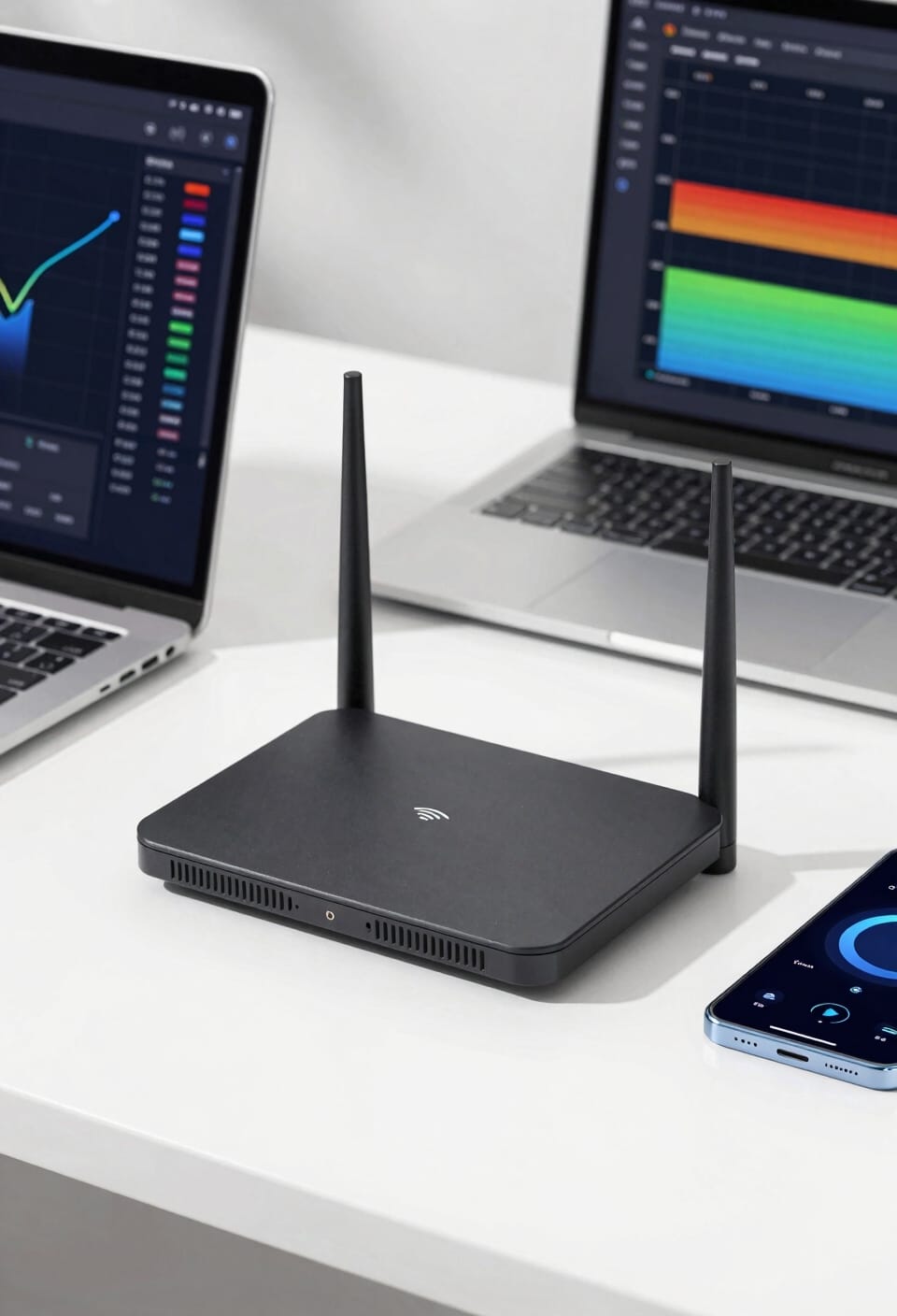
Before you start manually tweaking your router settings, you need to know what you’re actually dealing with in your neighborhood.
All right, here’s where WiFi scanning apps come in handy. These tools map out signal strength from nearby networks and show you exactly which channels they’re using. I’d recommend doing your survey timing during peak hours—that’s when your neighbors are actually online and using their networks. You’ll get the most accurate picture of device density and which channels are getting hammered.
Look for networks with weaker signals on less-crowded channels. Those are your escape routes. Spend ten minutes scanning at different times, and you’ll spot patterns. That’s your real data right there.
Recommended Products

【Meet 2026 Autel MaxiSys MS919S2】Cover every make that rolls onto your shops (15,000+ global models). Add Motor TruSpeed Repair = Intelligent Diagnostics 2.0, our master-tech-verified intelligent repair helper. Packs 10+ flagship features: Topology Map 3.0, J2534 pr0gr#mming & co#ding, enhanced PID data analysis, “MAX” voice assistant, EV testing, 48+ service functions, OE-level active tests, and more. Does this Autel scanner fit your car? Message us anytime to get answer: autelcare @ outlook .com

AirCheck G2 offers a one-button AutoTest function that quickly provides a pass/fail indication of Wi-Fi network quality and identifies common problems

12 Full Function Inputs: 4 Mic, 4 Mic/Line (XLR/TRS Combo), 2 Stereo line (TRS), USB 2-track
Non-Overlapping Channels: Why 1, 6, and 11 Matter on 2.4 GHz
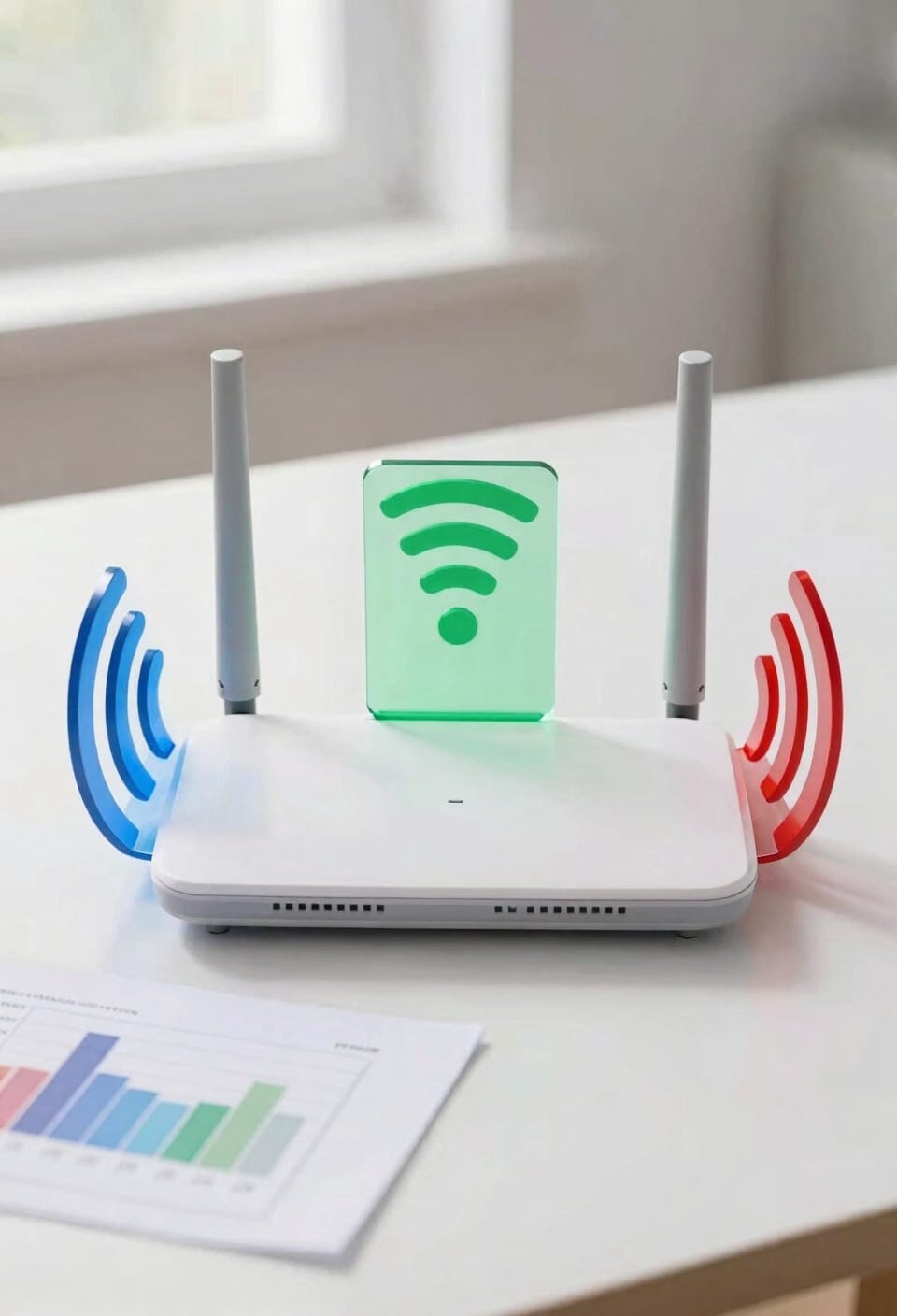
Now that you’ve got a clear picture of what’s happening in your neighborhood, it’s time to talk about why channels 1, 6, and 11 are basically the holy trinity of the 2.4 GHz band.
Here’s the thing: the 2.4 GHz spectrum is cramped. You’ve got 100 MHz of space split among 14 channels, each 20 MHz wide. That means adjacent overlap is inevitable unless you pick carefully. Channels 1, 6, and 11 don’t touch each other—they’re spaced far enough apart to avoid interference patterns that’d wreck your connection.
Most routers default to channel 6, which is why it’s usually congested. Channel 1 or 11 gives you breathing room. They work with legacy devices too, so you won’t accidentally orphan that old printer gathering dust in your closet. Smart channel planning starts here.
WiFi Channel Width: Trading Speed for Stability
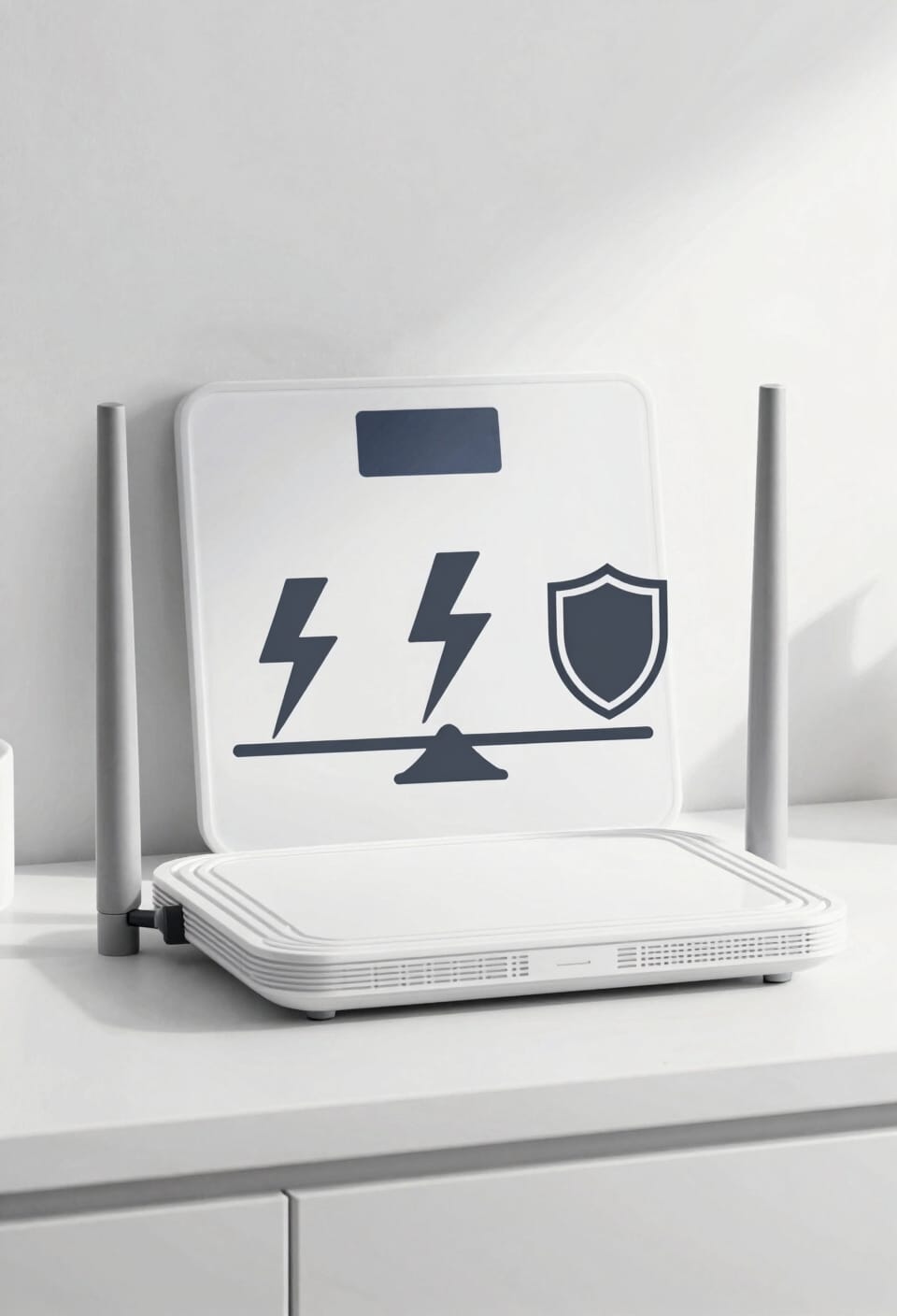
You’ve picked the perfect channel, optimized your band selection, and you’re feeling pretty good about yourself—then you spot something in your router settings called “channel width” and realize there’s another decision waiting.
Here’s the thing: wider channels sound faster, and they are—but they’re also greedier. A 20 MHz width offers maximum stability and works with older devices, giving you rock-solid compatibility without power consumption tradeoffs. Jump to 40 MHz on 2.4 GHz and you’ll squeeze more speed, though congestion risk climbs. On 5 GHz, 80 MHz or 160 MHz channels deliver serious throughput when interference stays manageable.
The trade-off’s simple: balance your speed needs against local network density and legacy device compatibility. Wider doesn’t always mean better for your actual experience.
Recommended Products
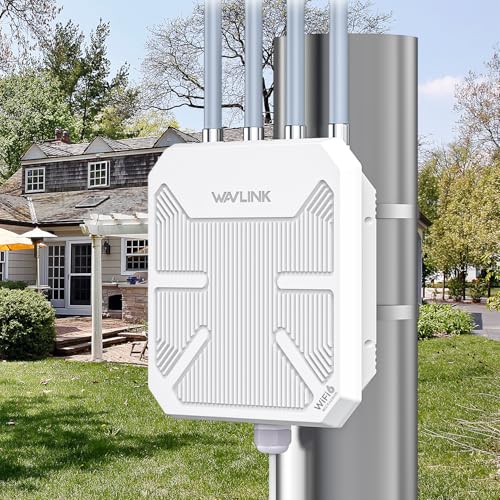
【Enjoy True AX3000 WiFi 6 Speed】The next generation of WiFi, complies with IEEE 802.11 ac/a/b/g/n standards. Supports dual-band maximum speed up to 5GHz 2402Mbps and 2.4GHz 573Mbps, avoiding wireless interference & congestion and offering lightning-fast Internet speed. Support work with starlink/ router/ moden/ wifi extender.

AC1200 Outdoor WiFi Extender: Complies with IEEE 802 11 ac/a/b/g/n standards. Dual-Band maximum speed up to 5GHz 867Mbps and 2.4GHz 300Mbps. Built-in a brand-new chipset MT7621A and Easy Mesh supported, wifi repeater keep multiple devices(max 96) connected simultaneously with the dual bands 1200 Mbps and enables Easy mesh router/AP/repeater to work together, which is superior choice for seamless HD streaming, online gaming and other bandwidth-intensive tasks

Tri-Band WiFi 6E Router - Up to 5400 Mbps WiFi for faster browsing, streaming, gaming and downloading, all at the same time(6 GHz: 2402 Mbps;5 GHz: 2402 Mbps;2.4 GHz: 574 Mbps)
Access Your Router and Choose Your Channel: Step-by-Step
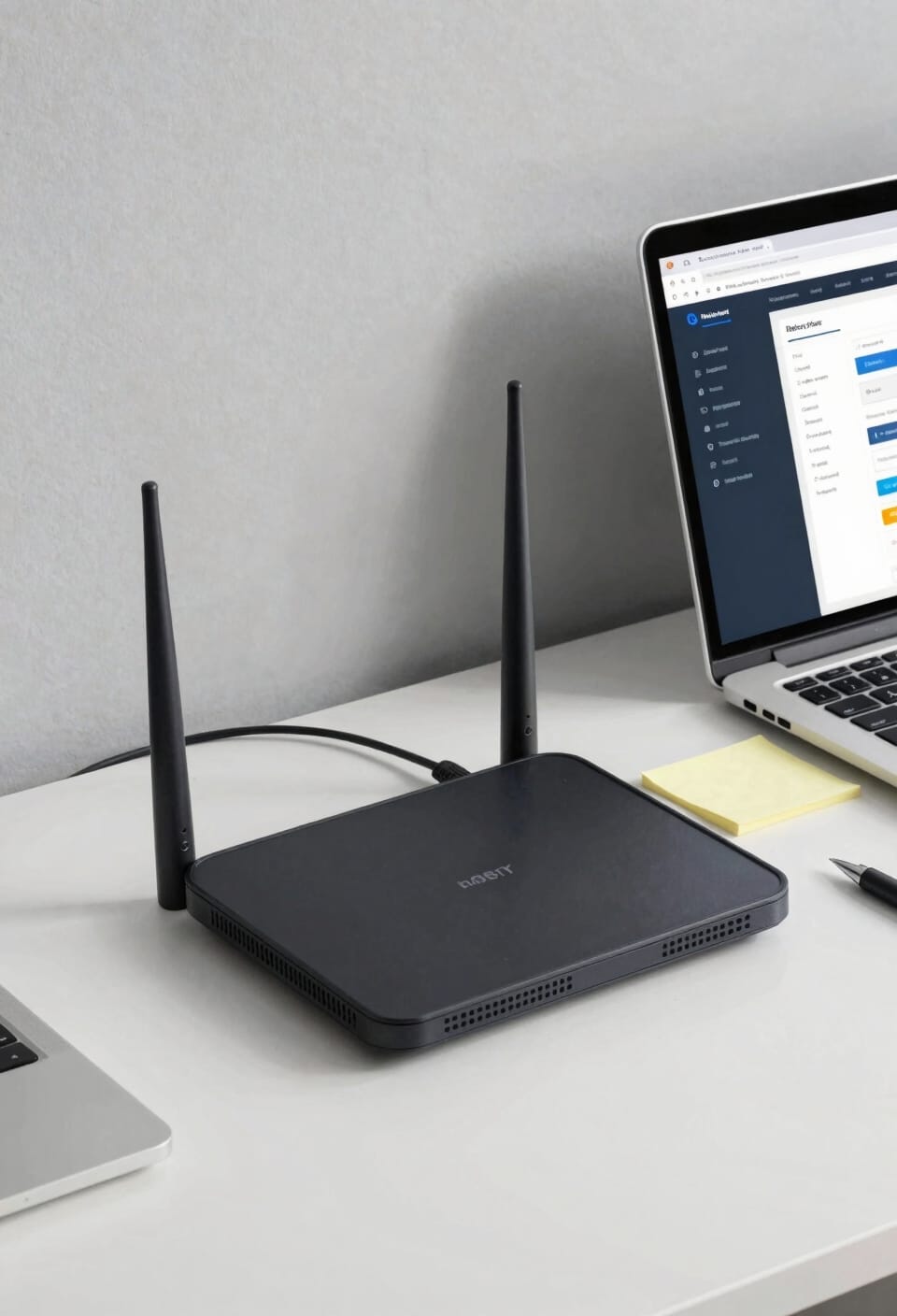
Once you’ve settled on your ideal channel and channel width, it’s time to actually tell your router to use them—and I promise this part’s less intimidating than it sounds. Pull up your router’s web interface by typing its IP address (usually 192.168.0.1 or 192.168.1.1) into your browser. You’ll need your admin username and password, which are probably still the factory defaults unless you’ve changed them—and honestly, you should change those for security settings’ sake. Navigate to wireless settings, select your frequency band, then manually input your chosen channel. While you’re in there poking around, avoid security settings and port forwarding unless you really know what you’re doing. Save your changes, reboot the router, and you’re done. Seriously.
Recommended Products
INCREDIBLE 12MP UHD IMAGE -- Mind-blowing 12MP PoE security camera system becomes affordable for your home and business security. Subtle details are recorded to ensure your peace of mind.
INCREDIBLE 12MP UHD IMAGE -- Mind-blowing 12MP PoE security camera system becomes affordable for your home and business security. Subtle details are recorded to ensure your peace of mind.

𝐔𝐥𝐭𝐢𝐦𝐚𝐭𝐞 𝐁𝐄𝟑𝟑𝟎𝟎𝟎 𝐓𝐫𝐢-𝐁𝐚𝐧𝐝 𝐖𝐢-𝐅𝐢 𝟕 𝐒𝐩𝐞𝐞𝐝𝐬: Deco 7 Elite BE95 is designed with the latest Wi-Fi 7 technology, featuring Multi-Link Operation, Multi-RUs, 4K-QAM, and 320 MHz channels. With speeds of 11520 Mbps on the 6GHz band 1, 11520 Mbps on the 6GHz band 2, 8640 Mbps on the 5GHz band, and 1148 Mbps on the 2.4GHz band, the 3 pack mesh connects over 200 devices without dragging down performance and delivers unparalleled Wi-Fi performance.
Frequently Asked Questions
How Often Should I Rescan My Wifi Channels to Ensure Optimal Performance?
I’d recommend rescanning your WiFi channels quarterly through seasonal checks, and you’ll benefit from enabling automatic scans on modern routers. This guarantees you’re adapting to neighborhood network changes and maintaining peak performance year-round.
Can I Use Different Channels for 2.4 GHZ and 5 GHZ Simultaneously on My Router?
Yes, you can absolutely use different channels for 2.4 GHz and 5 GHz simultaneously on your dual band router. Each band operates independently, so I’d recommend selecting channel 1 or 11 for 2.4 GHz and channels 36-48 for 5 GHz to minimize interference.
Why Do Some Devices Connect to 2.4 GHZ Instead of Faster 5 GHZ Bands?
Your device’s stubbornness isn’t a bug—it’s a feature. Some devices prioritize legacy compatibility and range preference over speed, clinging to 2.4 GHz like they’re afraid of progress, even when you’re screaming for faster 5 GHz performance.
What’s the Difference Between DFS Channels and Standard Channels on 5 GHZ?
I’ll explain the key difference: DFS channels require radar detection capabilities, so your router automatically shifts frequencies when it detects radar signals. Standard channels don’t have these DFS restrictions, offering more consistent channel availability within regulatory limits.
Will Changing My Wifi Channel Affect My Internet Speed or Only Reduce Interference?
Changing your WiFi channel primarily reduces interference, not directly boosts speed. However, I’ll tell you that better channel selection improves signal strength and enables ideal channel bonding, which indirectly enhances your internet performance.
Conclusion
Look, I know it sounds wild that picking the right channel actually matters, but here’s the truth: most people’s sluggish WiFi isn’t broken equipment—it’s just overcrowded airspace. You’ve got neighbors blasting signals on channel 6 while you’re doing the same thing. Switching to channel 1 or 11 takes five minutes and might genuinely change your streaming life. You deserve better internet, and honestly, you’re closer than you think.