As an Amazon Associate, we earn from qualifying purchases. Some links on this site are affiliate links at no extra cost to you. Our recommendations are based on thorough research and editorial judgment.

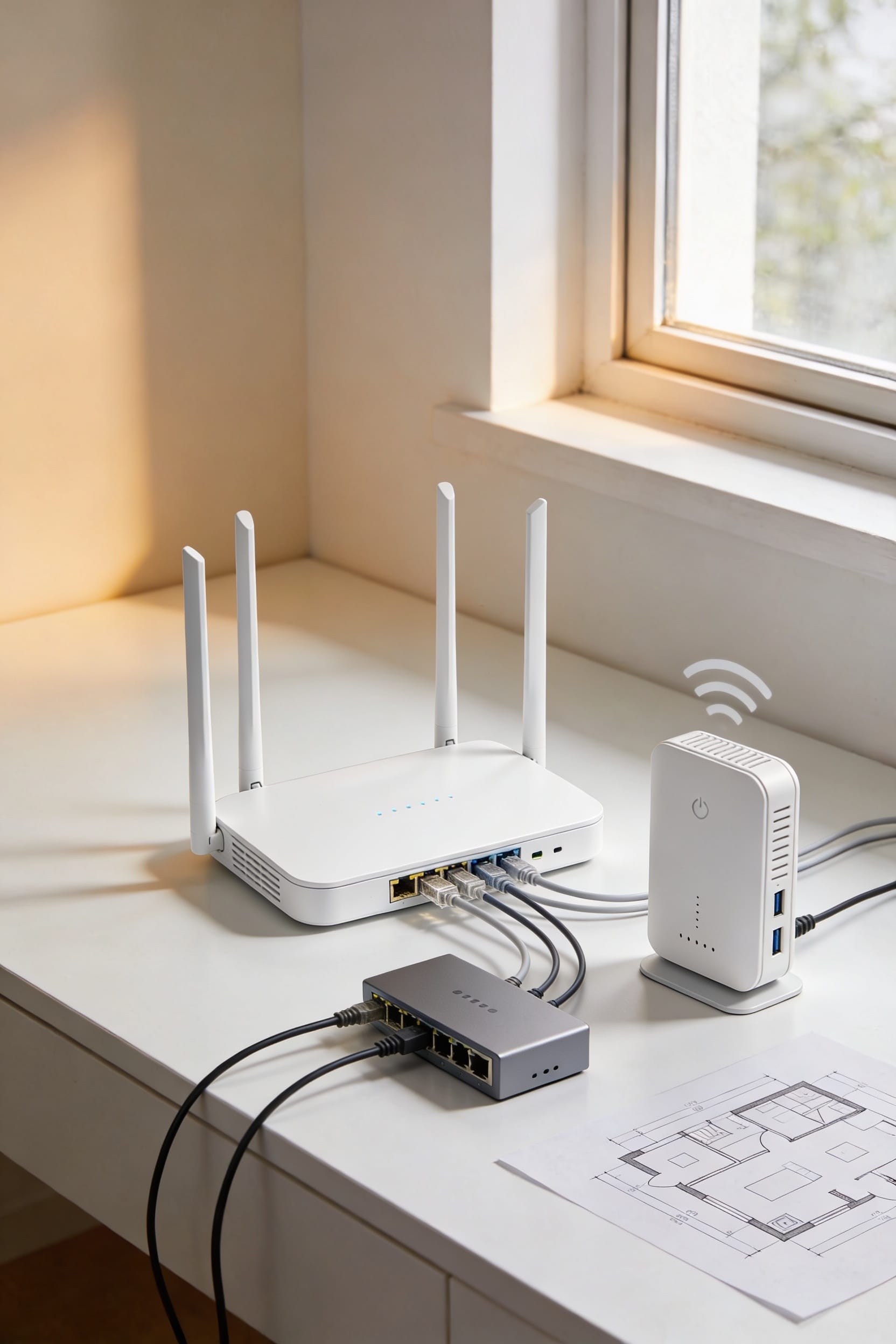
How to Boost Your WiFi Signal: 10 Proven Methods

I’ve learned that weak WiFi usually comes down to three things: where your router sits, what’s interfering with it, and how many devices are actually competing for bandwidth. Start by moving your router to a central, elevated spot—think shelf, not floor. Swap out crowded WiFi channels using a free analyzer app. Then honestly diagnose whether you’re dealing with dead zones or just slow speeds. The fix differs, and we’ll walk through both.
Key Takeaways
- Mount your router high on a shelf or wall bracket to spread downward coverage throughout your home.
- Use a WiFi analyzer app to find the emptiest channel and avoid interference from neighboring networks.
- Disconnect non-essential devices to free bandwidth and improve speeds for active devices on your network.
- Place WiFi range extenders halfway between your router and dead zones to expand coverage areas.
- Connect stationary devices like desktops, gaming consoles, and smart TVs via Ethernet for reliable performance.
Place Your Router Centrally and Elevated for Better Signal
Now, here’s where elevated positioning comes in. Mount that router high—on a shelf, wall bracket, whatever—and watch your coverage spread downward like a umbrella. Think of it like this: a router on the floor fights gravity. One mounted up top? That’s playing the game on easy mode. Combine central placement with height, and you’ve already won half the battle before tweaking anything else.
Reduce WiFi Interference From Household Devices
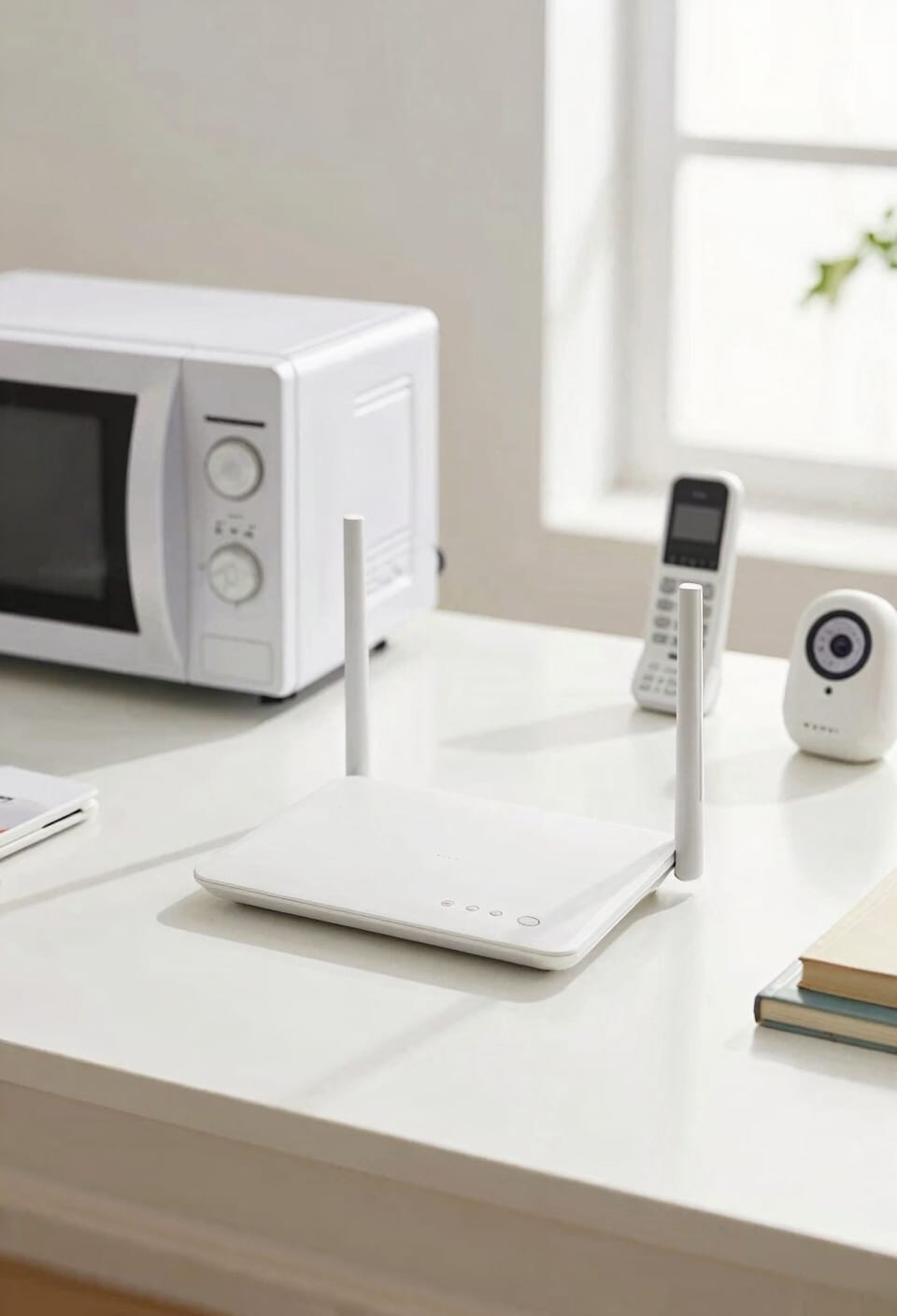
Your router’s doing great up on that shelf, but here’s the thing: electronic devices all around your home are basically screaming on the same radio frequencies your WiFi uses, and that noise drowns out your signal.
Microwaves, cordless phones, and baby monitors are the biggest culprits. Move your router away from these troublemakers if you can. Smart lighting systems and appliance scheduling tools can also interfere—try staggering when devices connect rather than all at once.
Grab a dual-band router that splits traffic between 2.4GHz and 5GHz frequencies. One band’s less crowded, so your devices automatically find clearer airspace. It’s like giving your WiFi its own traffic lane.
Less interference means faster speeds and stronger connections throughout your home. Sometimes the simplest fix is just moving one device three feet away.
Adjust Antennas to Boost Coverage
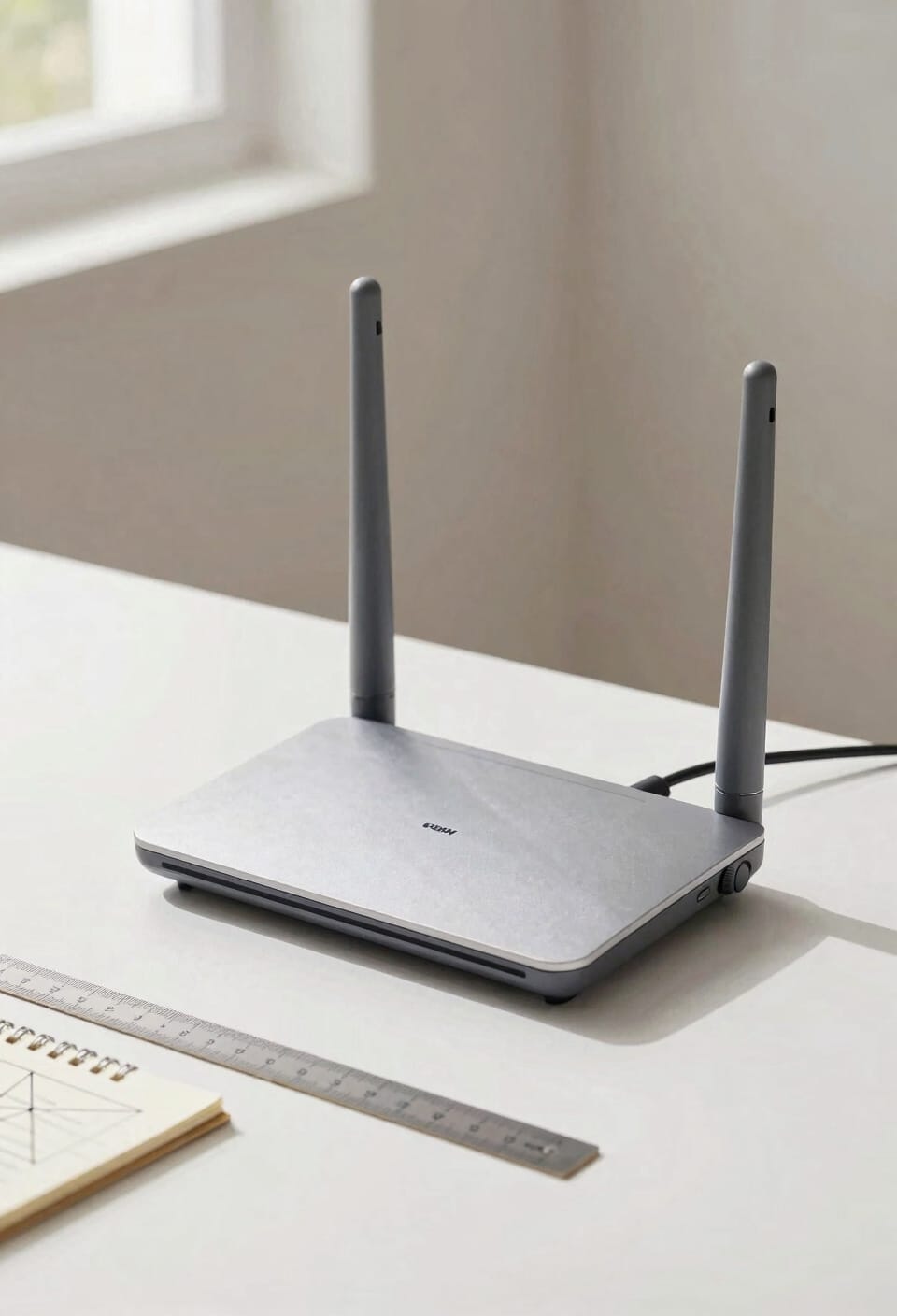
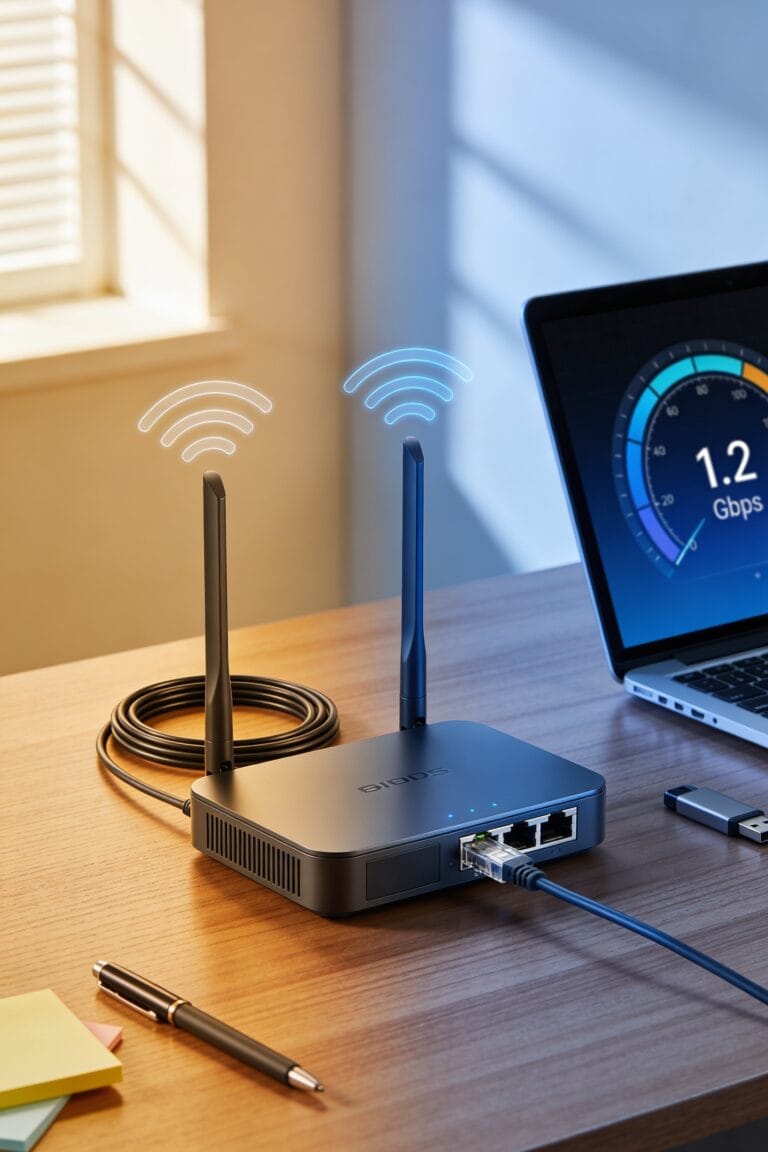
Most routers come with antennas you can actually adjust, and honestly, this is one of those tweaks that takes 30 seconds but can genuinely improve your signal spread. Here’s the thing: antenna polarization—basically the direction your antenna sends radio waves—matters more than you’d think. I’d position one antenna vertically and one horizontally. This antenna tilting technique helps your signal reach different parts of your home more effectively since devices receive signals at different angles.
Now, if your router has removable antennas, you’ve got options. High-gain external antennas boost multi-directional coverage markedly. Experiment with different positions to find what works best in your space. Some people swear by adjusting a single antenna instead. It’s genuinely worth testing because the right antenna position can noticeably strengthen weak spots without spending a dime.
Recommended Products

FREE REGION UNLOCK: This product can be used all around the world. Can be activated in any country without any outside fee or charge.

Starlink Gen 3 Standard KIT bundle with 2-4.5 feet Deluxe Height Adjustable Metal Tripod Stand, and tripod carrying case. 130LB maximum weight capacity, sturdy, expandable, long tripod legs provide stability in any environment.

🛰️ PORTABLE HIGH-SPEED INTERNET: Stay connected while traveling, camping, working remotely, or exploring off-grid destinations with compact Starlink Mini satellite internet hardware.
Update Your Router Firmware Monthly
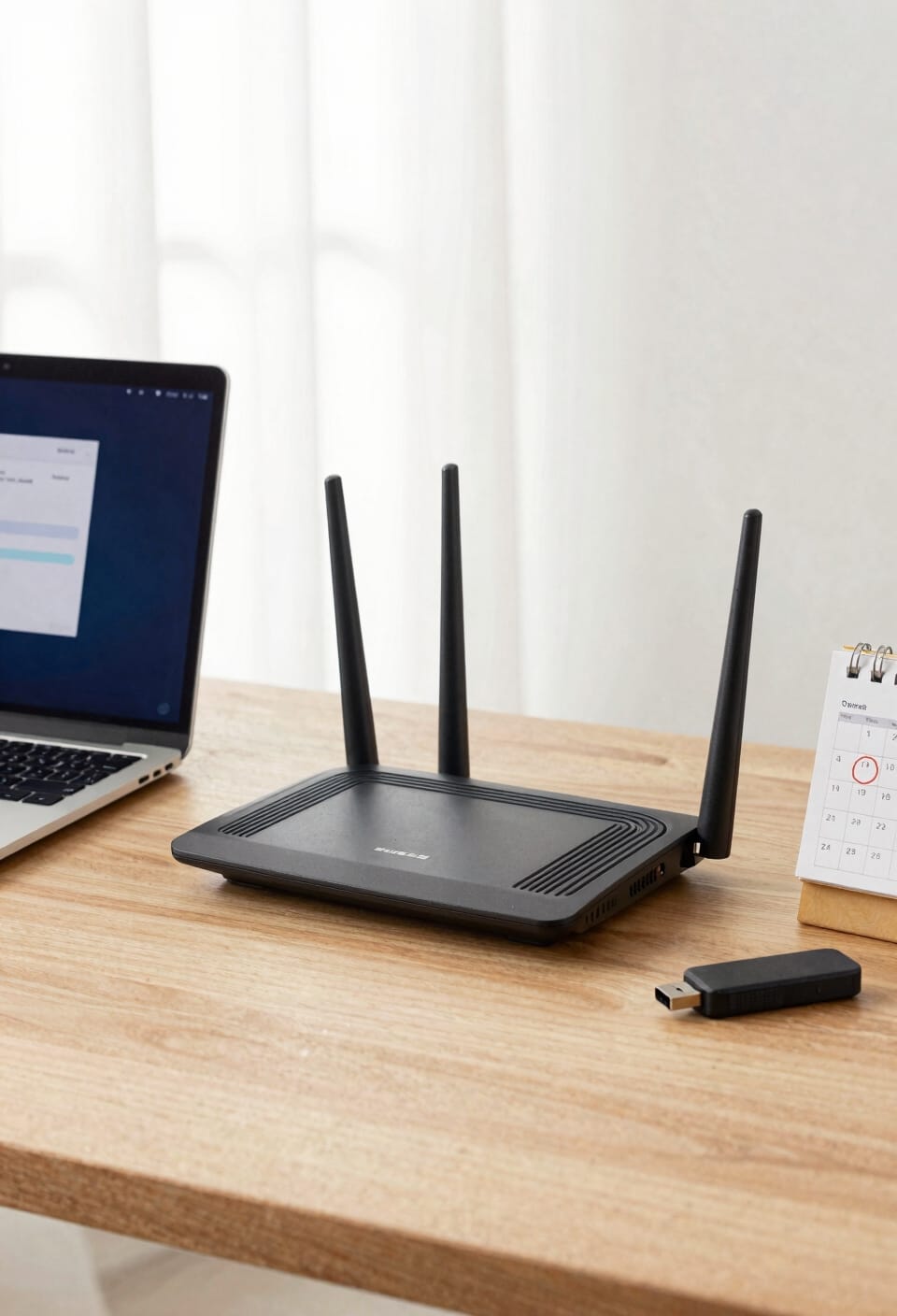
Regularly updating your router’s firmware—that’s the software that runs your router, kind of like operating system updates on your phone—is one of those unsexy but genuinely important things you should do about once a month. I know, I know. It sounds tedious. But here’s the thing: firmware updates patch security holes, fix bugs, and boost performance. Your router probably has a settings page where you can check for updates automatically or enable scheduled updates so you don’t forget. Before updating, consider creating a rollback plan—basically, knowing how to revert to the previous version if something goes sideways. Most updates go smoothly, but it’s smart to be prepared. A few minutes of maintenance now saves you headaches later.
Choose the Best WiFi Channel for Your Home
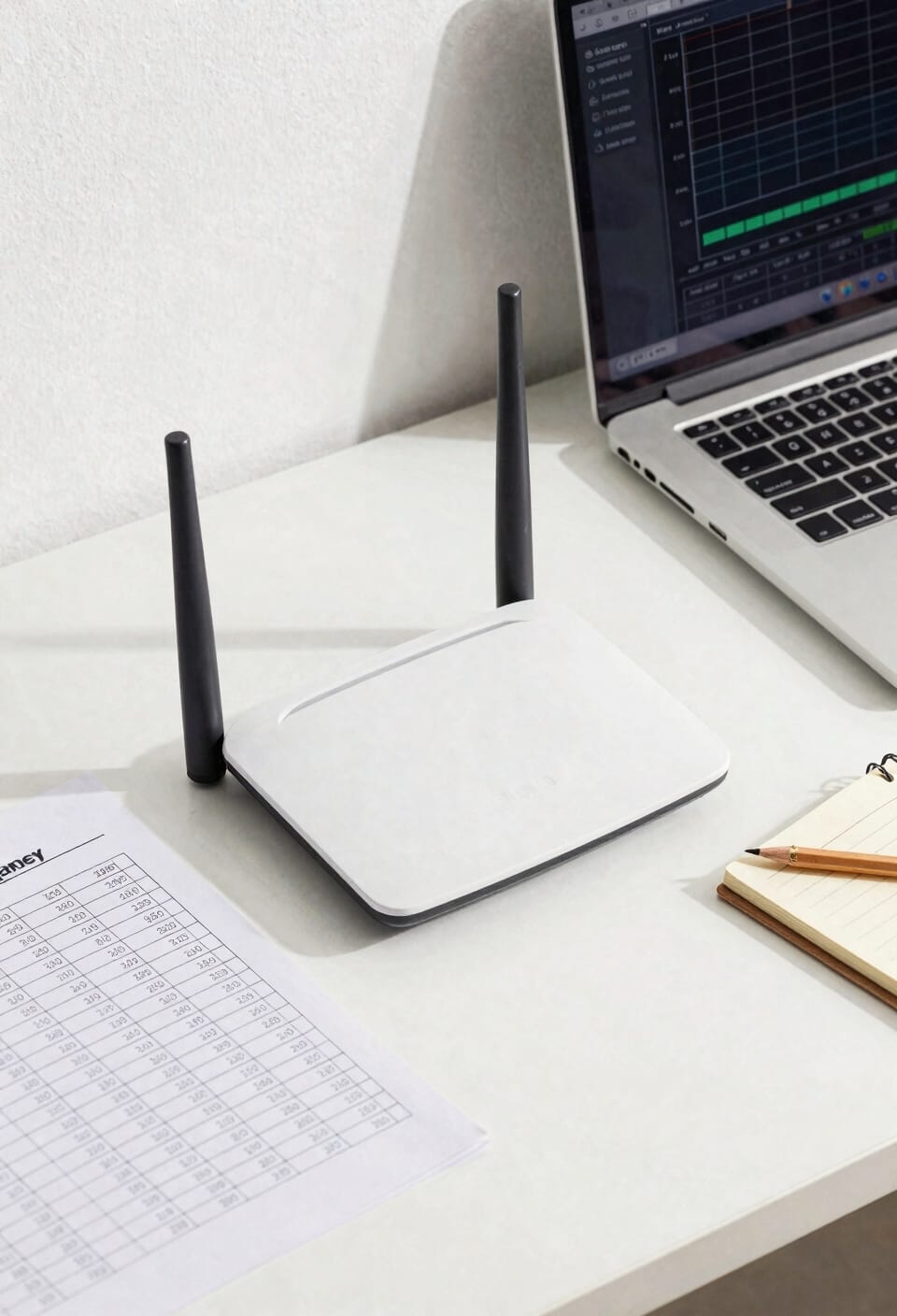
Ever wonder why your WiFi works great in one room but feels sluggish in another, even though you’re still connected to the same network? Your router’s probably broadcasting on a crowded channel—imagine a highway where everyone’s trying to merge at once.
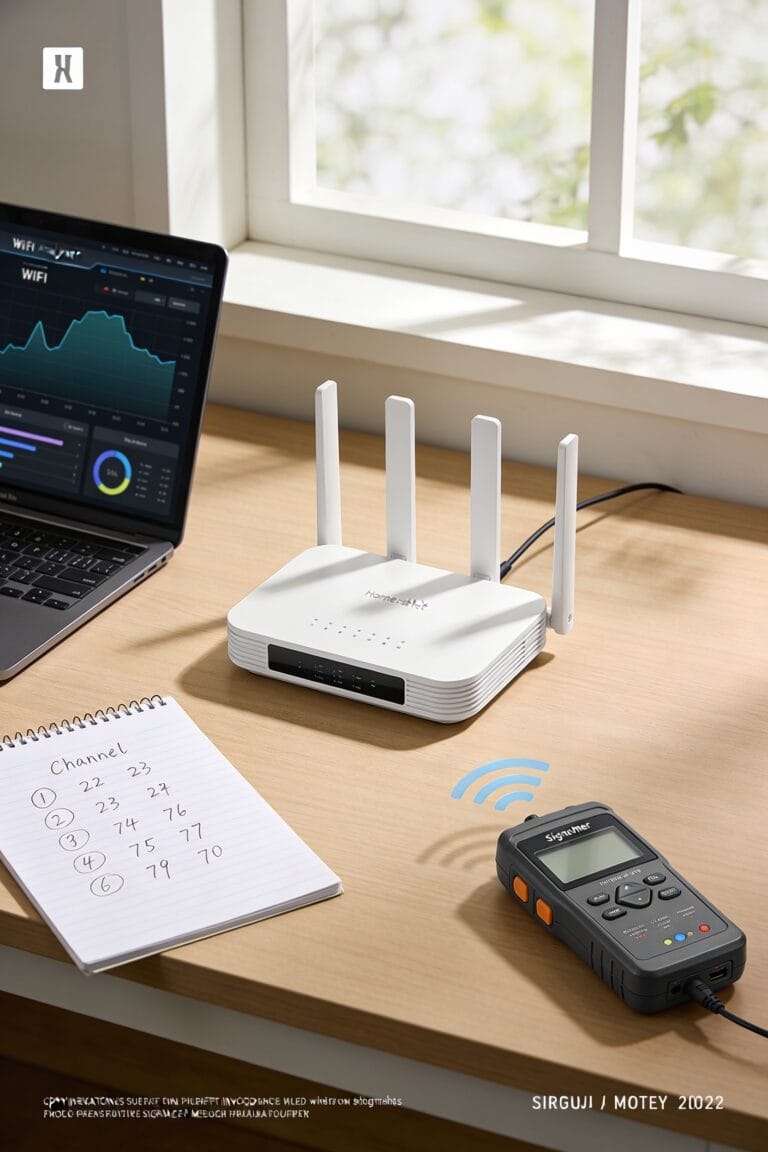
Here’s the thing: WiFi channels are like lanes on that highway. Your router picks one automatically, but neighbors’ networks often pick the same ones, causing interference. Signal scanning—checking which channels your neighbors are using—helps you avoid the traffic jam. Use a WiFi analyzer app to map out the landscape.
Now, most routers default to channels 1, 6, or 11 on 2.4GHz because they don’t overlap. Pick whichever’s emptiest. You’ll notice the difference immediately.
Disconnect Non-Essential Devices
You’ve picked the perfect channel and cleared the airwaves of interference, but here’s what I’ve learned the hard way: your router’s still working overtime if you’ve got every device in your house glued to the network. Every idle smartphone and laptop running background apps—those sneaky programs that update and sync without you noticing—they’re all competing for bandwidth. It’s like inviting fifty people to dinner and expecting them all to fit at a small table.
Start by disconnecting devices you’re not actively using. Seriously, that old tablet collecting dust? Boot it off. Those background apps constantly refreshing? Disable them. I’m not saying become a WiFi hermit, but pruning excess connected devices frees up real estate for the stuff that actually matters. Your speed will thank you.
Diagnose Your Real Problem: Dead Zones or Slow Speeds
Before you start throwing money at fancy new equipment, let’s figure out what’s actually wrong with your WiFi—because the fix for a dead zone (that’s a spot in your home where the signal basically vanishes) is totally different from the fix for slow speeds across your whole network.
Run some speed tests to see what you’re actually getting. Then do signal mapping by walking around your home with your phone, checking signal strength in different rooms. Dead zones mean your router isn’t reaching certain spots. Slow speeds everywhere? That’s usually interference or too many devices hogging bandwidth. Knowing which problem you’ve got saves you time and money. Trust me, I’ve bought plenty of unnecessary gear before figuring that out.
Recommended Products

THE SPEED OF EERO MAX 7 - With two 10 Gigabit Ethernet ports, you can enjoy wired speeds up to 9.4 Gbps, wireless speeds up to 4.3 Gbps, and multi-gigabit backhaul speeds—making your network seriously fast.

2x DOME/PANEL ANTENNA KIT: This version of the CEL-FI G41 cell signal booster for AT&T, Verizon or T-Mobile includes 2x of BOTH dome and panel antennas. You can use two and discard the others.

Our most powerful whole-home WiFi 6E system with speeds up to 10.8Gbps and coverage up to 6,000 sq. ft., including front & back yards
Extend Coverage With Wifi Range Extenders
If you’ve pinpointed dead zones as your main problem, a WiFi range extender can pick up that weak signal and broadcast it back out to fill in the gaps—think of it as a relay runner passing the baton to extend coverage across more of your home. Before you buy, do compatibility checks with your router model; most extenders work universally, but confirming saves headaches. Placement tips matter enormously. Position your extender halfway between your router and the dead zone, elevated and away from interference sources like microwaves. You’ll roughly double your coverage range, though you’ll sacrifice a bit of speed since the device receives and transmits simultaneously. It’s not perfect, but it’s affordable and beats dead zones entirely.
Recommended Products
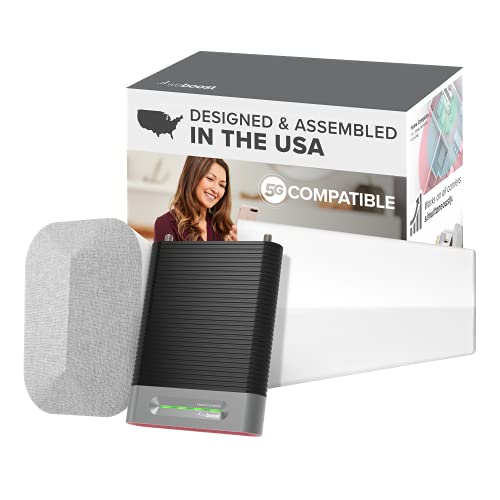
Eliminate Dead Zones, Dropped Calls, And Buffering – Home Complete Permanently Provides Fewer Dropped Calls, The Fastest Data Speeds, And Better Voice Quality At Home. The Strongest Booster Allowed By The Fcc – Boosts Your Signal By Up To 100X.

Item Package Dimension: 9.1732283371L x 8.7007873927W x 3.5039370043H inches
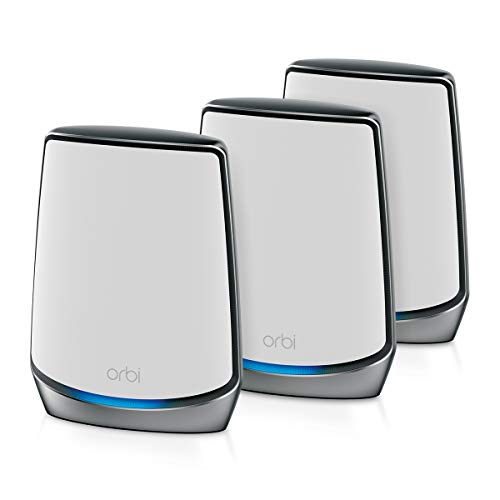
Coverage up to 7,500 sq. ft. and for up to 100 devices. Extend coverage up to 2,500 sq. ft. with each additional satellite (sold separately)
Use Powerline Kits or Mesh Networks for Whole-Home Coverage
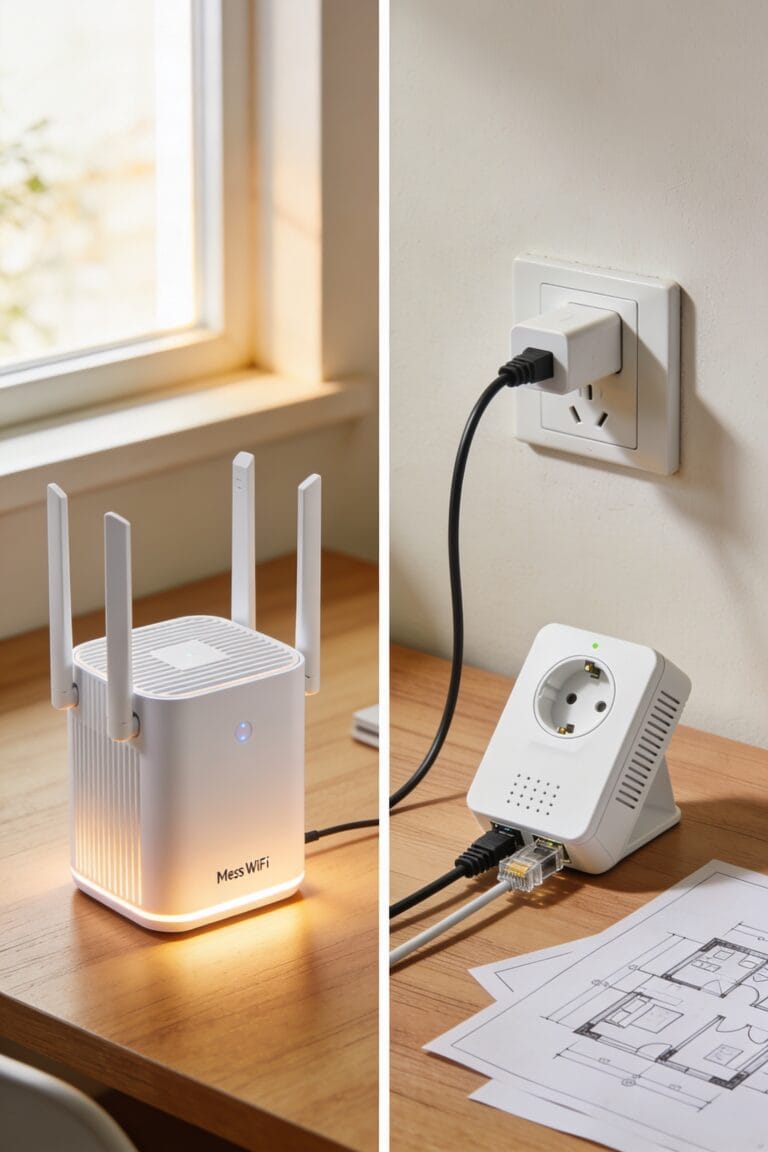
When range extenders start feeling like a band-aid solution, it’s time to weigh the heavy hitters: powerline kits and mesh networks. Powerline kits use your home’s electrical wiring to transmit internet signals—no new cables needed. They’re genuinely clever, though powerline troubleshooting can get frustrating if outlets aren’t compatible or your wiring’s older.
Mesh networks, though, are the upgrade I’d lean toward. You’re fundamentally creating multiple access points—think of them as WiFi satellites working together seamlessly. The real trick is mesh placement: position nodes in central spots throughout your home, avoiding closets and basements.
I won’t pretend mesh systems are cheap, but they eliminate dead zones way better than extenders ever will. Your connection just glides from one node to the next without dropping. That’s the whole point, really.
Recommended Products

𝐔𝐥𝐭𝐢𝐦𝐚𝐭𝐞 𝐁𝐄𝟑𝟑𝟎𝟎𝟎 𝐓𝐫𝐢-𝐁𝐚𝐧𝐝 𝐖𝐢-𝐅𝐢 𝟕 𝐒𝐩𝐞𝐞𝐝𝐬: Deco 7 Elite BE95 is designed with the latest Wi-Fi 7 technology, featuring Multi-Link Operation, Multi-RUs, 4K-QAM, and 320 MHz channels. With speeds of 11520 Mbps on the 6GHz band 1, 11520 Mbps on the 6GHz band 2, 8640 Mbps on the 5GHz band, and 1148 Mbps on the 2.4GHz band, the 3 pack mesh connects over 200 devices without dragging down performance and delivers unparalleled Wi-Fi performance.
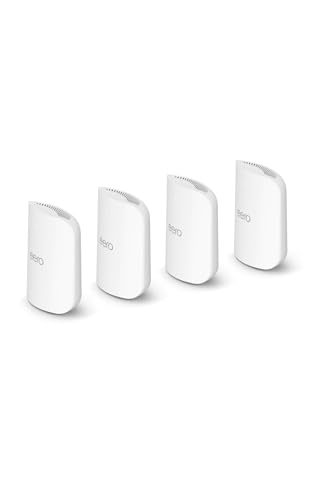
WIFI AT THE SPEED OF LIFE - eero Pro 7 brings next-generation speed and reliability to home and business networks with high bandwidth needs.

Upgrade Your Router or Switch to Wired Ethernet
Now, mesh networks solve a lot of problems, but they don’t solve the fundamental one: WiFi itself is wireless, which means it’s always fighting physics. Sometimes you need to stop fighting and just plug in.
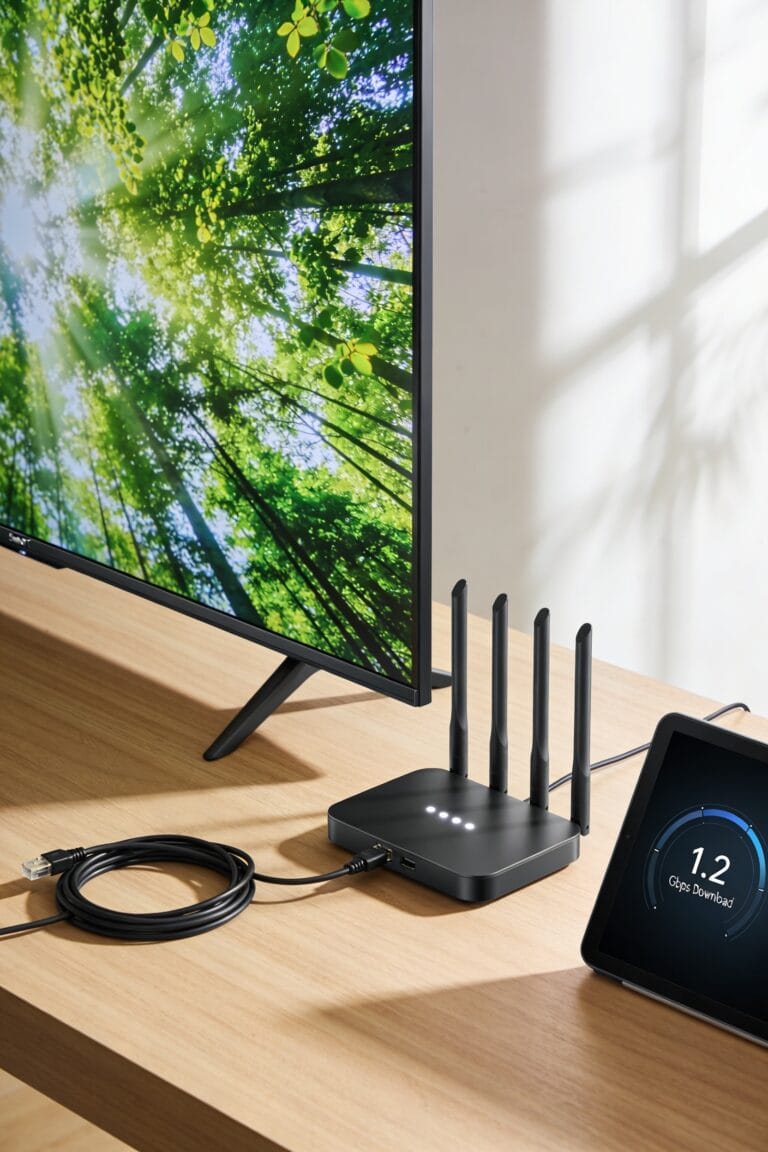
If you’re serious about speed and reliability, upgrading to a newer router matters. Modern routers handle more devices, support faster speeds, and some business routers even offer port forwarding—that’s the ability to direct specific traffic straight to devices on your network. For stationary devices like desktops, gaming consoles, or smart TVs, Ethernet cables are your secret weapon. Wired connections don’t drop. They don’t compete for bandwidth. They just work.
Yes, running cables is less glamorous than wireless. But sometimes boring beats frustrating every single time.
Recommended Products

Network Topology Mapping: Automatically discover and instantly generate a topology map of your networks using the Link-Live reporting and analysis platform

SonicWall TZ570W Wireless with 3 Year APSS - SecureUpgradePlus (02-SSC-5688) - Delivers the multi-gigabit performance of the TZ570 while integrating high-speed 802.11ac Wave 2 wireless for secure office Wi-Fi.

Enterprise-grade prevention, detection, correlation and response from the perimeter to the endpoint with our Total Security Suite.
Frequently Asked Questions
How Often Should I Reboot My Router for Optimal Performance?
I’d recommend rebooting your router monthly for peak performance, though you can do it more frequently if you notice slowdowns. Consider implementing uptime monitoring and a restart schedule to maintain consistent connection quality automatically.
What’s the Difference Between 2.4ghz and 5GHZ Wifi Bands?
I’ll explain the key differences. The 2.4GHz band offers greater range and wall penetration, making it ideal for distance. However, 5GHz provides higher capacity and faster speeds, though it doesn’t penetrate obstacles as effectively.
Can I Use Multiple Wifi Extenders Together Without Signal Degradation?
I’ve watched signal strength plummet like a dropped ball when I chained repeaters together. You’ll face degradation with multiple extenders, but I’d recommend mesh networks instead—they’re designed for seamless coverage without the repeater chaining penalty.
How Do I Know if My Router Firmware Needs Updating?
You’ll find your router’s current version in the admin settings. Most modern routers show update prompts automatically when new firmware’s available. I’d recommend checking monthly and installing updates immediately for security and performance improvements.
What Household Appliances Cause the Most Wifi Interference Problems?
As they say, “an ounce of prevention’s worth a pound of cure.” I’ve found microwave interference and cordless phones cause the most WiFi problems in households. You’ll want to eliminate these sources first for better connectivity.
Conclusion
Look, you’ve got solid options now. Here’s the thing: studies show that folks with properly positioned routers experience up to 50% better speeds than those who don’t. You don’t need to implement everything we’ve covered—start with placement and channel selection. They’re free and they’ll likely solve your problem. If you’re still struggling, that’s when you invest in mesh or extenders. You’ve got this.