As an Amazon Associate, we earn from qualifying purchases. Some links on this site are affiliate links at no extra cost to you. Our recommendations are based on thorough research and editorial judgment.

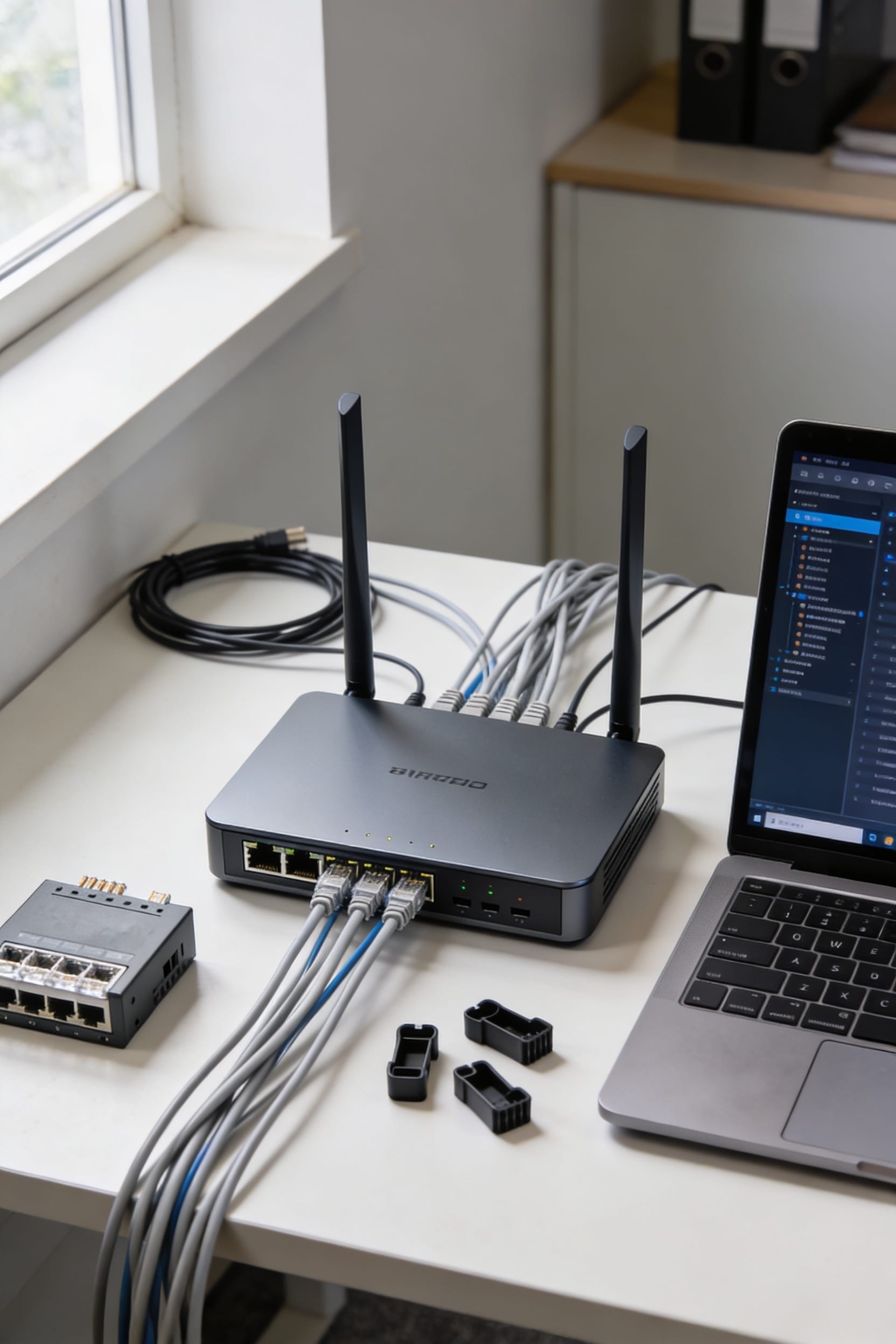
How to Set Up a Business WiFi Network: Step-by-Step Guide

All right, here’s the thing: setting up business WiFi means first sketching your space to spot dead zones—those frustrating corners where signal dies—then picking business-grade equipment built to handle multiple users simultaneously. You’ll connect your modem to the router, secure everything with WPA3 encryption, and split guest traffic from your actual work network so visitors can’t accidentally peek at sensitive files. Once you’ve positioned access points strategically and tested speeds throughout your office, you’re basically done. The real trick is keeping it healthy long-term.
Key Takeaways
- Sketch your floor plan and identify dead zones to determine optimal access point placement for complete coverage.
- Select business-grade routers with 802.11n or newer standards and use CAT6/CAT7 cabling for reliable hardwired connections.
- Connect modem to router WAN port, link switch to LAN port, and mount devices high for better signal distribution.
- Enable WPA2/WPA3 encryption, create separate employee and guest networks, and implement VLANs to isolate sensitive business data.
- Test signal strength throughout the property, monitor performance metrics regularly, and schedule monthly firmware updates for optimal network health.
Assess Your Coverage Needs and Space Layout
Before you drop a single dollar on routers or access points, you’ve got to actually understand what you’re working with—and I mean your physical space, not just your wishful thinking about WiFi reaching every corner of your building.
Start by sketching your floor plan and marking where people actually work. That’s your device density—how many laptops, phones, and tablets will be pulling from your network at once. Walk around and note potential dead zones: thick walls, metal filing cabinets, that one closet nobody uses anyway.
Measure distances between rooms. Check ceiling heights. Look for outdoor areas needing coverage. This isn’t glamorous, but it’s the difference between a network that works and one that’ll drive everyone nuts.
Choose Business-Grade WiFi Hardware for Your Scale
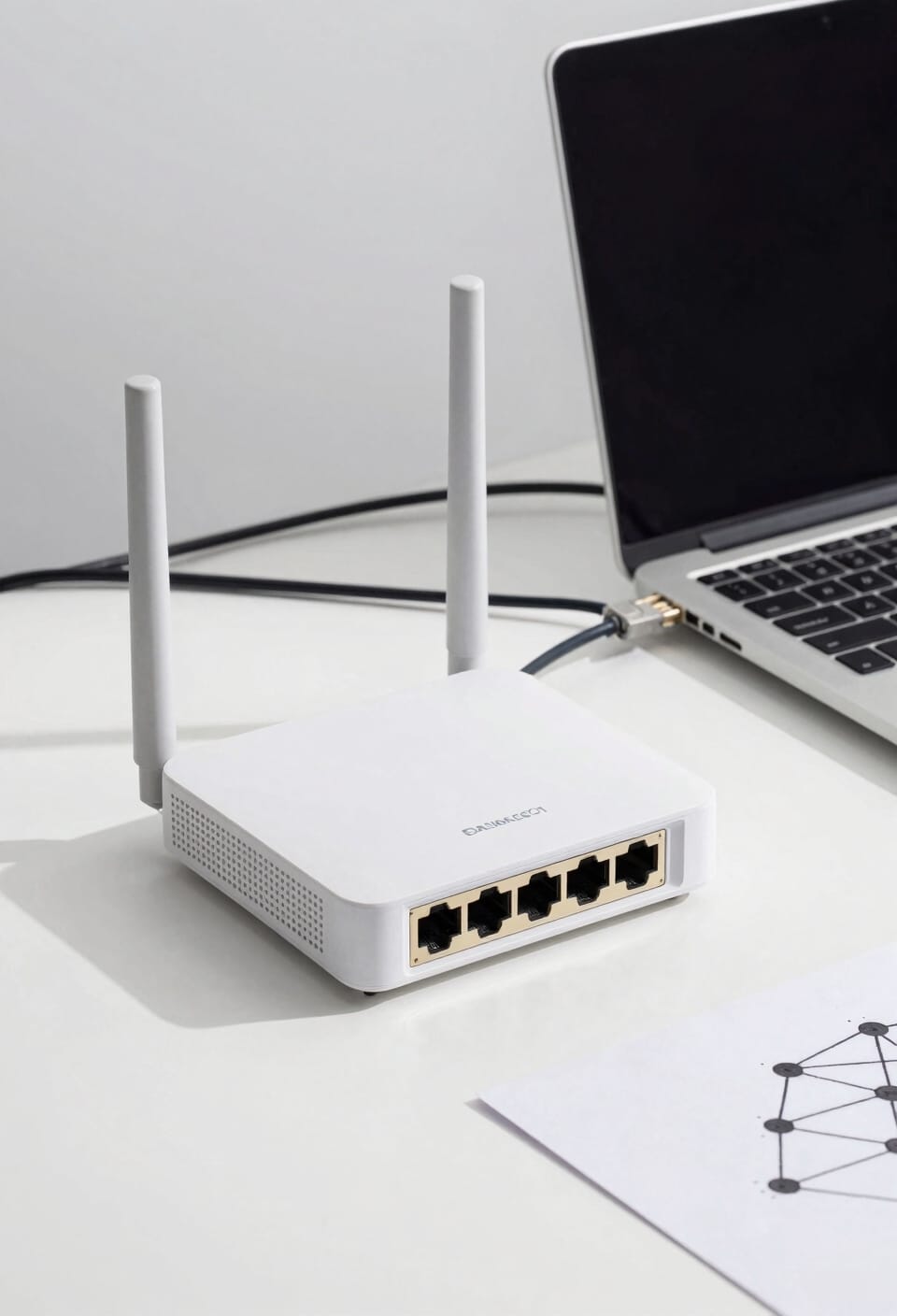
Now that you’ve mapped out your space and identified where you actually need coverage, it’s time to pick hardware that won’t let you down—and I’m not talking about grabbing whatever router Best Buy has on sale.
You’ll want business-grade routers that support 802.11n or newer standards. Honestly, mesh systems (multiple connected nodes that work together) beat traditional routers for larger spaces. Look for vendor partnerships with companies offering solid support, and always check warranty considerations—business gear should back itself up with at least a three-year warranty.
Consider CAT6 or CAT7 cables for hardwired connections. They’re faster and more reliable than WiFi alone. Position access points centrally, away from walls. Your budget matters here, but skimping on hardware now means headaches later.
Install Your Router, Modem, and Network Switches
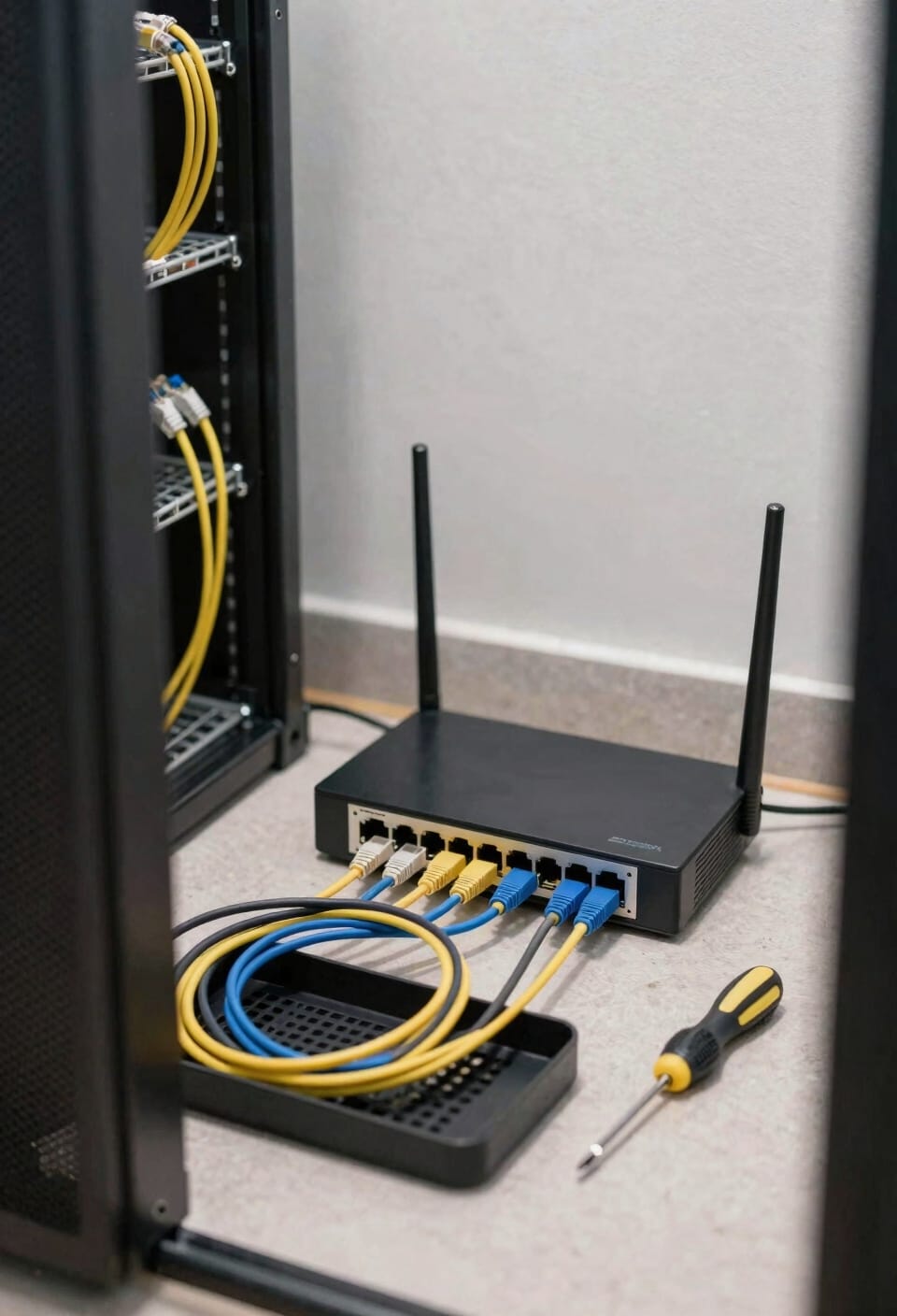
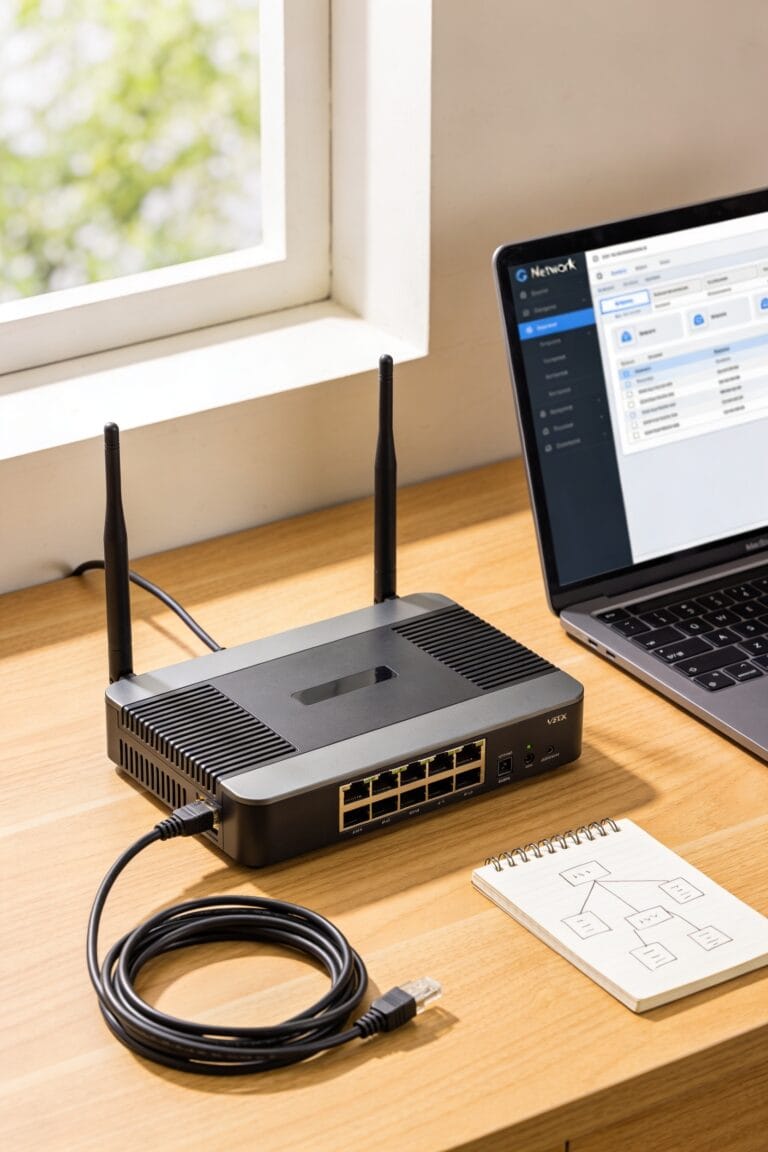
Let’s get physical—and I mean that literally, because all that planning means nothing until you actually plug things in. Connect your modem to the router’s WAN port using Ethernet cable. Then link your main switch to the router’s LAN port, which distributes internet to all your wired devices. Think of the switch as a traffic cop directing data where it needs to go. For cable management, organize those cords neatly so you’re not tripping over spaghetti later. Consider power redundancy too—plug your modem and router into a backup power supply so brief outages don’t kill your whole operation. Mount your router high on a shelf, away from walls, for better multi-floor coverage. Power everything on and restart your devices. You’re almost there.
Configure Security and Create Separate Networks
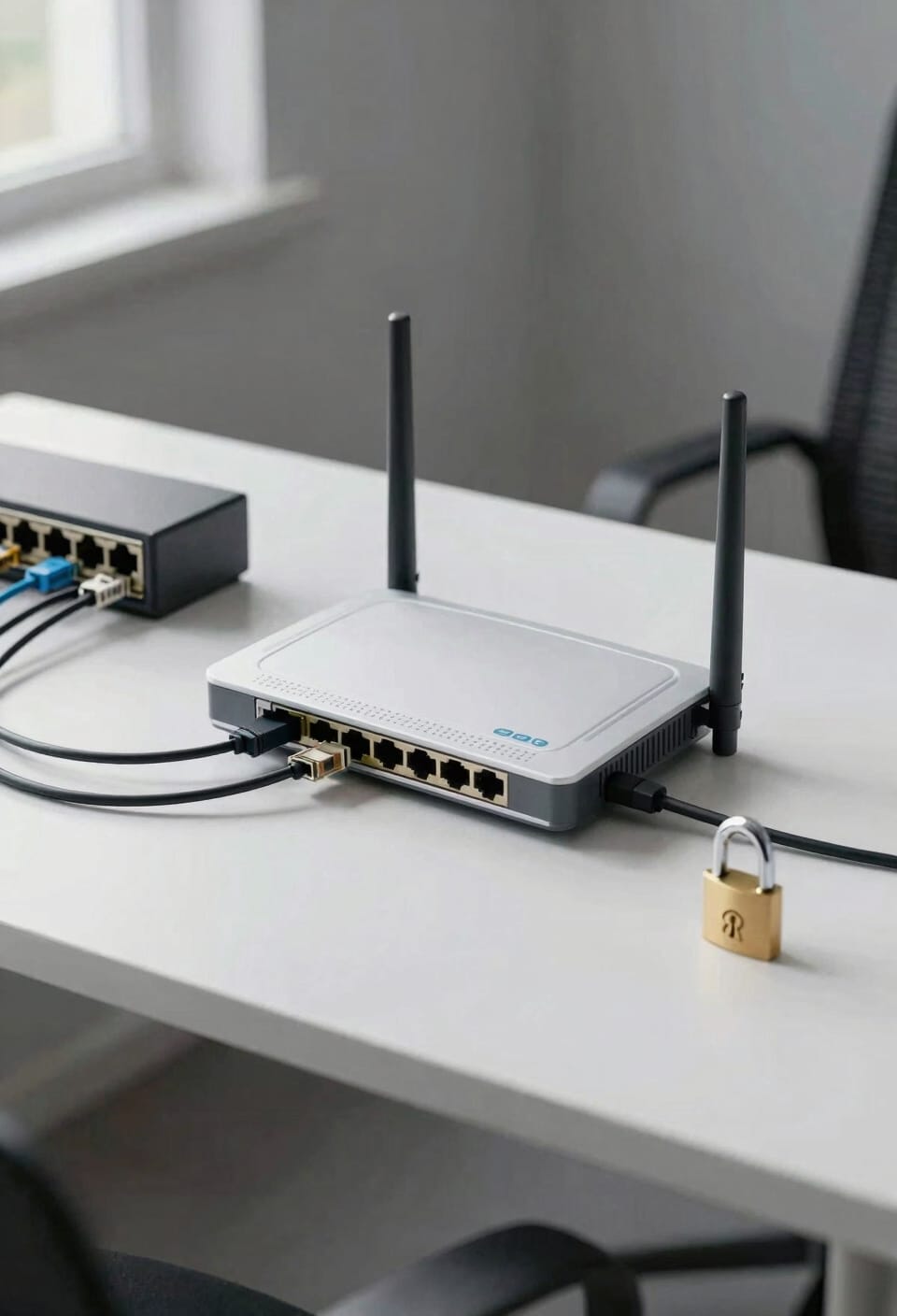
Once your hardware’s humming along, it’s time to secure things down—because an open WiFi network is like leaving your front door unsecured and hoping nobody notices.
Start by changing your router’s default password to something only you know. Then create two separate networks: one for employees and one for guests. This isolation keeps visitors from accessing your business files.
Enable WPA2 or WPA3 encryption—that’s the scrambling technology protecting your data from eavesdroppers. Consider adding multi-factor authentication, which requires a second verification method beyond just a password. Implement policy enforcement to limit what guest users can access and control bandwidth so they won’t bog down your main network.
These steps transform your setup from vulnerable to genuinely protected.
Place Access Points to Eliminate Dead Zones
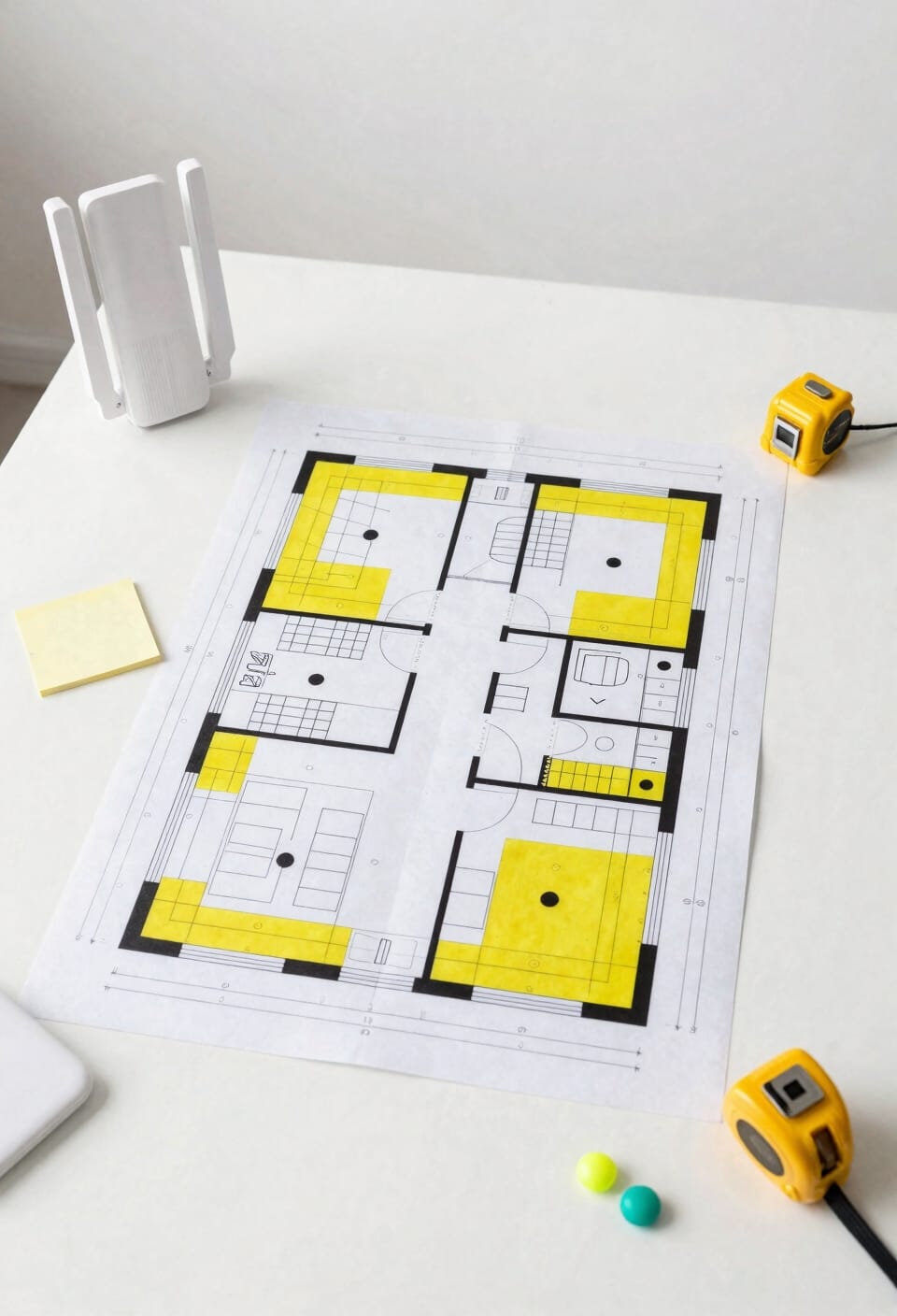
Your WiFi signal doesn’t travel in a perfect circle—it bounces off walls, gets absorbed by filing cabinets, and basically does everything except what you’d like it to do. Here’s the thing: strategic access point placement fixes this. I’d position your main router or access point at ceiling height, ideally centralized and away from obstacles. This elevation helps signals reach all corners of your space more effectively.
Now, when you’re adding secondary access points, watch for signal overlap—you want coverage, not interference. Think of it like neighborhood pizza delivery zones: each driver covers their area without stepping on toes. Aim for about 30 percent overlap between access points. This setup guarantees smooth handoffs between nodes while eliminating those frustrating dead zones where your connection mysteriously vanishes.
Keep Guest Traffic Separate From Business Systems
Separating your guest WiFi from your business network isn’t just a nice-to-have—it’s actually the difference between someone’s visiting aunt accidentally accessing your client files and, well, not that happening. I’d recommend using guest VLANs, which are basically virtual separate networks on the same physical router, to keep visitors completely isolated from your sensitive business data. You can also set up captive portals—those login pages guests see when they first connect—which add another layer of control and professionalism. Limit their bandwidth too, so someone streaming Netflix doesn’t tank your team’s video calls. This way, you’re being hospitable without gambling with your company’s security. Your business stays protected while guests get reliable internet. Everyone wins.
Test Coverage, Speed, and Mesh Performance
If you’ve installed everything correctly and nobody’s complained yet, that’s actually a pretty good sign—but it’s not the same as knowing your network actually works the way you built it to work. Walk around your property with your phone and test speeds in every corner. Pay attention to signal analytics—that’s the data showing how strong your WiFi signal is at different locations. Check client roaming too, which means watching how smoothly your devices switch between access points when you move around. Run speed tests at various times throughout the day. If you’re using mesh, verify that handoffs between nodes happen seamlessly without dropping connection. Weak spots mean you need better placement or additional coverage points.
Maintain Consistent Performance Across Your Office
Once you’ve confirmed that your network actually reaches everywhere and performs well, the real work begins—keeping it that way. I’ll be honest: this is where most people get lazy. You’ll want to set up predictive monitoring, which basically means letting your router watch itself for problems before they wreck your day. Firmware management—those software updates your router needs—should happen regularly. Don’t skip them, even though it feels tedious. I set mine to update automatically at 2 a.m. because, well, fewer people complaining that way. Check your network’s health monthly. Look for slow spots creeping back in, interference from neighboring networks, or devices acting weird. Small maintenance beats massive headaches later.
Frequently Asked Questions
How Often Should We Update Router Firmware and Security Patches for Optimal Protection?
I’d recommend checking for monthly updates to keep your router secure. However, I’ll apply emergency patching immediately when critical vulnerabilities surface. This dual approach protects your business network effectively.
What’s the Recommended Wifi Channel Configuration to Minimize Interference From Neighboring Networks?
I’d recommend using channels 1, 6, or 11 for 2.4GHz to avoid overlap. For 5GHz, I suggest wider channels with DFS selection enabled—it’ll automatically switch away from radar interference. Your channel planning should prioritize non-overlapping frequencies.
How Can We Monitor Bandwidth Usage by Employees to Prevent Network Congestion?
I’d implement employee tracking tools and traffic shaping to monitor bandwidth usage. For instance, a marketing firm discovered one employee’s constant video streaming consumed 40% of network capacity. You can prioritize business apps while limiting non-essential traffic.
What Equipment Do We Need for Reliable Wifi Coverage Across Multiple Office Floors?
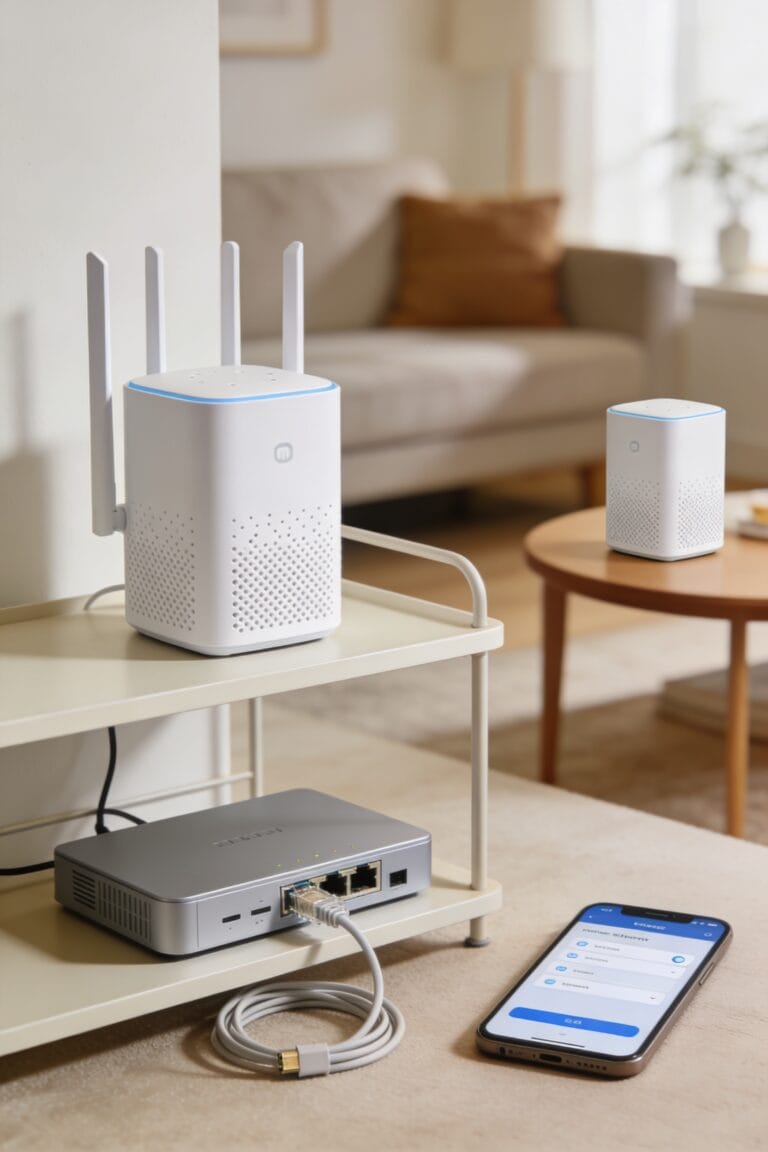
I’d recommend mesh access points strategically placed on each floor, coupled with enterprise switches for redundancy. This setup guarantees you’ll maintain reliable coverage throughout your building while minimizing dead zones and network downtime.
How Do We Troubleshoot Persistent Connectivity Issues After Initial Network Setup Completion?
I’d recommend running signal diagnostics across all zones to identify dead spots or interference. Check your client isolation settings—misconfigured network segmentation often causes connectivity drops. Verify channel optimization and restart access points if issues persist.
Conclusion
You’ve now got all the pieces to strike while the iron’s hot with your business WiFi setup. You’ve assessed your space, chosen solid hardware, installed everything properly, and locked down your security. Test it thoroughly before you declare victory. You’re not done until your team can actually work without cursing your network. Stay on top of maintenance, and you’ll enjoy reliable connectivity for years.