As an Amazon Associate, we earn from qualifying purchases. Some links on this site are affiliate links at no extra cost to you. Our recommendations are based on thorough research and editorial judgment.

How to Fix Double NAT on Your Home Network

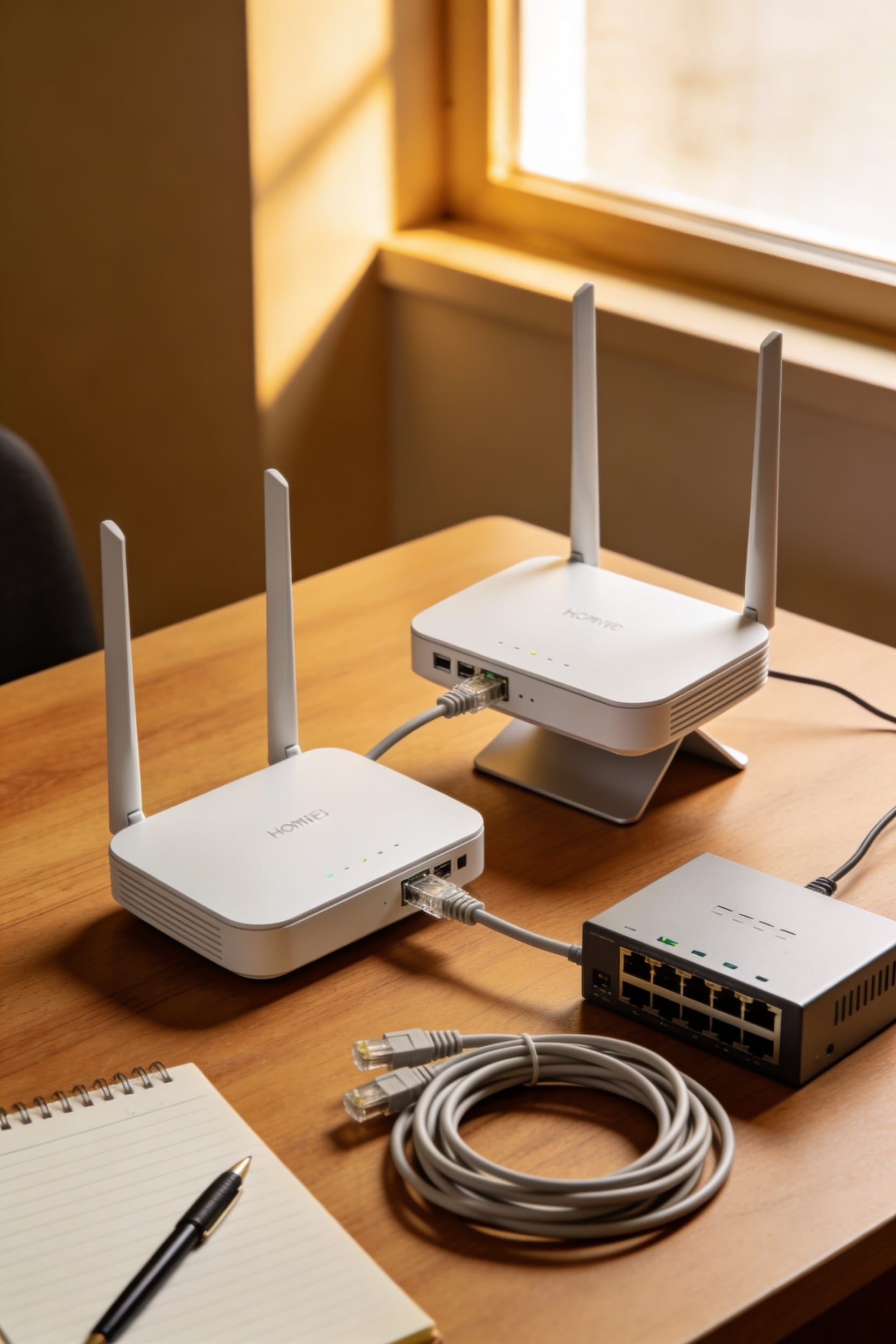
Double NAT happens when two devices translate your internet address instead of one—usually your ISP’s modem-router combo plus your own router—and it wrecks gaming performance and blocks port forwarding. The fix is straightforward: enable bridge mode on your ISP device to turn it into a simple pass-through, or remove it entirely and connect your router straight to the modem. Check whether your public IP matches your router’s WAN IP to confirm it’s gone, then power cycle everything. If it persists, your ISP might be assigning a private address, which requires their help to sort out—though there’s plenty more you should know before you call them.
Key Takeaways
- Enable bridge mode on your ISP modem-router to pass the public IP directly to your secondary router.
- Remove the ISP router entirely and connect your secondary router directly to the modem.
- Switch your secondary router to Access Point mode to eliminate the second NAT layer.
- Confirm the fix by comparing your public IP with your router’s WAN IP—they should match.
- Contact your ISP if double NAT persists to check for private WAN IP or MAC locking issues.
What Double NAT Is and Why It Ruins Gaming and Port Forwarding
double NAT sounds like a boring networking term, but it’s actually the reason your gaming console can’t find decent matches, your security cameras won’t connect from outside your house, and you’re sitting there wondering why your setup feels broken when it actually just has two routers stepping on each other’s toes.
What’s happening is this—you’ve got two devices translating your internet addresses instead of one. Your ISP’s modem-router combo does it first, then your Deco or secondary router does it again. This causes latency spikes that wreck your gaming, asymmetric routing that confuses port forwarding, and strict NAT types that basically lock you out of online play. Your devices can’t talk straight to the internet anymore. They’re basically playing telephone through two middlemen.
How to Confirm You Have Double NAT
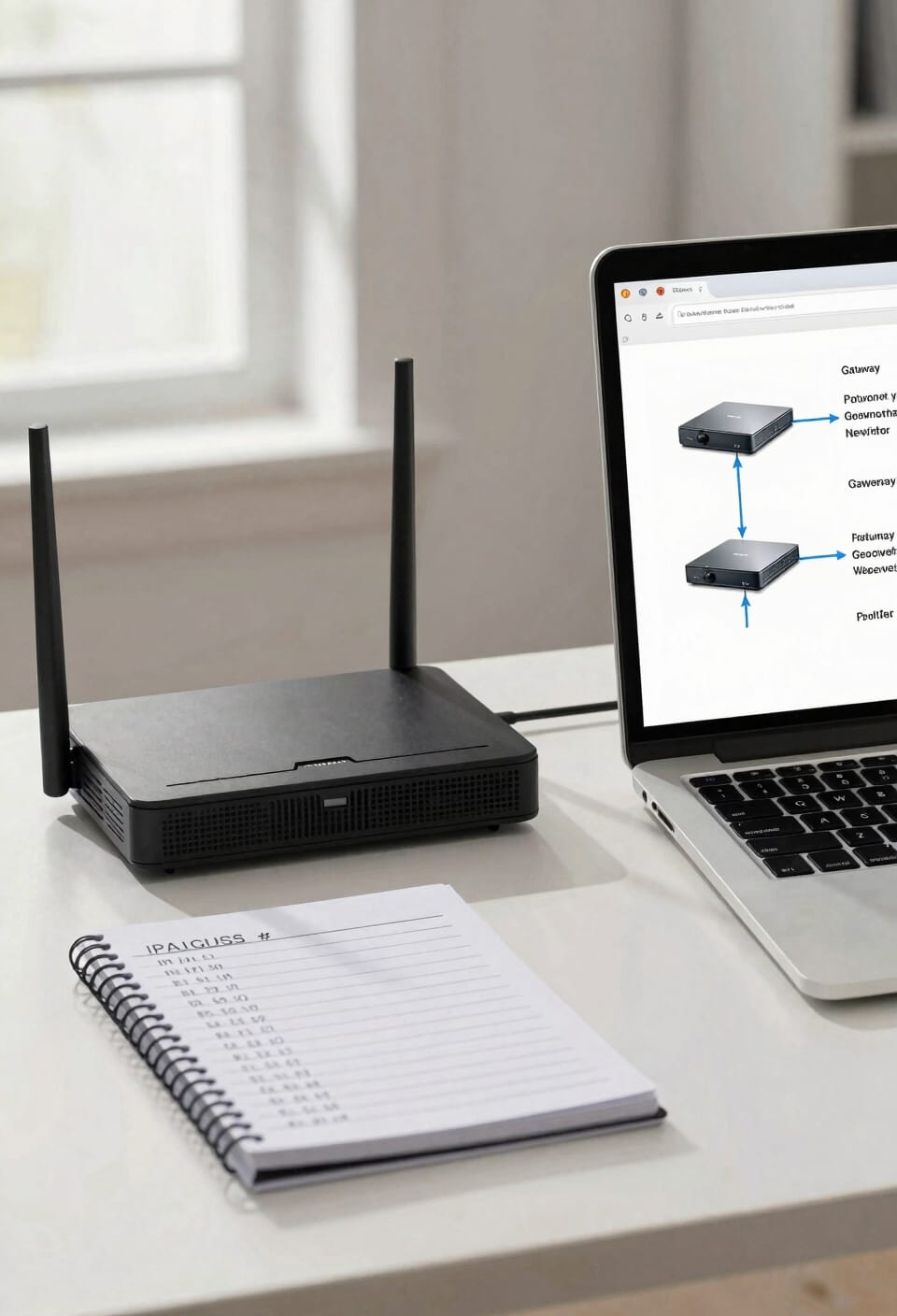
Now that you know what double NAT is and why it’s wrecking your setup, you need to actually confirm whether you’re sitting in one right now. Here’s the thing: it’s simpler than you’d think.
Pull up whatismyipaddress.com on your phone and jot down that public IP—the one your ISP assigns to your whole network. Then check your router’s app. For most mesh systems like Deco, go to More > Internet Connection > IPv4. Compare the two numbers. If they don’t match, congratulations: you’ve got double NAT. That mismatch means two routers are both doing address translation, causing device confusion throughout your network.
You can also check your gaming console’s network settings. It’ll often straight-up tell you if it detects double NAT. Pretty convenient, honestly.
Ask Your ISP First: When You Need Help Before Troubleshooting
Before you start fiddling with router settings and bridge modes, it’s worth having a quick conversation with your ISP—I know, I know, ISP customer support can feel like talking to a very polite brick wall, but hear me out. Your ISP might already know you’re dealing with double NAT. They can clarify whether they’re intentionally assigning you a private WAN IP, which would explain everything. Ask if they offer bridge mode on their modem-router combo or if escalation procedures exist for networking issues. If there’s a service outage affecting your connection quality, that’s worth confirming too. Sometimes billing disputes mask connectivity problems worth investigating separately. Getting answers upfront saves you from troubleshooting problems your ISP created in the first place.
Fix Double NAT via Bridge Mode (Easiest Method)
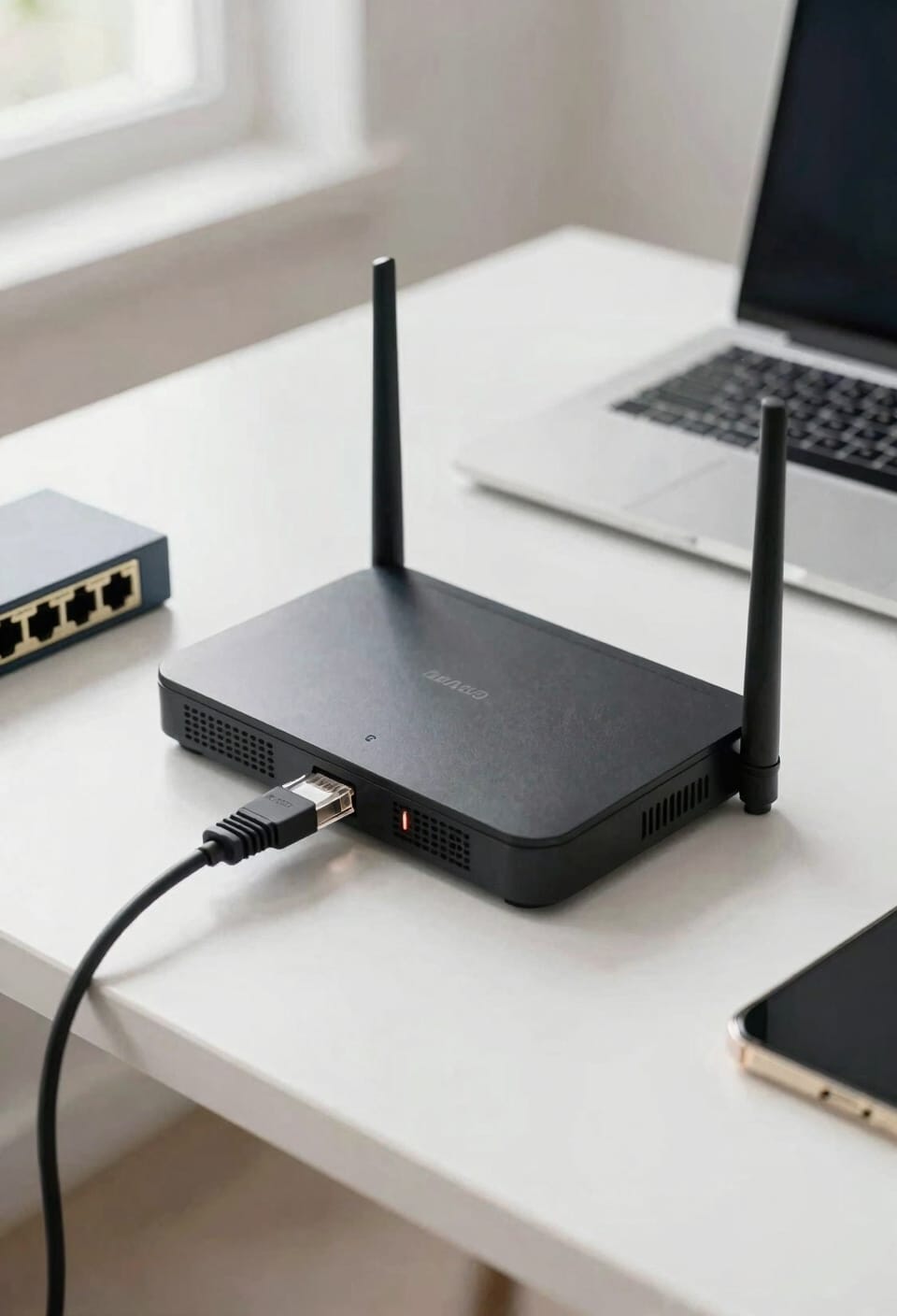
If your ISP’s modem-router combo is the culprit behind your double NAT problem, you’re actually in luck—bridge mode is the fastest way out of this mess. Bridge mode basically tells your ISP’s device to stop doing NAT and just pass the public IP straight to your router. Think of it as demoting your modem from a traffic cop to a simple connector.
Now, here’s the thing: enabling bridge mode requires accessing your ISP router’s settings—usually through a web browser or app. Check your firmware version first; older builds sometimes lack this feature. Once you flip that switch, your ISP device becomes a modem-only operation. Your secondary router handles all the NAT work solo. No bridge troubleshooting needed after that. Single NAT layer restored, gaming lag potentially eliminated.
Fix Double NAT by Removing Your ISP Router Entirely
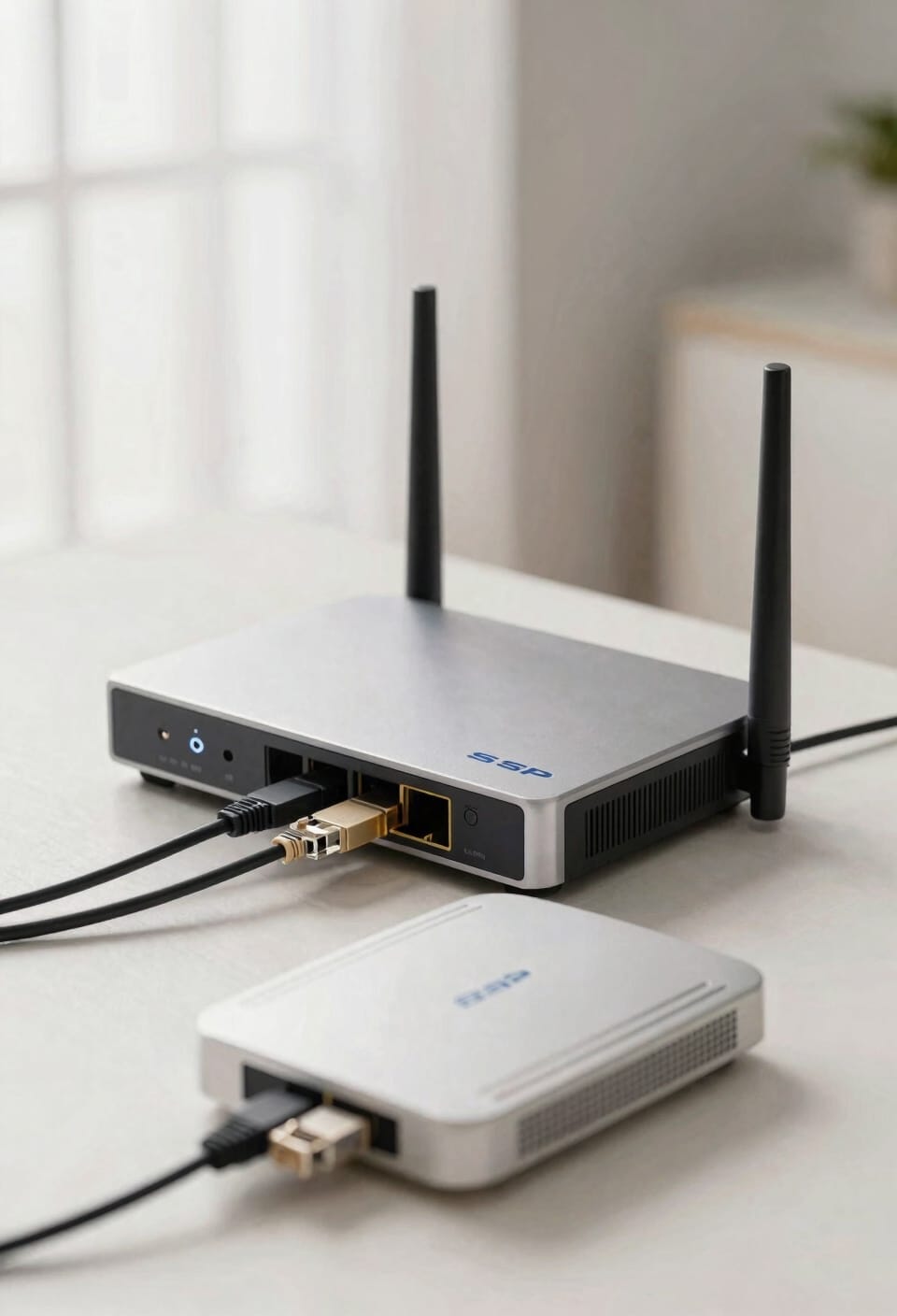
Bridge mode works great if your ISP lets you access those settings, but what if you can’t? Sometimes your best move is ditching that ISP router altogether. Connect your secondary router directly to your modem—that’s the device that converts your ISP’s signal into something your home network can use. This eliminates the double NAT problem entirely because you’re only running one router now.
You might need to power cycle your modem or adjust its MAC address settings for it to recognize your new router. Before you toss your old ISP equipment into router recycling, call your provider to confirm they’ll provision a public IP to your modem. Proper modem placement near your new router keeps your signal strong and your setup clean.
Fix Double NAT With DMZ or Access Point Mode
When bridge mode and router removal aren’t options you can work with, you’ve still got a couple of moves left in your toolkit. First, try switching your secondary router like Deco into AP mode—that’s Access Point mode, meaning it stops doing its own NAT translation and just extends your network instead. Alternatively, you can configure DMZ forwarding on your primary router, which effectively tells it to funnel all incoming traffic directly to your secondary device. Think of DMZ as a dedicated highway bypass around your firewall. Both approaches boil down to the same goal: ensuring only one router handles the NAT translation. It’s not as clean as removing the ISP device entirely, but when you’re stuck, it works.
Diagnose Why Double NAT Persists After Your Fix
You’ve applied one of those fixes—AP mode, DMZ, bridge mode, whatever seemed like your best shot—but you’re still seeing that double NAT warning staring back at you from your router settings or gaming console. Frustrating, right?
Look, sometimes the culprit isn’t your fix itself but what’s running underneath. Firmware conflicts happen when your router and ISP device aren’t communicating properly after changes. Check both devices for pending updates—seriously, reboot after installing them.
Subnet mismatches also trip people up. Your primary router and secondary one might be using overlapping IP ranges, which confuses traffic routing. Verify they’re on different subnets in their settings.
All right, if those checks don’t help, your ISP might still be assigning a private WAN IP. That’s their call to make. Contact them directly.
Test Your Network to Confirm Double NAT Is Gone
After you’ve tweaked your network settings, the real test is whether that double NAT problem actually packed its bags. Start with network verification: head to whatismyipaddress.com and compare that WAN IP—the address your internet service provider sees—against what shows in your router’s settings. They should match now. If they don’t, double NAT’s still hanging around.
Next, tackle latency monitoring. Run a speed test and check your ping times, which measure how fast data travels to servers and back. Higher pings suggest routing inefficiencies. Also test your gaming console or streaming device’s NAT type in network settings. You’re looking for “open” or “moderate,” not “strict.” Port forwarding should finally work too. Everything clicking smoothly? You’ve won.
ISP Blocks, MAC Locking, and Other Stubborn Problems
Despite your best efforts to untangle that double NAT mess, I’ve found that some internet service providers throw up roadblocks that make the whole thing feel like you’re trying to solve a puzzle where the pieces actively don’t want to fit together.
Here’s the thing: some ISPs lock their modems to your router’s MAC address—basically your device’s unique fingerprint. They do this to prevent you from swapping equipment without permission. If you’re trying to remove that ISP device entirely, the modem won’t recognize your new router. You’ll need to contact your ISP and have them re-provision the modem to accept your secondary router’s MAC address. MAC spoofing—copying the original router’s address onto your new device—sometimes works, but it’s sketchy and I’d avoid it if possible.
Avoid Double NAT When Adding Routers or Upgrading Your Setup
The best way to handle double NAT is to avoid creating it in the first place, which means thinking strategically before you plug in that new mesh system or upgrade your router. When you’re adding mesh routing to your setup, check your ISP device first—does it have bridge mode? If yes, enable it before connecting anything else. This converts your modem into a simple pass-through device rather than a second translator. If you’re upgrading entirely, consider replacing both units simultaneously instead of daisy-chaining old and new. Plan your cable management beforehand too; knowing where everything sits makes troubleshooting easier later. The golden rule: one NAT layer, one router handling the translation. That’s it. Everything else is just confirmation you got it right.
Frequently Asked Questions
Does Double NAT Affect My Internet Speed or Latency in Everyday Browsing?
Double NAT typically doesn’t impact your everyday browsing speed noticeably, though bandwidth testing and packet inspection might reveal minor latency increases. You’ll mainly notice issues in gaming or DDNS connections.
Can I Use Bridge Mode if My ISP Router Doesn’t Have That Setting Available?
Studies show 40% of home networks operate unknowingly in double NAT. If your ISP router lacks bridge mode, I’d recommend replacing it entirely—connect your modem directly to your secondary router instead, eliminating the dual translation layer completely.
Will Switching to IPV6 Completely Eliminate Double NAT Issues on My Network?
IPv6 won’t completely eliminate double NAT issues because you might still encounter Carrier Grade NAT from your ISP. I’d recommend exploring IPv6 migration methods and Tunnel setup options alongside Address autoconf for best results.
Is Double NAT Dangerous for My Network Security or Personal Data?
I’ll tell you: double NAT isn’t inherently dangerous, but it creates privacy risks through obscured traffic layers and firewall compatibility issues that weaken your network’s protective shields, potentially exposing vulnerabilities.
How Long Does It Take to Resolve Double NAT After Applying a Fix?
I’d say you’ll resolve double NAT within minutes. Most fixes require just one router reboot to take effect. Depending on your timeframe estimate and reboot frequency, you might see improvements immediately after the devices reconnect to your network.
Conclusion
Look, here’s the thing—double NAT affects roughly 30% of home networks, which means you’ve probably been gaming with an invisible anchor around your leg without knowing it. Now that you’ve walked through these fixes, you’re armed with real solutions. Bridge mode‘s your best friend, and honestly? You’ll feel the difference immediately. Your network’s faster, your ports actually forward, and life’s just better on the other side of double NAT.