As an Amazon Associate, we earn from qualifying purchases. Some links on this site are affiliate links at no extra cost to you. Our recommendations are based on thorough research and editorial judgment.

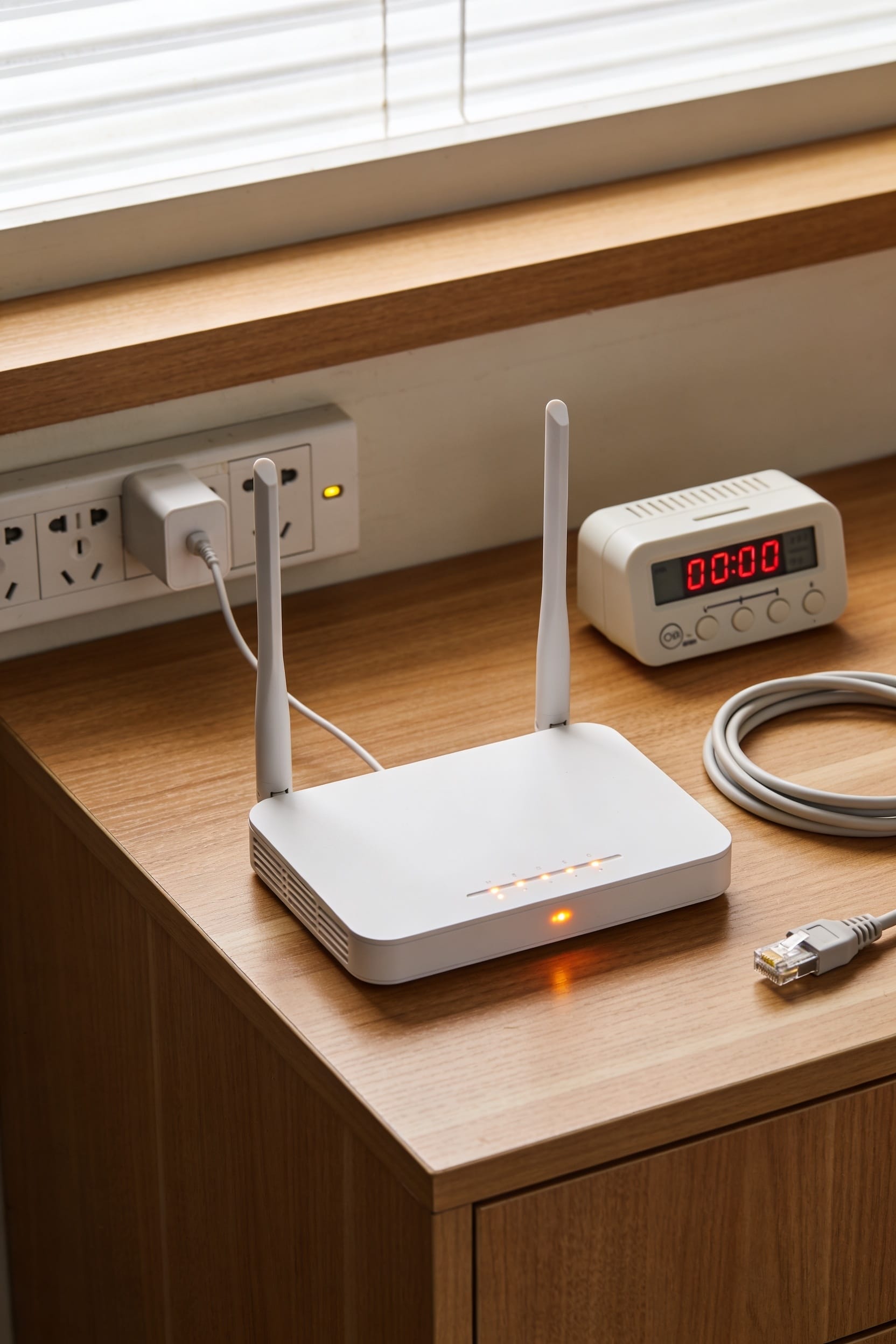
How to Restart Your Router the Right Way

All right, here’s the thing—restarting your router (that’s just powering it off and back on, keeping your settings intact) is genuinely the fix for most connection problems. Unplug it, wait a full 30 seconds so the memory clears, then plug it back in and give it two minutes to reboot. That’s it. No factory reset needed unless you’re in real troubleshooting territory. Most people skip the waiting part and wonder why nothing changed. Don’t be most people. Stick around and I’ll show you exactly what to do when a simple restart isn’t enough.
Key Takeaways
- Unplug the power cable, wait a full 30 seconds, then plug back in to power-cycle your router properly.
- Allow approximately two minutes for the router to fully reboot and reconnect before testing your internet connection.
- A restart preserves your Wi-Fi name and password settings, unlike a factory reset which erases all configurations.
- Monthly restarts clear temporary memory, improve speeds, reduce disconnects, and stabilize connections for better overall performance.
- If restarting fails, restart your modem too, check for firmware updates, or contact your ISP for service issues.
Why Your Router Needs a Monthly Restart
your router is like that coworker who’s great at their job but gets a little weird if you don’t give them a break now and then. Over time, your router experiences performance degradation—basically, it slows down and gets glitchy because it’s been running nonstop without a breather. Think of it like your brain after binge-watching three seasons of a show. A monthly restart clears out the digital cobwebs, refreshes your firmware (that’s the software running inside your router), and gives everything a clean slate. You’ll notice faster speeds, fewer disconnects, and more stable connections across all your devices. It’s not complicated—just unplug it, wait thirty seconds, and plug it back in. Your future self will thank you when Netflix actually loads without buffering.
Restart vs. Reset: Which One Should You Use?
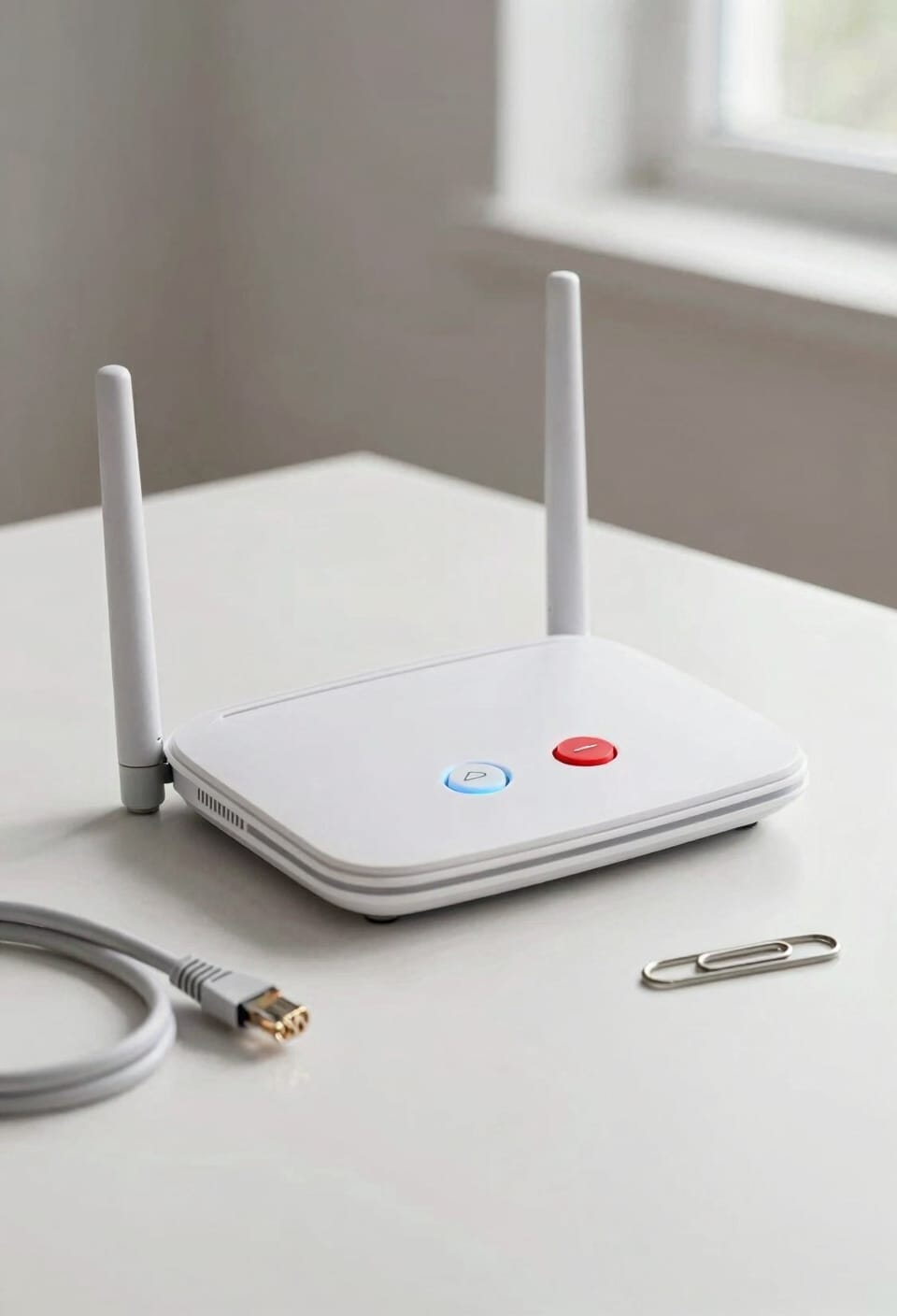
When you restart your router, you’re just power-cycling it—flipping the switch off and back on. Your settings, your Wi-Fi name, your password, everything stays put. It’s like a quick nap for your device.
Resetting, though? That’s the nuclear option. It wipes everything back to factory defaults, meaning you’ll lose your custom configurations and have to set up your router from scratch. You’d access it through the admin panel using an IP address like 192.168.1.1, or you might use a physical button.
For most connection problems, restart first. Reset only when you really need it—or before selling your router.
Step-by-Step Guide to Restarting Your Router
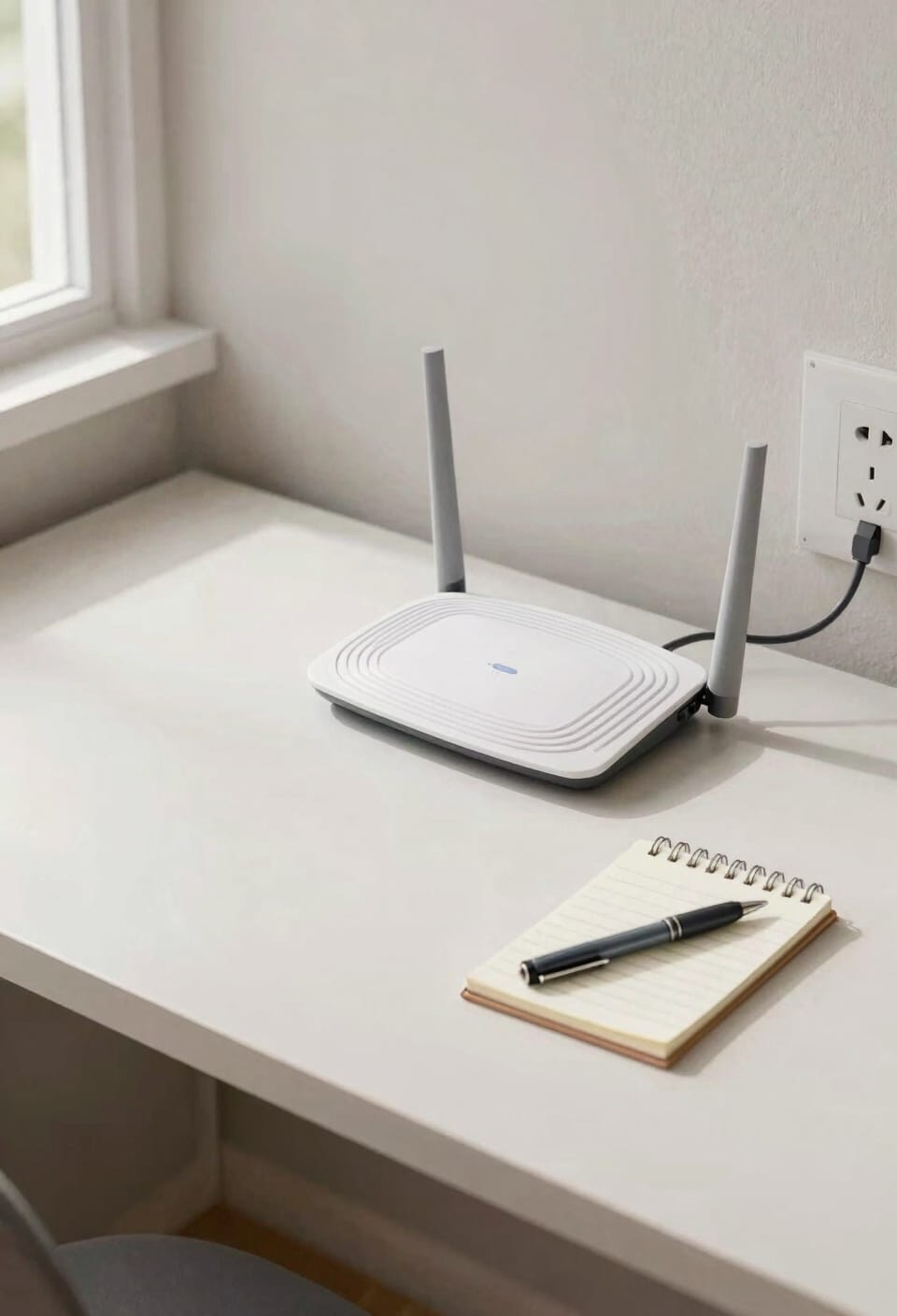
Let’s walk through restarting your router step by step, and I promise it’s easier than it sounds. First, locate your router—it’s probably sitting near your modem, looking like a small box with blinking lights. Unplug the power cable and wait a full 30 seconds. This gives your router time to power cycle, which means it shuts down completely and clears its memory. Think of it as a quick nap that refreshes everything.
Now plug it back in and flip the power button if it has one. Give your router about two minutes to fully reboot and reconnect to your internet. You’ll know it’s working when those lights settle into their normal pattern. A monthly power cycle keeps your firmware running smoothly and prevents most connection hiccups. That’s it.
How Long to Wait Before Plugging Back In?
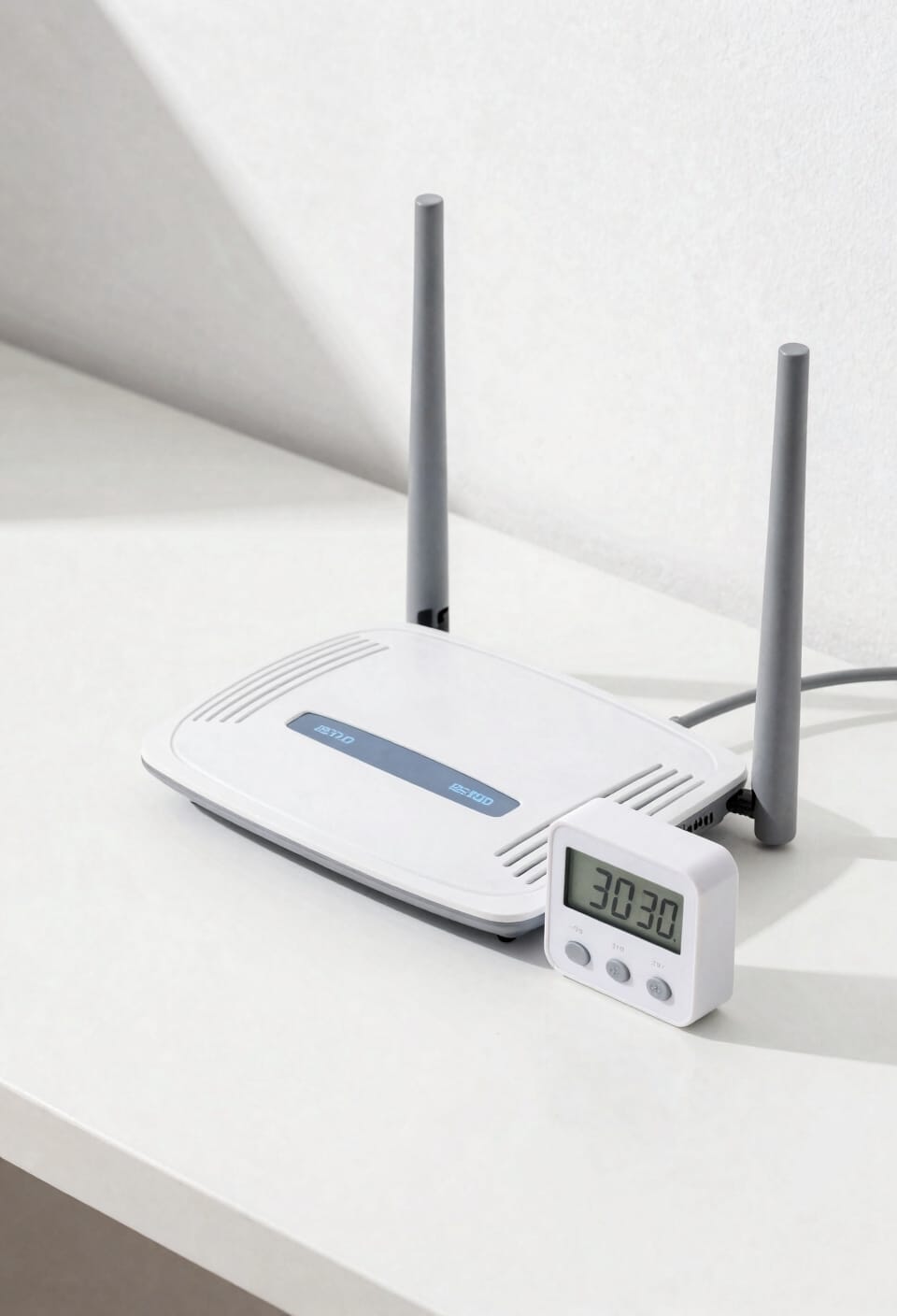
Timing matters more than you’d think when you unplug your router, and I’ve seen people skip this step and wonder why their connection still feels wonky. Here’s the thing: that 30-second wait duration isn’t arbitrary. Your router’s memory needs time to fully clear—think of it like giving your device a proper nap instead of a quick blink. I’d recommend waiting the full 30 seconds minimum, though I won’t judge you if you hit 45. The reboot timing afterward is what really counts though. Once you plug back in, give it a solid two minutes before expecting anything. Your router needs that time to fully restart and reconnect to the internet. Rushing this part defeats the whole purpose of restarting in the first place.
What to Do If Restarting Doesn’t Fix the Problem
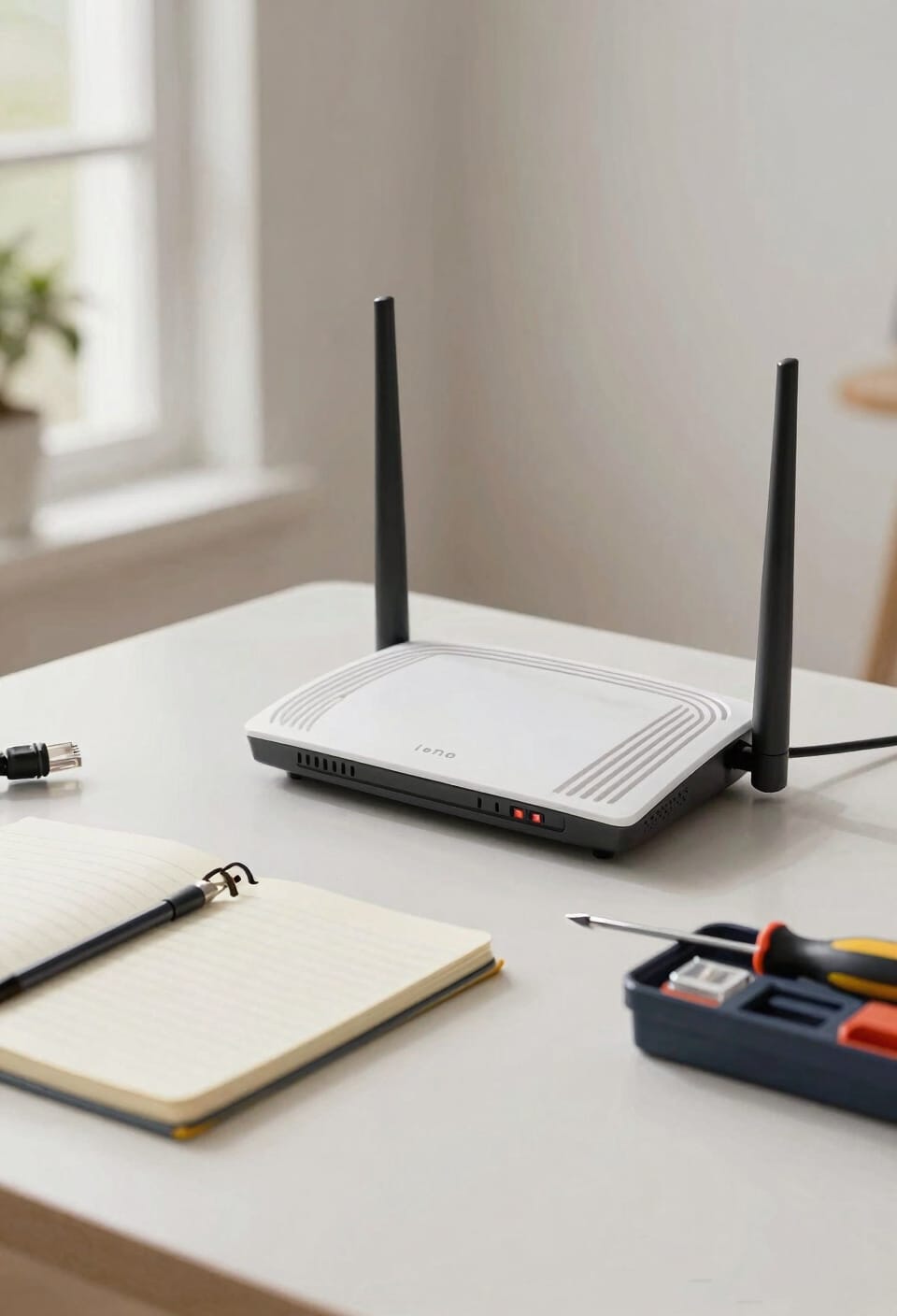
If your router still won’t cooperate after you’ve waited the full 30 seconds and given it those two minutes to reboot, don’t panic—you’ve got options. First, check whether your modem (the device that brings internet into your house) needs restarting too. Unplug it, wait 30 seconds, and plug it back in alongside your router.
If that doesn’t work, look for firmware updates—basically software patches that fix bugs. Most routers let you check for these through their admin panel or mobile app. You might also contact your ISP to confirm their service is actually running on their end. Sometimes the problem isn’t your equipment at all. They’ll tell you straight up if something’s down in your area.
Frequently Asked Questions
Can I Restart My Router While Devices Are Connected Without Causing Damage?
Yes, I can safely restart my router while devices are connected without causing damage. Your devices won’t experience harm, though they’ll temporarily lose internet during the reboot. Background updates may pause briefly, but they’ll resume once reconnection completes.
Will Restarting My Router Delete My Saved Wi-Fi Passwords and Network Settings?
I’ll keep your saved credentials safe—imagine you’ve stored a dozen Wi-Fi passwords; restarting won’t touch them. You’re only power cycling the device, so your network retention and settings remain intact.
What’s the Difference Between Restarting and Unplugging My Router Completely?
Unplugging your router completely performs a cold reboot, while restarting uses the power button for a soft reset. Both cycle power, but unplugging fully clears memory. I’d recommend unplugging for better results.
How Often Should I Restart My Router if I Experience Frequent Disconnections?
If you’re experiencing frequent disconnections, I’d recommend scheduled reboots monthly as preventative maintenance. However, you shouldn’t need daily resets. If problems persist, try restarting whenever disconnections occur, then contact support.
Can I Use a Mobile App to Restart My Router Remotely?
Yes, you can. Many manufacturers offer mobile apps—like Netgear’s—that let you remotely reboot your router. I’d recommend downloading your brand’s specific app for convenient remote restarting.
Conclusion
Look, you’ve got this. A monthly restart takes two minutes and can boost your speeds by up to 30 percent—that’s real. It’s the easiest fix you’ve got before calling your internet provider and waiting on hold. Your router’s doing heavy lifting 24/7, so give it a break. You’ll notice the difference, I promise.