As an Amazon Associate, we earn from qualifying purchases. Some links on this site are affiliate links at no extra cost to you. Our recommendations are based on thorough research and editorial judgment.

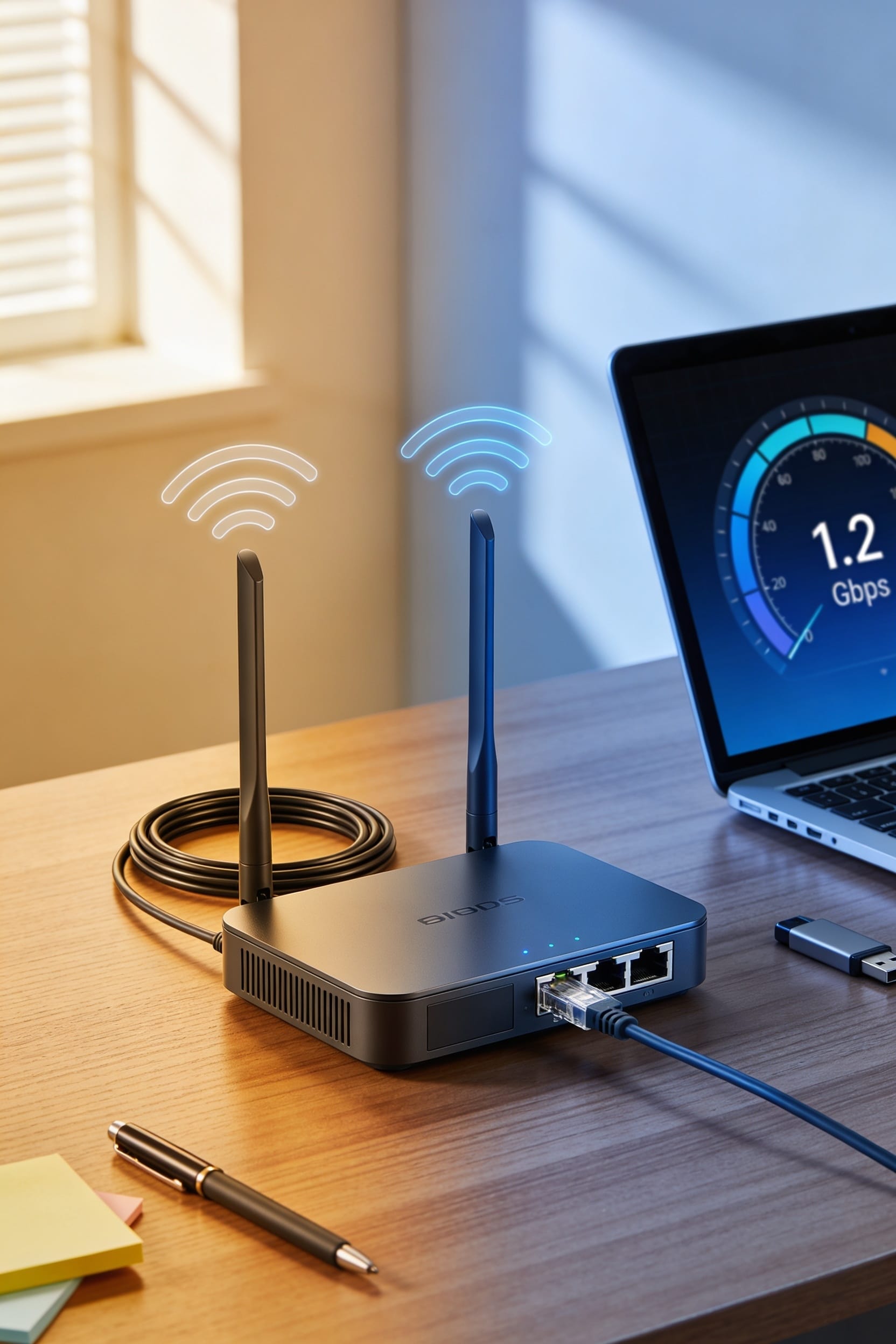
Why Is WiFi Slower Than Ethernet? (And How to Fix It)

Wi-Fi shares its radio waves with every device nearby, so your signal competes for airtime instead of getting a dedicated lane like Ethernet does. Distance, walls, and older equipment make it worse—your router might be struggling, your cables might be outdated, or something’s misconfigured in your network settings. Start by plugging directly into your modem with an Ethernet cable to test your actual internet speed, then work backward from there to figure out what’s slowing you down before you pay for faster service you don’t need.
Key Takeaways
- Wi‑Fi shares airwaves between devices while Ethernet provides direct wired connections, eliminating competition for bandwidth.
- Distance and physical obstacles weaken Wi‑Fi signals, forcing devices to automatically downshift to slower, more reliable speeds.
- Faulty cables, network cards, and budget routers create hardware bottlenecks that throttle both Wi‑Fi and wired performance.
- Misconfigured firewalls, VLAN assignments, and MTU settings can severely impair wired network speeds despite capable hardware.
- Test direct modem connection via Ethernet to establish baseline speed and isolate whether router or ISP causes slowdowns.
Why Wi-Fi Can’t Match Ethernet Speed
when you break down the fundamental specs, Wi-Fi’s got an uphill battle from the start. Most Wi-Fi standards max out around 54 Mbps, while Ethernet typically delivers 100 Mbps straight out of the box. That’s not even close. The problem? Wi-Fi operates as a shared medium—meaning every device on your network competes for the same airwaves. It’s like trying to have a phone conversation in a crowded room where everyone’s talking at once. Plus, there’s protocol overhead involved. Wi-Fi has to handle error-checking and signal management that eats into your actual data speed. Wired Ethernet? It’s a direct line. No sharing, no overhead drama. It’s just faster by design.
How Signal Loss Degrades Speed Over Distance

Because Wi-Fi travels through the air instead of down a cable, distance and physical obstacles become your enemy in ways that wired connections never have to worry about. As you move farther from your router, signal attenuation—that’s the weakening of your wireless signal—kicks in hard. Your device automatically downshifts to slower, more reliable speeds to compensate. Walls, floors, and furniture don’t help either. This throughput degradation compounds the problem. Each obstacle your signal passes through forces your router and device to work harder just to maintain connection. The result? You’re getting maybe half the speed you’d get standing ten feet away. It’s frustrating, but it’s physics. Wired Ethernet doesn’t care about distance or walls because the signal’s literally traveling down a protected cable. That’s one reason it wins every time.
Hardware Bottlenecks: When Your Equipment Limits Wi-Fi or Ethernet Speed?
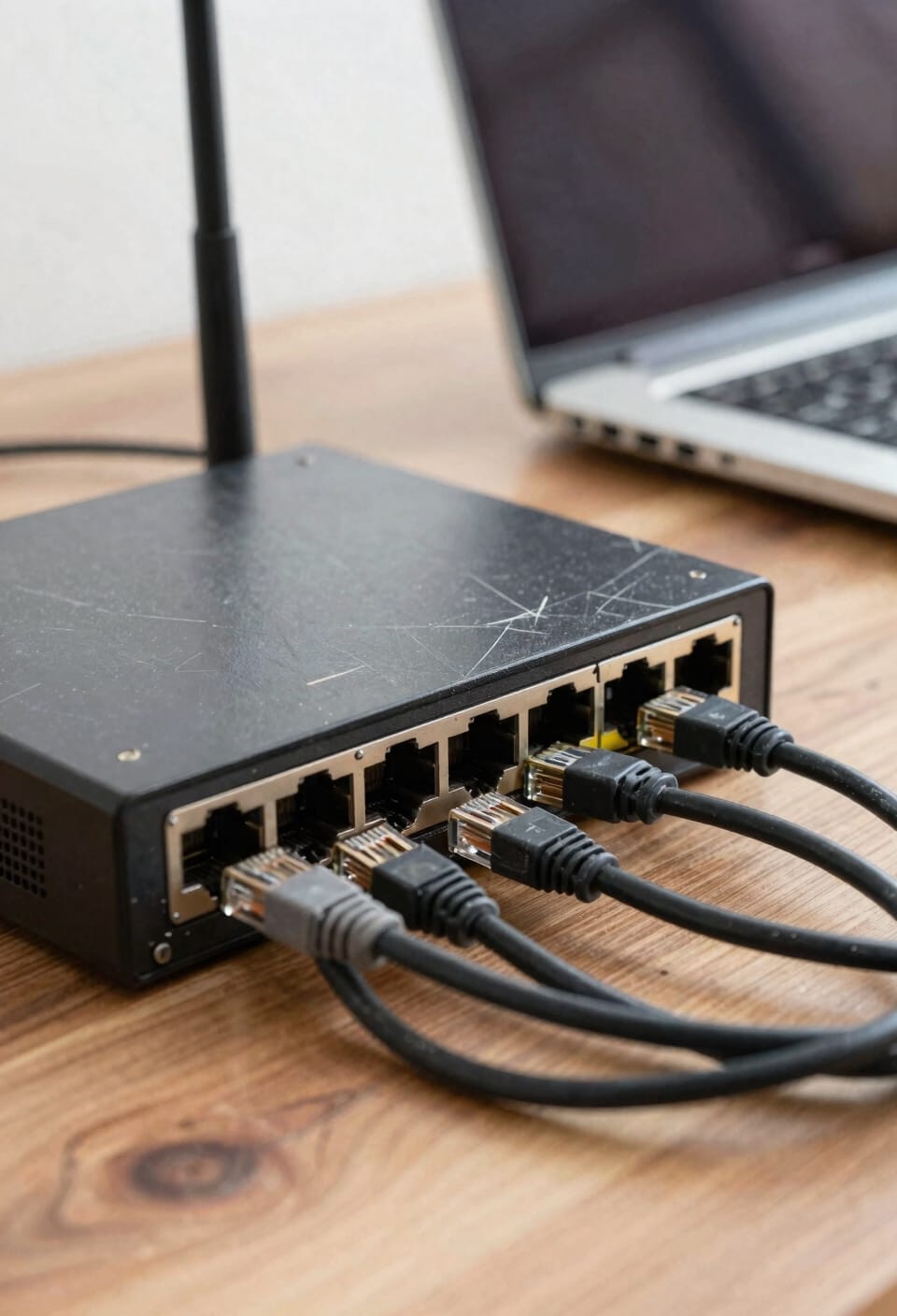
Your router and network cards aren’t always the speed demons you think they are. Faulty NICs—those are the network interface cards inside your devices that actually handle the connection—can bottleneck your speeds whether you’re on Wi-Fi or wired. Cable degradation matters too. Old Ethernet cables that don’t meet modern standards like Cat6 will throttle your connection faster than you’d expect. Budget routers with weak processors struggle juggling multiple devices at once. Auto-negotiation failures, where your equipment can’t agree on speed settings, create mismatches that leave you frustrated. The fix? Upgrade your cables, swap out aging routers, and replace those faulty NICs. Sometimes the slowdown isn’t about your internet at all—it’s just tired equipment holding you back.
Network Configuration Problems That Kill Wired Speed
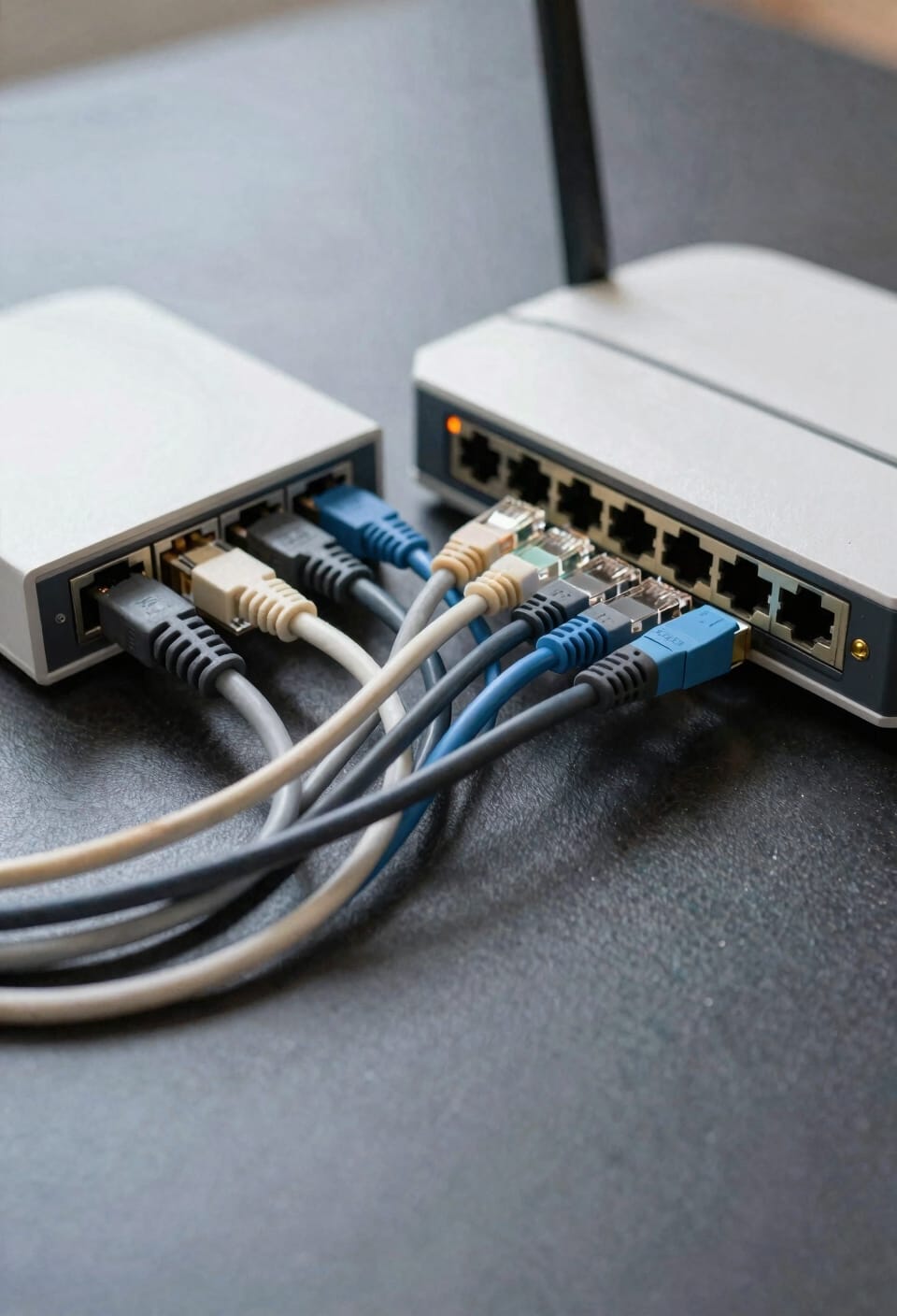
Even shiny new hardware can’t save you if your network settings are misconfigured—and I’ve seen this trip up more people than you’d think. Here’s the thing: misconfigured firewalls can throttle your wired speeds without you realizing it, and VLAN misassignment (that’s when devices get sorted into the wrong virtual network sections) will absolutely crater your connection. I once spent two hours troubleshooting a client’s slow Ethernet, only to discover their MTU settings were forcing data into tiny chunks. Wrong TCP/IP configurations do the same damage. Your router might be brilliant, but if your settings are fighting each other, you’re basically driving with the parking brake on. Check those configurations before you blame the hardware—trust me.
How to Diagnose Whether It’s Your ISP, Equipment, or Network?
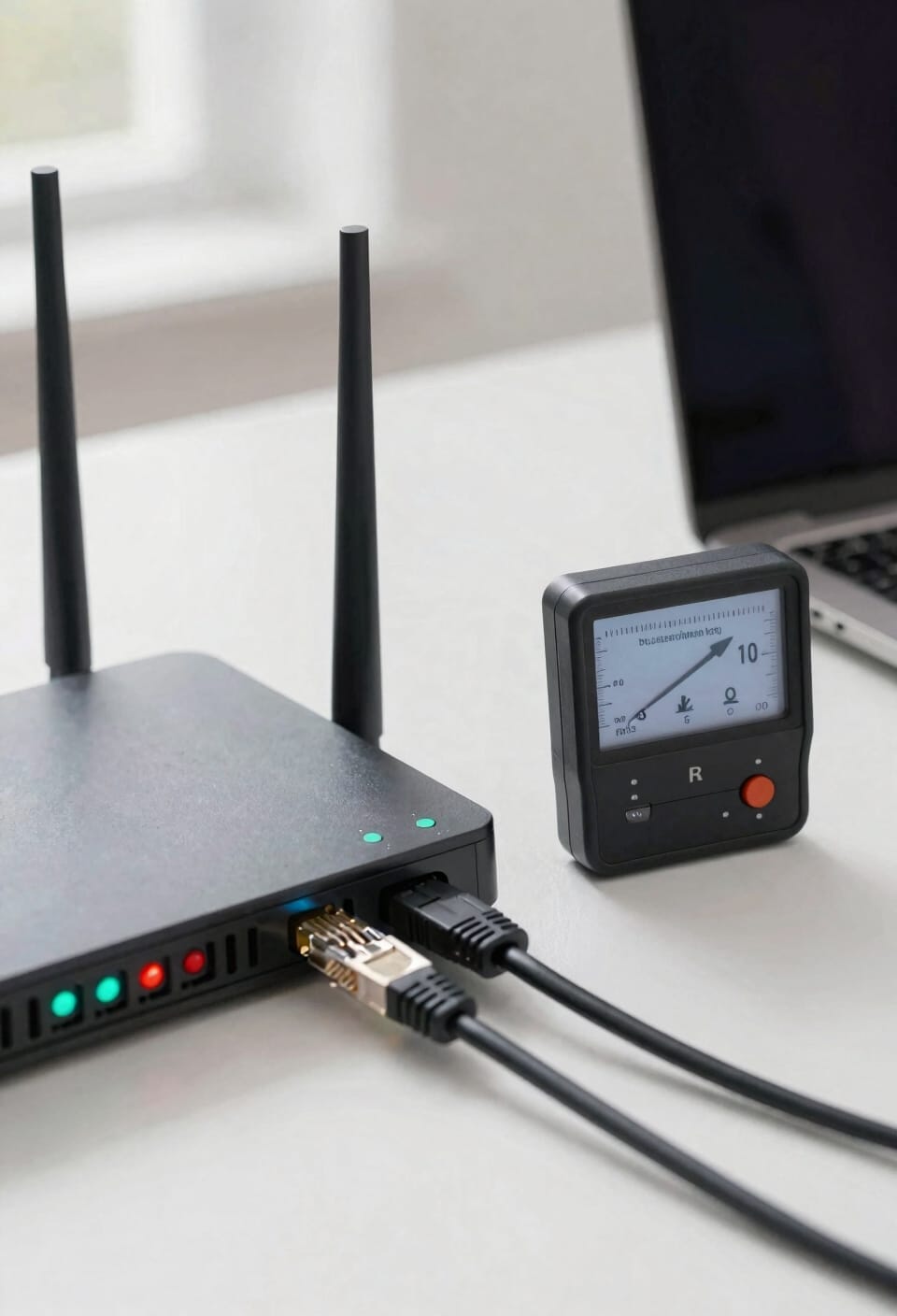
How do you actually know where the problem lives—is it your internet provider throttling you, your router taking shortcuts, or some misconfiguration silently sabotaging your speeds? Start by connecting directly to your modem with Ethernet. If speeds jump dramatically, your router’s the culprit. Still slow? Contact your customer support and ask about your plan’s actual speeds. Check your speed history by running tests at different times—ISPs often throttle during peak hours. Ask them directly: are you getting what you’re paying for? Next, examine your equipment. Old cables and outdated network cards kill performance. Finally, verify your router settings aren’t misconfigured. You’d be surprised how often the answer hiding there solves everything.
Test Your True Connection Speed With Direct Ethernet
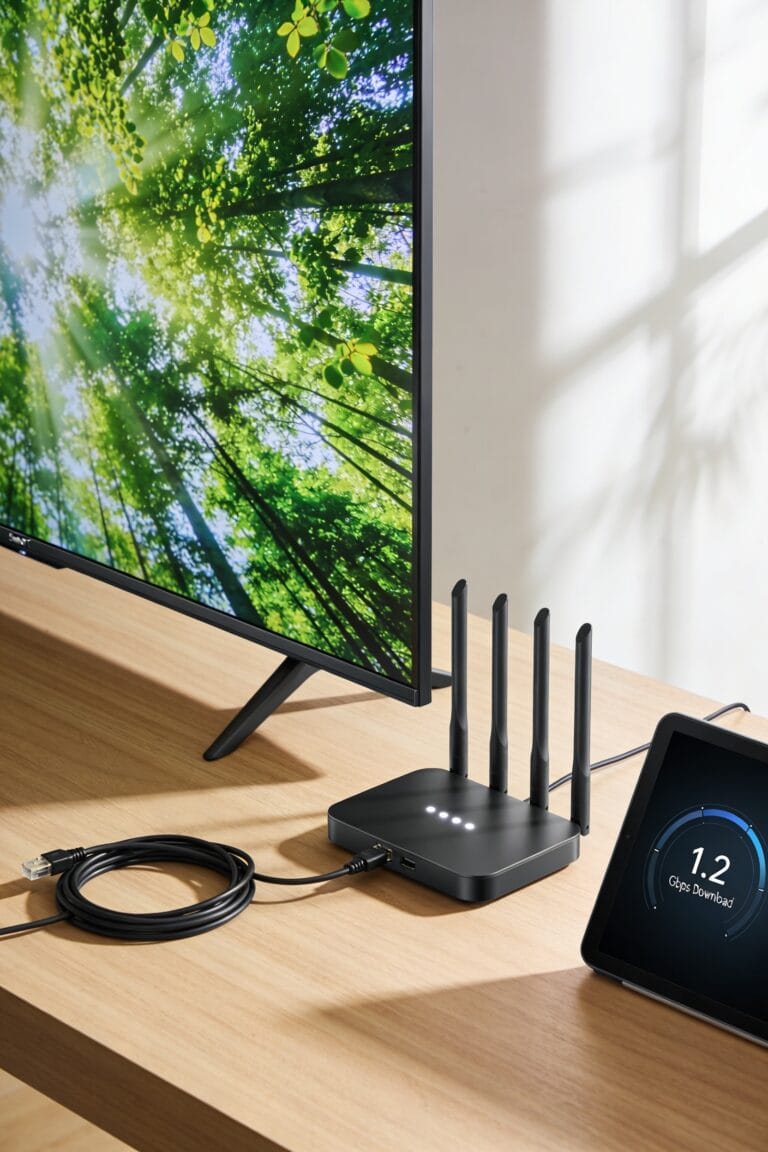
Direct Ethernet testing is where the rubber meets the road. Connect your device straight to your modem using an Ethernet cable—that’s your direct modem connection, bypassing the router entirely. This gives you your baseline benchmark, the actual speed your ISP’s delivering without any wireless interference or router bottlenecks getting in the way.
Run a speed test this way, then run another over Wi-Fi from the same spot. The difference tells you everything. If wired and wireless are basically identical, your ISP’s the limiting factor. If Ethernet blows Wi-Fi away, you’ve got a router or signal problem worth fixing. It’s simple, takes five minutes, and honestly, everyone should do this before spending money on upgrades.
Boost Your Wi-Fi Speed: Cables, Cards, and Router Upgrades
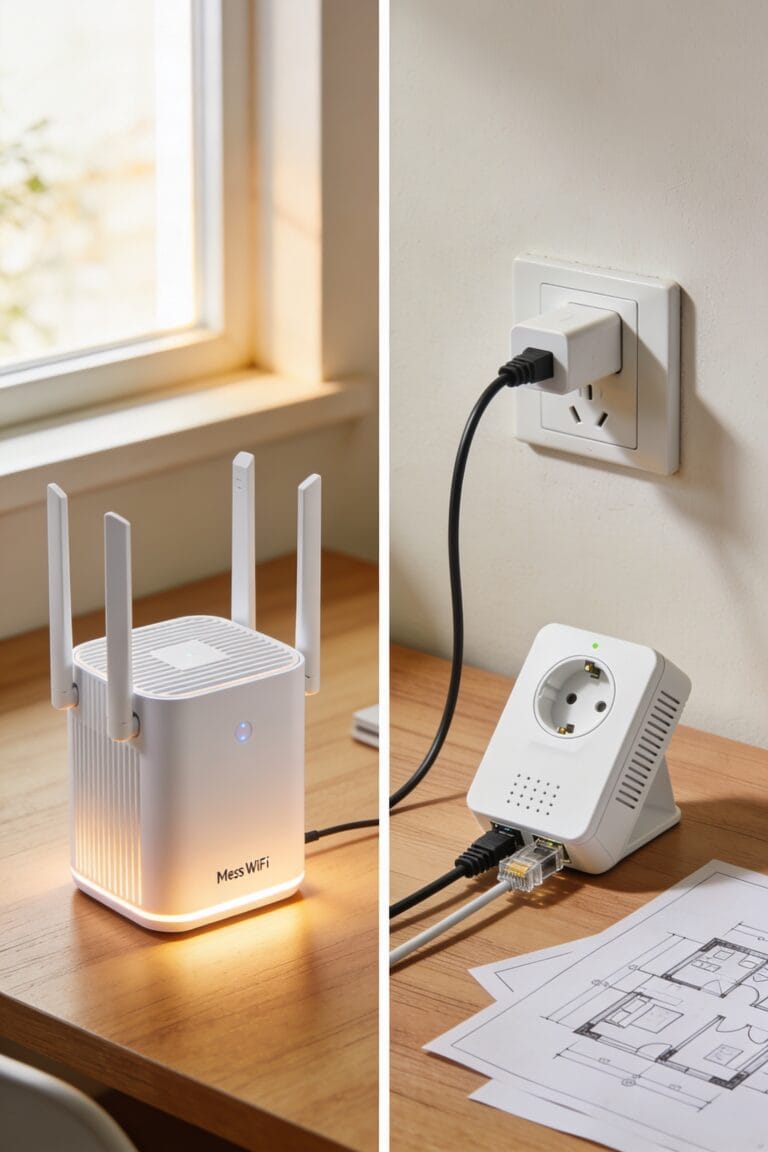
Once you’ve identified that your Wi-Fi’s the problem—not your ISP or your modem—it’s time to actually do something about it. Start with the basics: upgrade to Cat6 cables (they’re thicker and handle faster speeds better) and replace old network cards if you’re using ancient equipment. Now, here’s where it gets fun. A mesh networking system—basically multiple routers talking to each other—covers your whole home without dead zones. Antenna placement matters too; position them perpendicular to each other for better coverage. If mesh feels like overkill, upgrading your router alone often helps. Look for newer models with better processors that won’t choke under pressure. You’re effectively giving your Wi-Fi the infrastructure it deserves.
Upgrade Your Speed Plan or Troubleshoot First: A Decision Guide
Before you drop money on a faster internet plan, you’ve got to figure out whether the problem’s actually your ISP or something you can fix yourself—because I’ve seen plenty of people pay for gigabit speeds only to discover their router’s been the real culprit all along.
Here’s your timing checklist: First, test your wired connection directly to the modem. If that speed matches your plan, the issue’s your Wi-Fi setup, not your ISP. Budget considerations matter here—fixing cables or upgrading your router costs way less than bumping to a faster plan you don’t need yet.
Only upgrade your speed plan after you’ve eliminated equipment problems. Otherwise, you’re throwing money at the wrong problem, and honestly, that stings.
Frequently Asked Questions
Can Wi-Fi Extenders Actually Improve Speeds, or Do They Just Extend Range?
I’ll be honest—Wi-Fi extenders primarily extend range, not speed. They suffer from signal attenuation and halve bandwidth. I’d recommend mesh networking instead, which maintains stronger connections throughout your space.
What’s the Difference Between Cat5e and Cat6 Cables for Ethernet Performance?
Cat6’s like upgrading from a narrow hallway to a superhighway. I’d say Cat6 handles higher bandwidth overhead through shielded pairs, reducing crosstalk and supporting faster speeds than Cat5e’s older architecture.
How Do Data Caps Affect Wi-Fi Versus Ethernet Connection Speeds Differently?
Data caps don’t discriminate between Wi-Fi and Ethernet—they’ll throttle both equally once you’ve hit your limit. However, I’ve found that data throttling during peak congestion often impacts Wi-Fi users more severely due to existing wireless limitations.
Should I Connect Directly to the Modem or Always Use a Router?
You should use a router for most situations because it provides network management and device connectivity benefits. Direct modem connection only works when you’re testing true speed potential with a single device.
Does Switching ISP Providers Guarantee Faster Speeds Than My Current Plan?
I can’t guarantee you’ll escape the tortoise’s pace with a new ISP. Your ISP upgrade depends on available plans in your area and contract terms—switching providers only helps if they offer genuinely faster speeds than your current plan.
Conclusion
Look, you’ve got options now. Whether you’re taking the ethernet route—a more permanent arrangement, shall we say—or finally investing in that router upgrade you’ve been postponing, you’re armed with real knowledge. You know what’s holding you back. That’s half the battle. Go test your speeds, figure out what’s what, and stop accepting slow internet like it’s just part of life. You deserve better than that.