As an Amazon Associate, we earn from qualifying purchases. Some links on this site are affiliate links at no extra cost to you. Our recommendations are based on thorough research and editorial judgment.

How to Change Your Router Password the Right Way

All right, here’s what you actually need to do: find your router’s IP address (usually 192.168.1.1), log in with the default credentials on the sticker, then navigate to your wireless settings and swap that factory password for something strong—at least 16 characters, mix of words and numbers. Save it, reconnect your devices, and if your router supports WPA3 encryption, enable it. Stick around for the specific steps that’ll make this process actually painless.
Key Takeaways
- Locate your router’s default IP address, username, and password from the device sticker or manual before accessing the admin console.
- Log into your router’s admin panel via web browser, navigate to wireless/security settings, and change your Wi‑Fi password there.
- Create a strong password of at least 16 characters using a password manager to generate and securely store credentials.
- Reconnect all devices to your network using the new password and test connectivity across multiple devices to verify changes.
- Enable WPA3 encryption if supported and update router firmware regularly to maintain security and protect against vulnerabilities.
Gather Your Router’s IP Address, Username, and Default Password
Before you can change your router’s password, you’ll need to track down three pieces of information: your router’s IP address (that’s the numerical web address you’ll type into your browser to access your router’s control panel), your default username, and your default password. Look, the easiest place to find this stuff is right on your router itself. Check the sticker on the bottom or back—it’s usually printed there along with the Wi-Fi network name. If that sticker’s missing or faded, grab your router’s model number from the box or manual, then do a quick model lookup online. Most routers use 192.168.1.1 or 192.168.0.1 as their IP address, and the username and password are often just “admin” for both. Your manual or manufacturer’s website confirms everything.
Access Your Router’s Admin Console
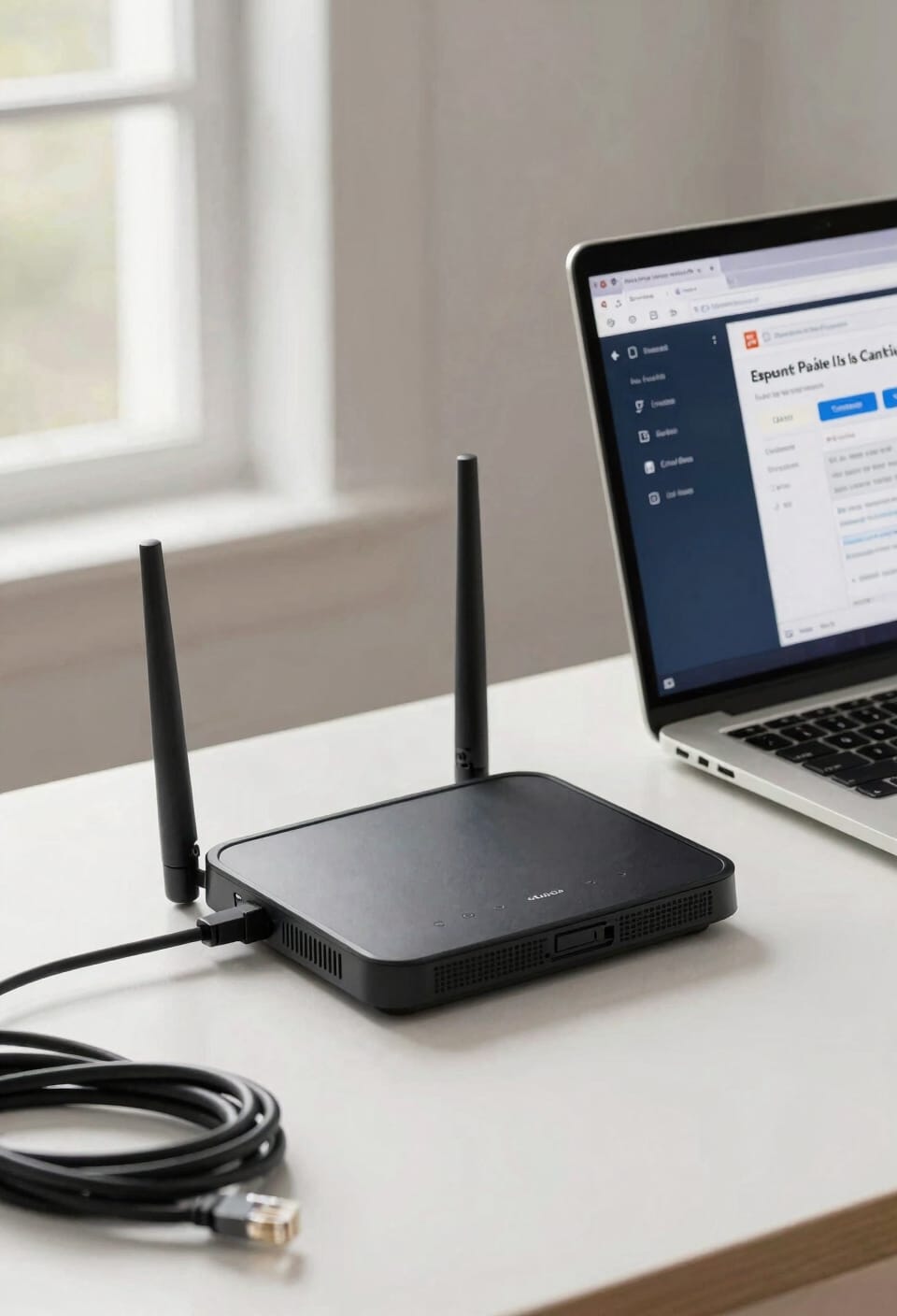
Now you’re ready to fire up your router’s admin console—that’s the control panel where all the magic happens, basically a webpage that lives inside your router itself. Open your web browser (Chrome, Firefox, Edge—whatever you’ve got) and type that IP address into the address bar. Hit Enter. You’ll land on a login page asking for your username and password—remember those defaults you grabbed? Type them in. If you’re on mobile and the full website feels cramped, don’t sweat it. Most routers have mobile apps now that make this easier, though honestly, a regular browser works fine. If nothing loads, double-check your WiFi connection. You’re physically on the router’s network, right? That’s the essential first step.
Find Your Wi-Fi Password Settings
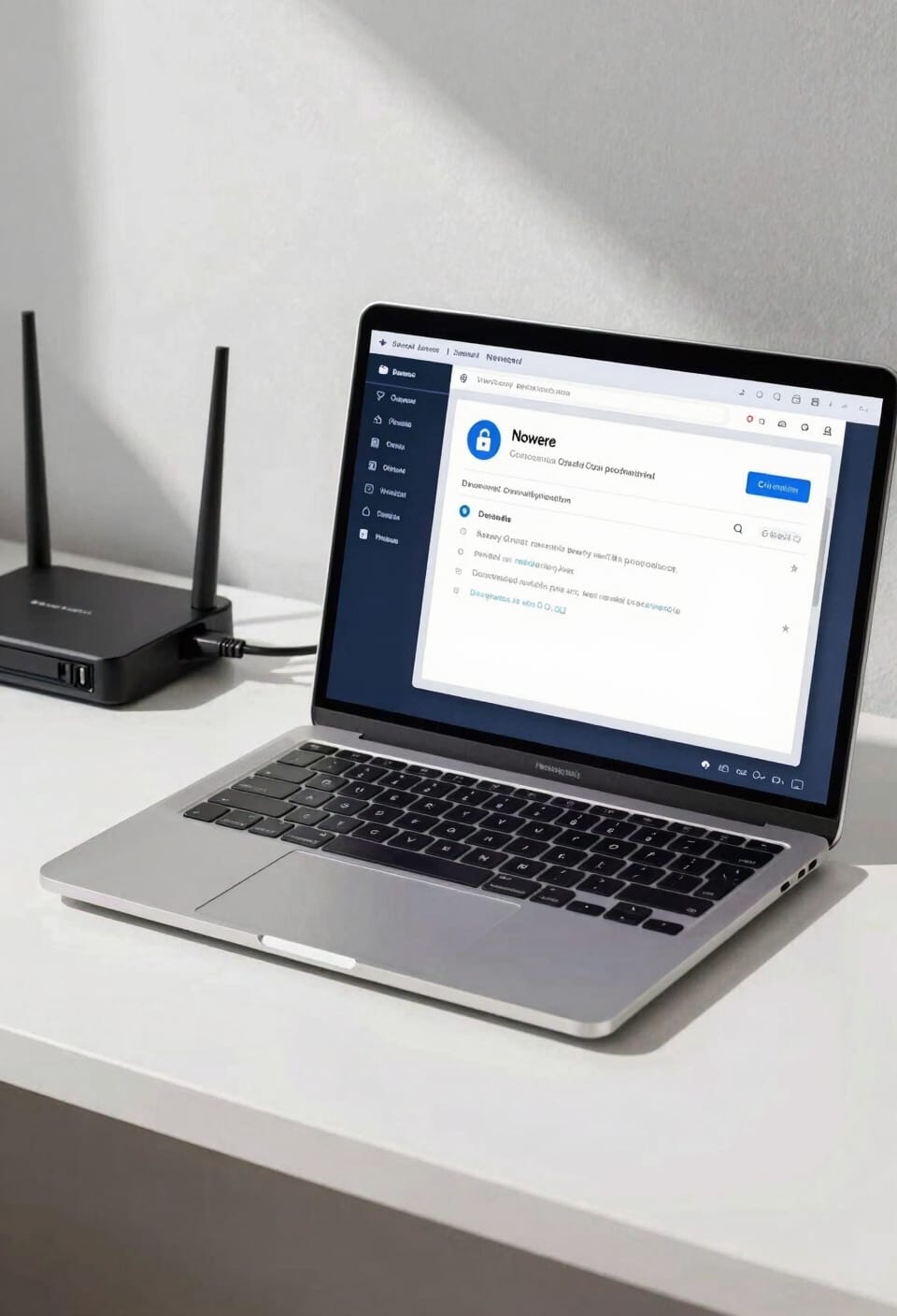
Once you’ve logged in, you’ll need to dig through your router’s menu to find the wireless security section—that’s where all your password settings live. Look for tabs labeled “Wireless,” “Wi-Fi,” or “Security.” If you’re running a dual-band router (that’s a router broadcasting both 2.4 GHz and 5 GHz networks simultaneously), you’ll probably see these bands listed separately. You can keep the passwords identical or make them different—your call.
While you’re in there, you’ll also spot SSID visibility settings, which control whether your network name shows up when people scan for available networks. Some folks hide theirs for security theater, though it’s debatable how much it actually helps. You might also see Guest networks, which let visitors connect without accessing your main devices. Handy feature if you’ve got houseguests who need internet but shouldn’t roam your personal files.
Create a Strong, Unique Password
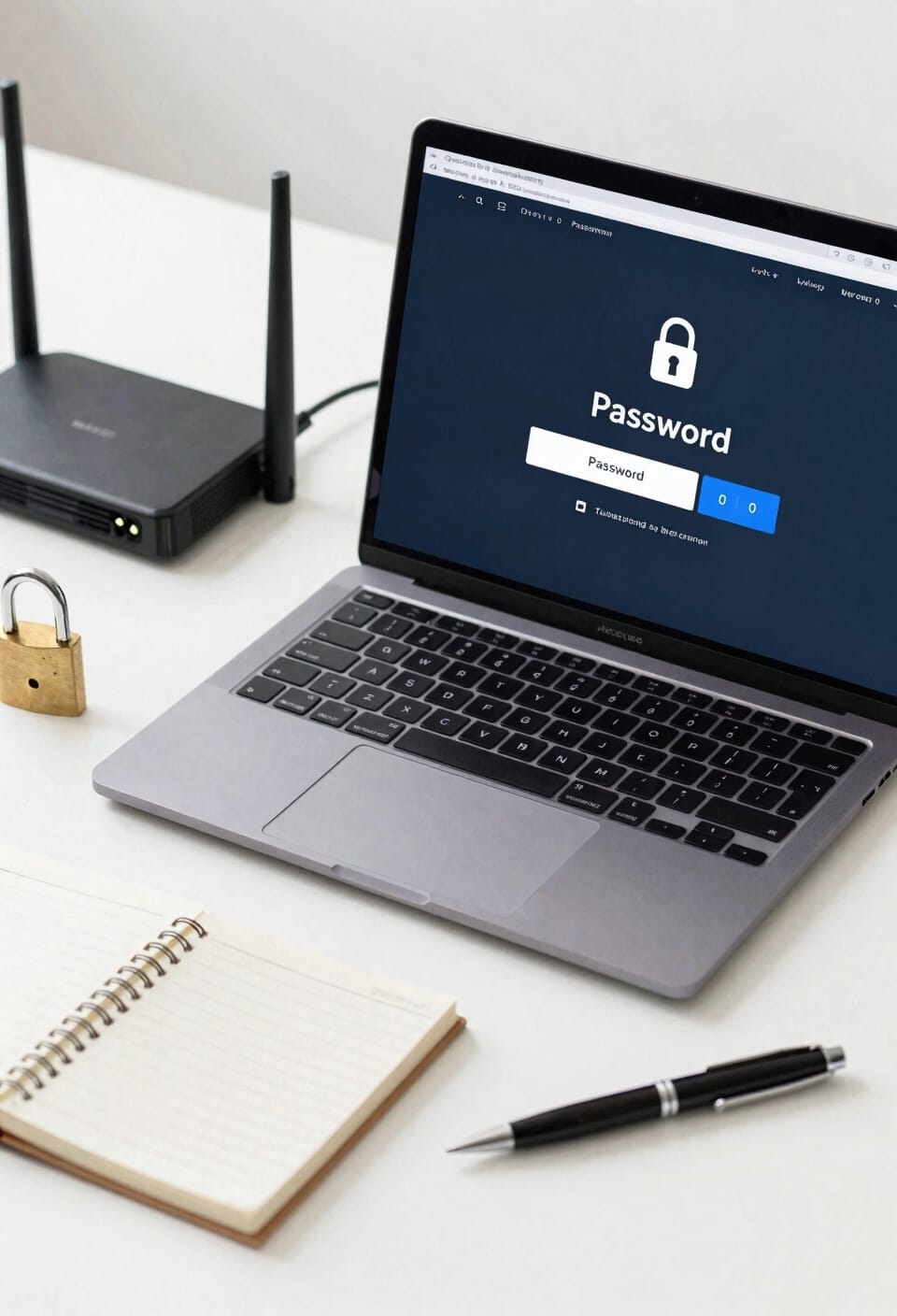
You’ve found where your password lives, so now comes the part where you actually make it good. Look, a strong password isn’t just about throwing random characters together—it’s about creating something that’d take a hacker forever to crack but that you’ll actually remember.
I’d recommend using a password manager, which is software that stores and generates secure passwords for you, so you don’t have to memorize anything complicated. If you want to go manual, try a passphrase generator—basically a tool that strings random words together into something like “BlueGiraffe-Tennis-Sandwich47.” Those are way easier to remember than “Kx9@mL2pQ!”
Avoid your birthday, pet’s name, or anything someone could guess. Make it at least 16 characters if possible. Your router’s security depends on this one decision, so don’t phone it in.
Save Your New Password and Verify the Change
After you’ve typed in that shiny new password and hit the save button, your router will typically sign you out of the admin console—that’s the control center where you make all these changes—and might even reboot itself to lock in the new settings.
Now here’s where most people stumble: they forget what they just created. I’d strongly recommend storing that new password in a password manager like Bitwarden or 1Password, which keeps everything encrypted and organized. Alternatively, jot down a printed backup and stash it somewhere safe at home—not stuck to your router.
Once your router finishes rebooting, reconnect your devices using that new password. Test your connection on a couple gadgets to confirm everything’s working. That’s it. You’re locked in.
Reconnect Your Devices to the Network
Now comes the part where your devices actually need to know about this fancy new password you just created. Every phone, laptop, tablet, and guest device that connects to your network will need the new credentials—think of it like changing your front door lock and having to give everyone a new key.
Start with the devices you use most. Forget the old network, then reconnect using your new password. Smart appliances like smart speakers or thermostats need updating too, though honestly, that part can be tedious. Don’t panic if something takes a minute to reconnect; it’s normal.
Work through your devices systematically rather than all at once. You’ll avoid that frustrating moment where you can’t remember which ones you’ve already updated.
Update Your Router Firmware for Security
Firmware updates—that’s the software that runs your router’s brain—often get skipped because they feel like a hassle, but they’re honestly one of the best things you can do for security. Here’s the thing: manufacturers release these updates to patch vulnerabilities that hackers actively exploit. I know it’s tempting to ignore that notification, but you’re basically leaving your front door unlatched.
Most modern routers offer automatic updates, which I’d enable if your model supports it. Look for this setting in your admin panel under System or Maintenance. When updates install, your router briefly disconnects everyone, but it’s worth the temporary inconvenience. Firmware signing—a verification process ensuring updates are legitimate—protects against malicious software pretending to be real updates.
Check your router’s settings monthly. Security isn’t a one-time thing; it’s ongoing maintenance that keeps your network safe.
Fix Login and Connection Issues After Changing Your Password
Sometimes the thing that makes your network safer—changing that password—also makes it temporarily frustrating when devices won’t cooperate. Here’s the thing: your devices often store cached credentials, which are basically saved login information that’s now outdated. You’ll need to manually forget the network on each device, then reconnect using your new password.
Start with your phone and laptop first. Go into your Wi-Fi settings, select your network, and choose “forget.” Reconnect fresh with that shiny new password you just created.
Now, if you’re seeing a captive portal—that login page that pops up when you connect—don’t panic. It usually means your router’s still processing changes. Wait a few minutes, then try reconnecting. Still stuck? Restart your router completely. Sometimes the nuclear option works best.
Enable WPA3 Encryption to Strengthen Your Router’s Security
You’ve just changed your password, reconnected your devices, and finally got everything working again—so let’s talk about making sure all that effort actually sticks around. Now here’s the thing: your new password is only half the battle. You’ll want to enable WPA3 encryption, which is the latest security standard that scrambles your WiFi data so hackers can’t intercept it.
Look, WPA3 adoption is still ramping up, but most modern routers support it. Head back into your router settings, find the security section, and switch from WPA2 to WPA3 if available. The best part? WPA3 offers Enterprise compatibility, meaning it works whether you’re running a home network or something more complex.
Your password just became markedly harder to crack. That’s worth the two-minute setup.
Frequently Asked Questions
How Often Should I Change My Router Password for Optimal Security?
I’d recommend changing your router password every 90 days for peak security. However, you should prioritize password rotation immediately if you suspect a breach. This proactive approach greatly reduces unauthorized access risks.
Can I Change My Router Password From My Smartphone Instead of a Computer?
Yes, I can change my router password from my smartphone using the web interface or the router’s mobile app. I’ll access the touch setup through a browser, navigate to wireless settings, and update my credentials just like on a computer.
What Happens to My Internet Connection During the Password Change Process?
Your internet’ll experience a temporary outage when you apply the password change. After that, you’ll need to reconnect each device through reauthentication using your new credentials before regaining network access.
Should I Write Down My New Router Password Somewhere for Safekeeping?
I’d recommend using a password manager rather than writing it down on paper. If you prefer a paper backup, keep it somewhere secure and separate from your devices. Never store it near your router.
Why Does My Router Keep Reverting to Default Settings After Password Changes?
Your router’s reverting like a boomerang due to firmware corruption or DHCP conflicts. I’d recommend updating your firmware immediately and checking for IP address conflicts that’re resetting your configuration automatically.
Conclusion
Look, you’ve just completed what a medieval knight would’ve called “fortifying your castle,” except your castle’s invisible and made of radio waves. You’ve locked down your router like a pro, updated everything, and honestly? You’re already more secure than most folks. Your Wi-Fi’s now a fortress. Those devices reconnecting? They’ll work beautifully. You did good. Now go enjoy your bulletproof network.