As an Amazon Associate, we earn from qualifying purchases. Some links on this site are affiliate links at no extra cost to you. Our recommendations are based on thorough research and editorial judgment.

How to Monitor Your Kids’ Internet Usage at Home

Start with your router’s built-in filtering tools—they’re free and protect every device on your network without extra apps. Then layer in device controls through iOS or Android settings to catch what slips through. If you want deeper insight into texts and social media activity, consider a parental app like Bark, though they run about ten bucks monthly. The real trick is combining all three approaches, then scheduling weekly check-ins to review what you’ve found and talk through it together.
Key Takeaways
- Enable built-in parental controls on iOS/Android devices and set time limits through native settings.
- Install router-level filtering and DNS blocking to protect all household devices from inappropriate content.
- Layer parental control apps like Bark or Aura to monitor texts, social media, and YouTube activity.
- Conduct weekly audits of browsing history and device activity to understand your child’s online engagement.
- Establish clear expectations about off-limits sites, screen-time limits, and consequences before implementing controls.
Start With Built-In Device Controls
Before you spend money on fancy third-party apps or router-level filters, I’d take a hard look at what’s already built into the devices your kids are using—because honestly, you’ve probably already paid for these tools and just haven’t turned them on yet.
Both iOS and Android let you enable restrictions on apps, games, and websites right from your device settings. You can set time limits for internet use and create family sharing accounts that give you visibility into what your kids are downloading. Google and Apple make this pretty straightforward. Spend an afternoon enabling these controls, and you’ll catch most problems before they start. It’s free, it’s already there, and it works.
Set Up Router-Level Filtering for Network-Wide Protection

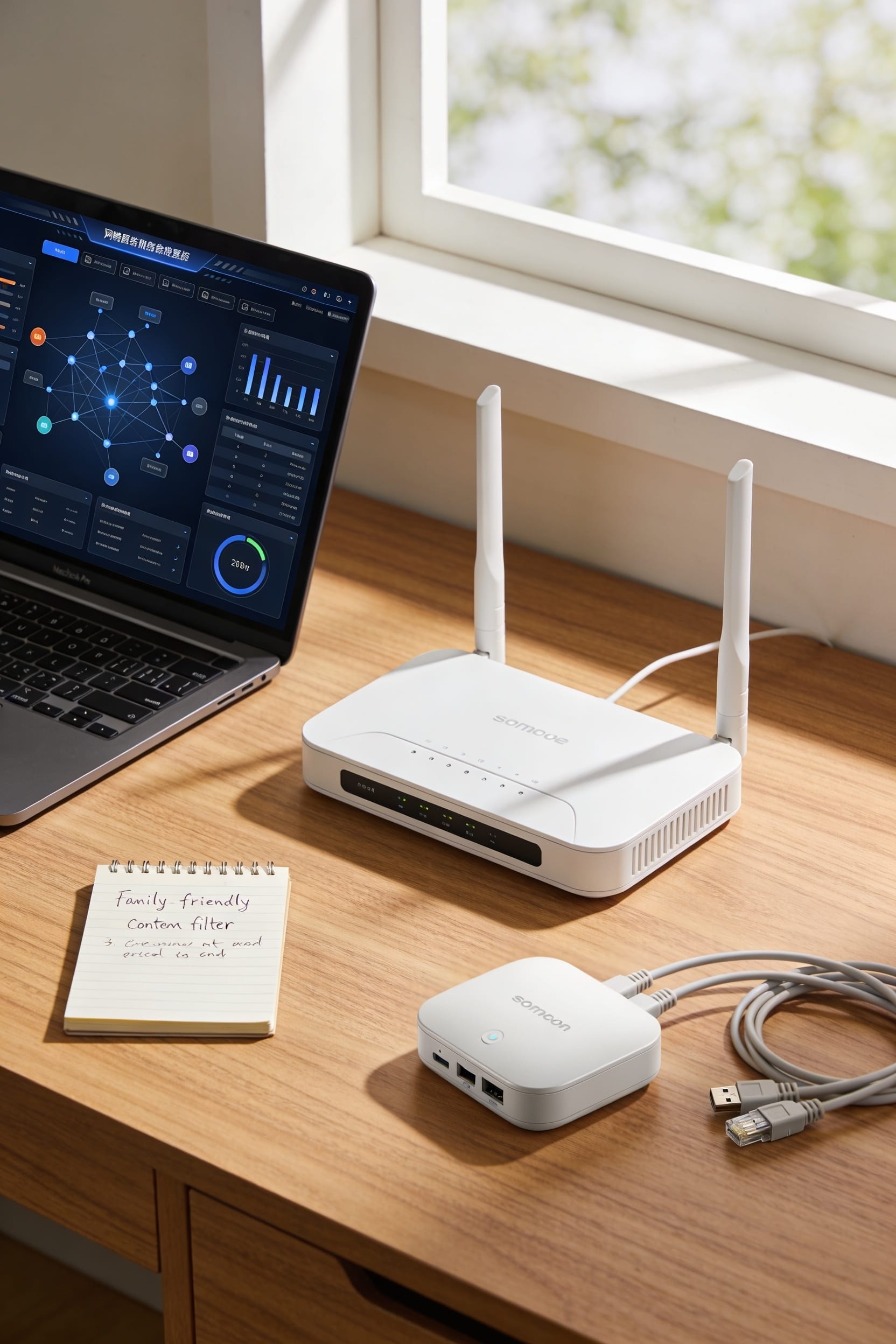
Once you’ve locked down the devices themselves, it’s time to think bigger—literally. Router-level filtering protects every device on your network at once, which beats chasing down settings on five different phones and tablets. Here’s the thing: your router acts like a bouncer for your entire home internet. You can set up DNS filtering—basically redirecting requests for sketchy sites before they ever load—without touching individual devices.
Now, look at options like Circle Home Plus or Gryphon AX routers. They let you create Guest networks so visitors don’t accidentally bypass your filters. You’re also getting bedtimes and time limits that apply household-wide. All right, this layered approach means your kids can’t simply switch devices to dodge your protections. It’s genuinely the smartest move you’ll make.
Compare Parental Control Apps: Costs and Features

Now that you’ve got your network locked down at the router level, it’s time to layer in device-specific apps—and here’s where things get interesting because router filtering alone has blind spots. Apps like Bark and Aura give you a feature matrix that goes deeper: they monitor texts, YouTube activity, and app usage with custom time limits per child. Bark’s paid tiers start around $9.99 monthly and include website filtering plus screen time scheduling. Aura offers similar tools. You’re trading monthly costs for granular control that routers can’t reach. Think of it this way—your router’s the bouncer at the door, but these apps are watching what happens inside the room. Worth the investment if your kids have phones.
Layer Device, Router, and App Controls for Full Coverage

The problem with stopping at router-level filtering or app monitoring alone is that you’re leaving gaps—and kids are pretty good at finding them. Here’s the thing: you need layers. Start with your router’s built-in filters, then add device-level controls on phones and tablets. Stack a parental app like Bark on top for text and social monitoring. This redundancy matters because one workaround doesn’t bypass everything. Now, combine these tech solutions with family agreements about screen time and offline activities—no tool replaces actual conversation. When your kid knows you’re watching multiple angles and you’ve talked about *why*, they’re less motivated to hunt for loopholes. That’s real coverage.
Schedule Screen Time Limits in Your Control App
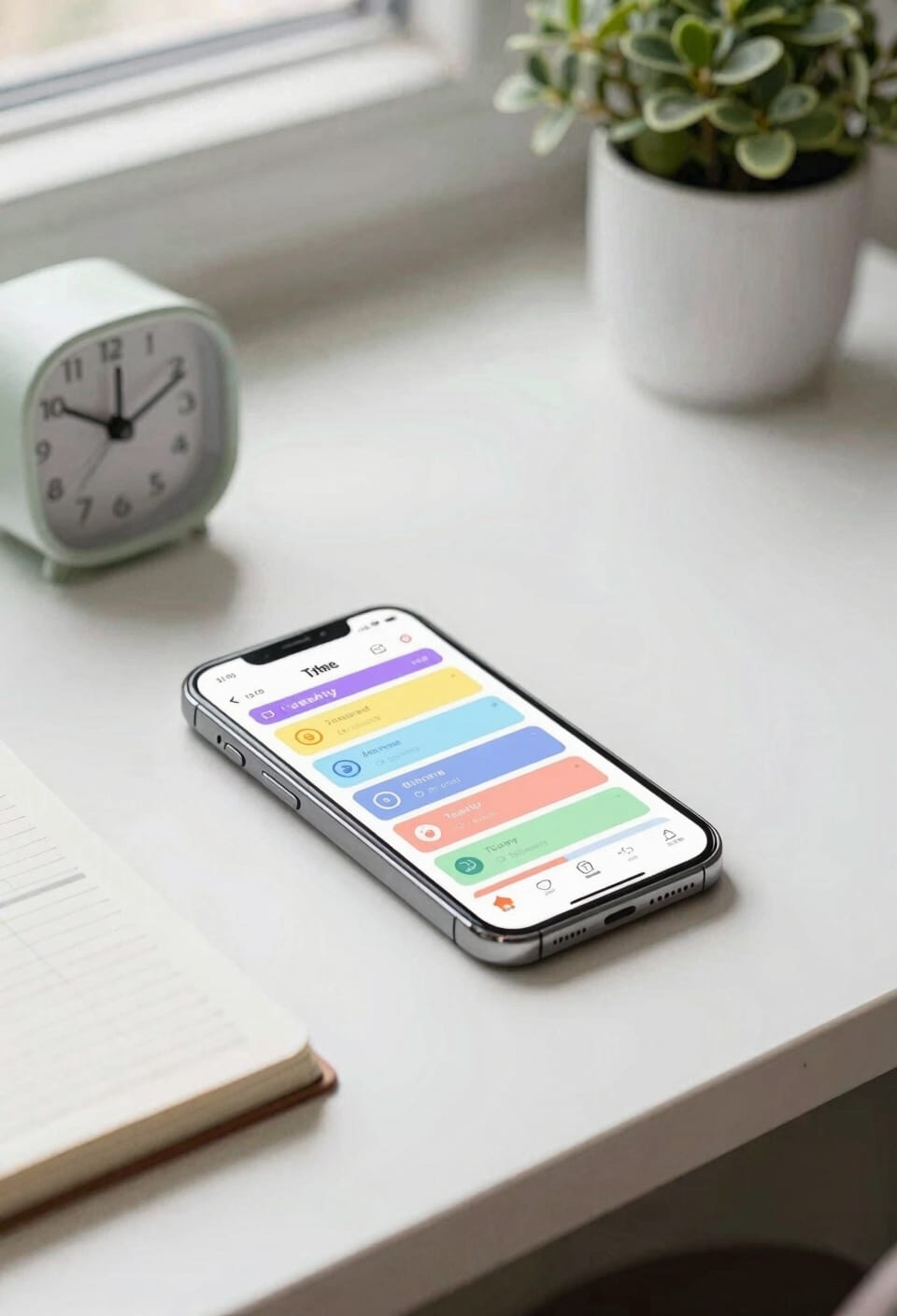
Most parents I’ve talked to set up their router filters and then call it done—which is like putting a lock on the front door and forgetting the back window. Here’s the thing: you’ve got to actually schedule screen time limits inside your control app. Apps like Bark let you create custom schedules for each kid and device, which means you can set stricter limits during evening routines when homework should happen. You can also build in reward incentives—say, extra weekend screen time for completing assignments on time. The beauty here is flexibility. Your teenager’s schedule looks different on Tuesday than Saturday, right? Most apps handle that without breaking a sweat. Set it once, then adjust as needed when life gets messy.
Monitor Texts, Apps, and Social Media Activity
Apps like Bark track calls, SMS messages, and activity across YouTube, games, and social platforms—giving you real insight into who’s contacting your kids and what they’re engaging with. Now, here’s the thing: monitoring requires setting clear privacy boundaries with your kids first. Have the conversation about why you’re watching, then explain how it works.
You’ll also want to review app privacy settings regularly and understand what third party permissions each app requests. It’s not about spying; it’s about staying informed so you can guide them safely.
Check Browsing History and Device Activity Weekly
Weekly browsing history check-ins shouldn’t feel like you’re a detective with a warrant—think of them more as a regular health checkup for your kid’s online life. I schedule these weekly audits on Sunday mornings, right after coffee, and honestly it takes fifteen minutes tops. You’re looking at device logs to spot patterns: Are they visiting sites you’ve discussed? Any surprises? Most routers and phones let you view this stuff directly. The key isn’t catching them red-handed; it’s staying informed. These regular check-ins also give you natural conversation starters. “Hey, I saw you were looking at skateboard videos—cool” opens dialogue way better than accusations ever will. It’s about presence, not paranoia.
Troubleshoot When Parental Controls Stop Working
If your parental controls suddenly aren’t doing their job anymore, don’t panic—I’ve been there, and it’s usually something simple rather than your kid discovering some underground hacker forum.
First, check your router’s firmware—that’s the software running your router—and update it if needed. Manufacturers release patches that fix security holes and restore filter settings. Next, reset permissions on individual devices. Sometimes a phone update or app reinstall wipes your parental control settings clean without warning.
Look at your router’s admin panel directly. Login credentials get forgotten, filters accidentally turn off, and cached settings cause weird glitches. If you’re using a third-party app like Bark or Circle, verify it’s still connected to your network. Dead batteries happen. Reboot everything: router, modem, devices. Seriously, try it first.
Set Expectations With Your Kids Before You Install
Before you lock down the network, you’ve got to have a real conversation with your kids about what’s coming and why. This consent conversation isn’t about asking permission—it’s about building trust. Sit them down and explain that you’re installing parental controls to keep them safe, not to spy on every keystroke.
Walk through an expectation checklist together. What sites are off-limits? When does screen time end? What happens if they try to bypass filters? Be honest about what you’ll monitor and what you won’t. Kids who understand the rules ahead of time are way less likely to resent them later.
This chat beats sneaking controls onto their devices any day.
Frequently Asked Questions
What Age Should Children Be Before Removing Parental Controls?
There’s no single age, but I’d recommend considering age milestones like thirteen or sixteen as starting points. Gradually increase autonomy by relaxing restrictions progressively rather than removing controls entirely, based on your child’s maturity and responsibility level.
How Do Parental Controls Work on Devices Outside the Home Network?
I use app-based controls like Bark and Aura for remote filtering when your kids leave home. These apps monitor content directly on their devices, blocking sites and tracking activity regardless of which network they’re connected to.
Can Parental Controls Detect VPNS or Proxy Services Kids Might Use?
Most standard parental controls struggle with VPN detection and proxy detection. I’d recommend pairing device-level monitoring with router solutions and discussing digital safety openly—it’s more effective than relying solely on technical barriers.
What Should Parents Do if Children Discover Their Control Passwords?
Like a lock that’s been picked, your control’s compromised. You’ll want to change passwords immediately and establish consequences for the breach. Consider using stronger, unique credentials they can’t easily guess or find.
How Transparent Should Parents Be About Monitoring Their Children’s Online Activity?
I believe you should be transparent about monitoring while respecting growing independence. Tell your child you’re setting honest boundaries for safety. Combine monitoring with privacy education so they understand why you’re protecting them online.
Conclusion
Monitoring your kids’ internet isn’t about control—it’s about guidance. Think of it like setting guardrails on a winding road: you’re not steering the car, but you’re making sure they don’t veer off a cliff. Start conversations before you install anything. Use your device controls, router filters, and apps together. Check in regularly. You’re building trust while keeping them safe, and that balance matters more than any single tool you choose.