As an Amazon Associate, we earn from qualifying purchases. Some links on this site are affiliate links at no extra cost to you. Our recommendations are based on thorough research and editorial judgment.

How to Fix WiFi Interference at Home

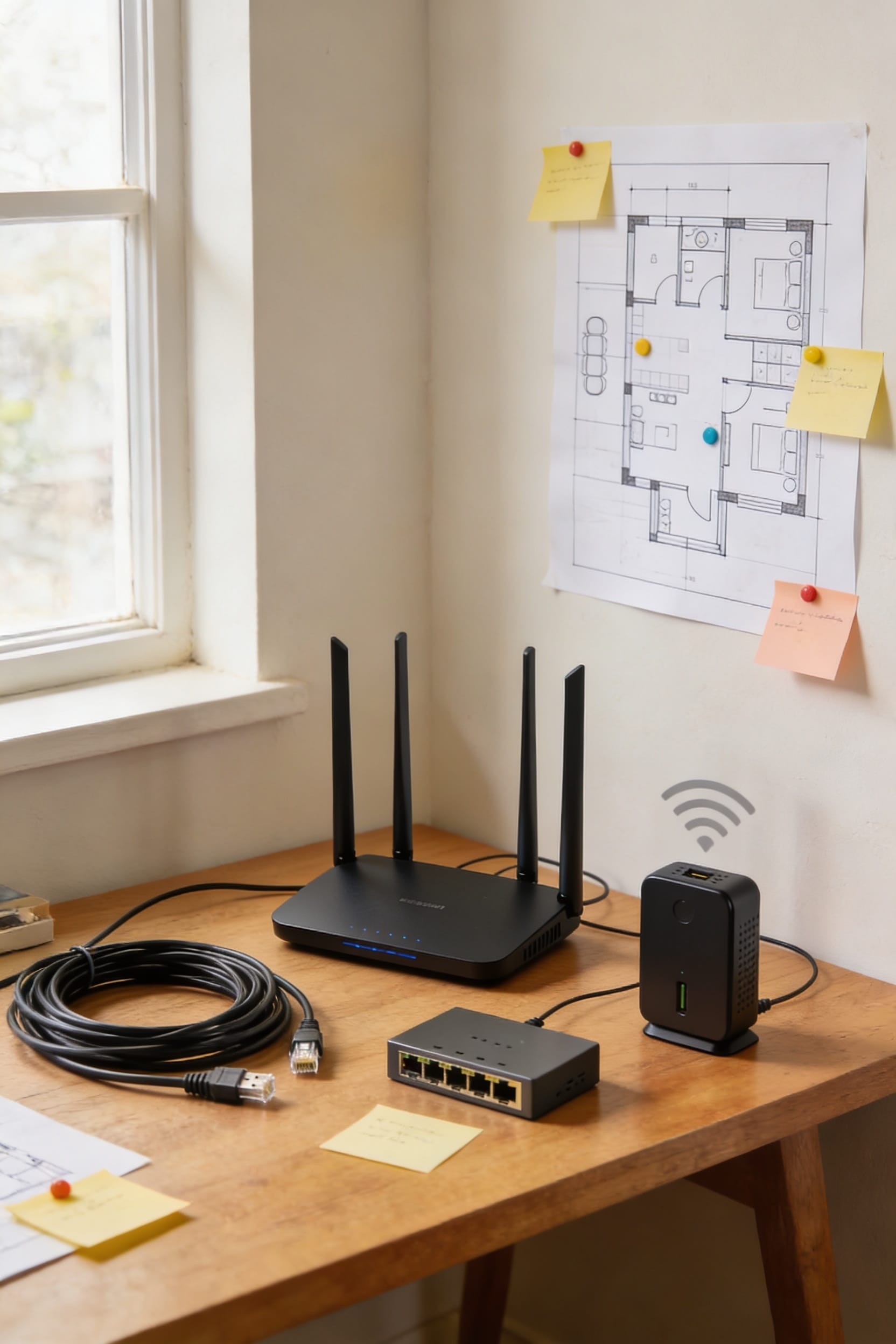
All right, here’s the thing: your WiFi’s probably getting mugged by your microwave, a crowded neighborhood channel, or a router stuffed in some corner where it can’t breathe. Start by moving your router to a central, elevated spot away from metal and mirrors. Then scan for the least-crowded channel—channels 1, 6, or 11 on 2.4 GHz work best. If that doesn’t cut it, try switching to 5 GHz for faster speeds, though it won’t travel as far. Stick around to learn which devices are actually sabotaging you.
Key Takeaways
- Identify interference sources like microwaves, cordless phones, and Bluetooth devices, then power them off when not in use.
- Relocate your router to a central, elevated location away from metal surfaces, concrete, and water pipes.
- Switch to less-congested WiFi channels using a scanning app; use channels 1, 6, or 11 on 2.4 GHz.
- Enable band steering and beamforming features on your router to optimize device connections and signal focus.
- Deploy a WiFi range extender or mesh system with wired backhaul to eliminate dead zones and reduce contention.
Find the WiFi Killers Hiding in Your Home
Ever wonder why your WiFi works great in one room but practically vanishes in another? I’ve been there, and I’ve learned the culprits aren’t always obvious.
Your home is packed with hidden WiFi killers. Microwaves and cordless phones operate on the same 2.4 GHz frequency your router uses—basically they’re competing for airtime. Hidden plasma TVs, baby monitors, and Bluetooth speakers join the interference party too. Then there’s your structural wiring. Metal pipes running through walls absorb signals like sponges, and concrete blocks scatter them everywhere.
Even those fancy dimmable LED lights emit radio frequencies that disrupt your connection. Mirrors with metal backing? They bounce signals into dead zones.
The good news: knowing what’s sabotaging you is half the battle. Once you identify these WiFi killers, you can actually fix the problem.
Move Your Router to the Right Spot
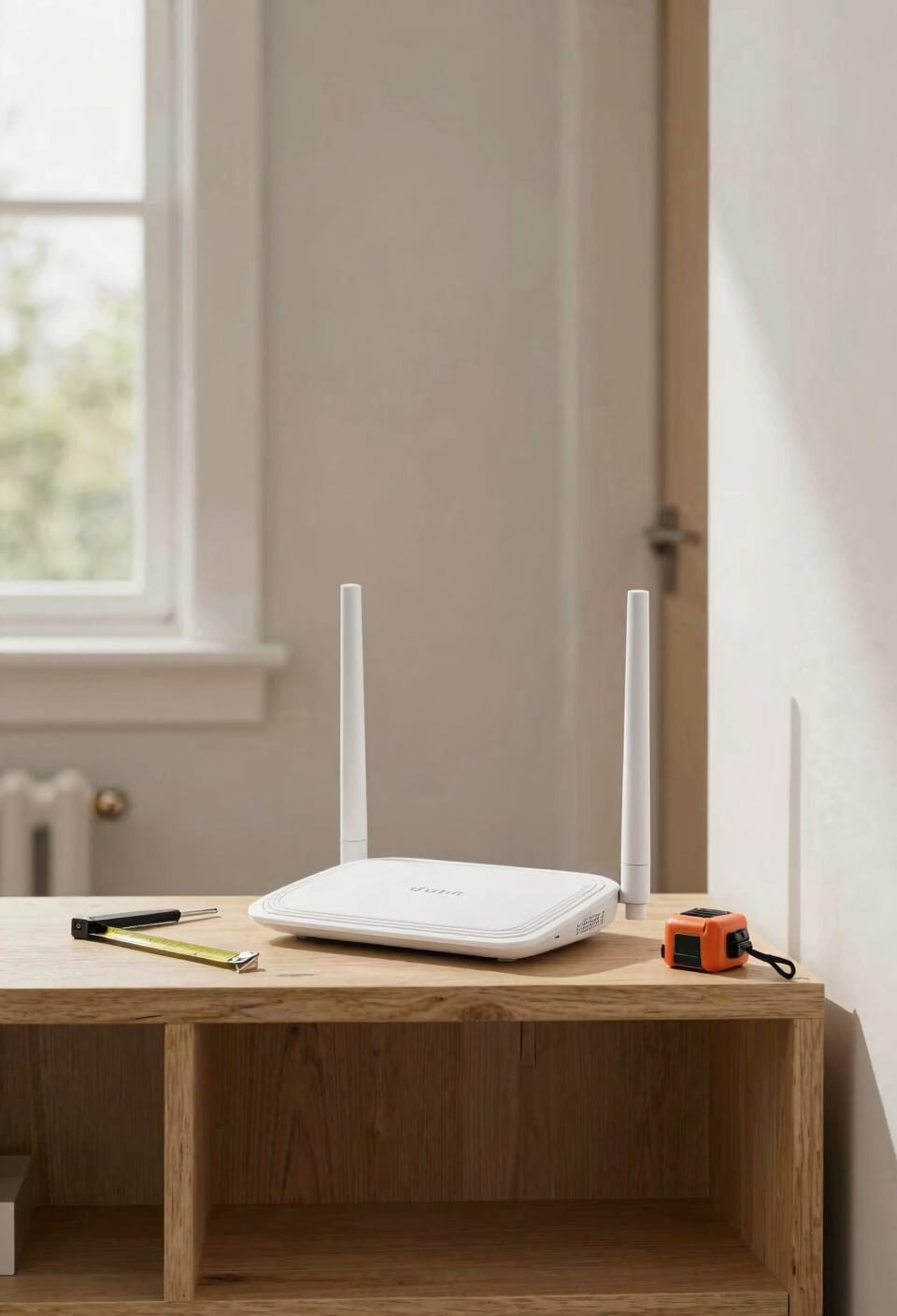
Now that you’ve identified the WiFi killers lurking in your home, it’s time to fight back—and the easiest weapon you’ve got is your router’s location. Here’s the thing: where you place your router matters way more than most people realize. You’ll want central elevation first. Think of your router as the heart of your network, pumping signals outward in all directions. Stick it on a high shelf near the middle of your home rather than tucked in a corner or basement. Open placement is equally vital—keep it away from water pipes, mirrors, and metal surfaces that reflect signals like they’re dodging them. Skip placing it on the floor or buried in a cabinet. The more open air around it, the better your coverage spreads throughout your space.
Pick the Best WiFi Channel for Your Setup
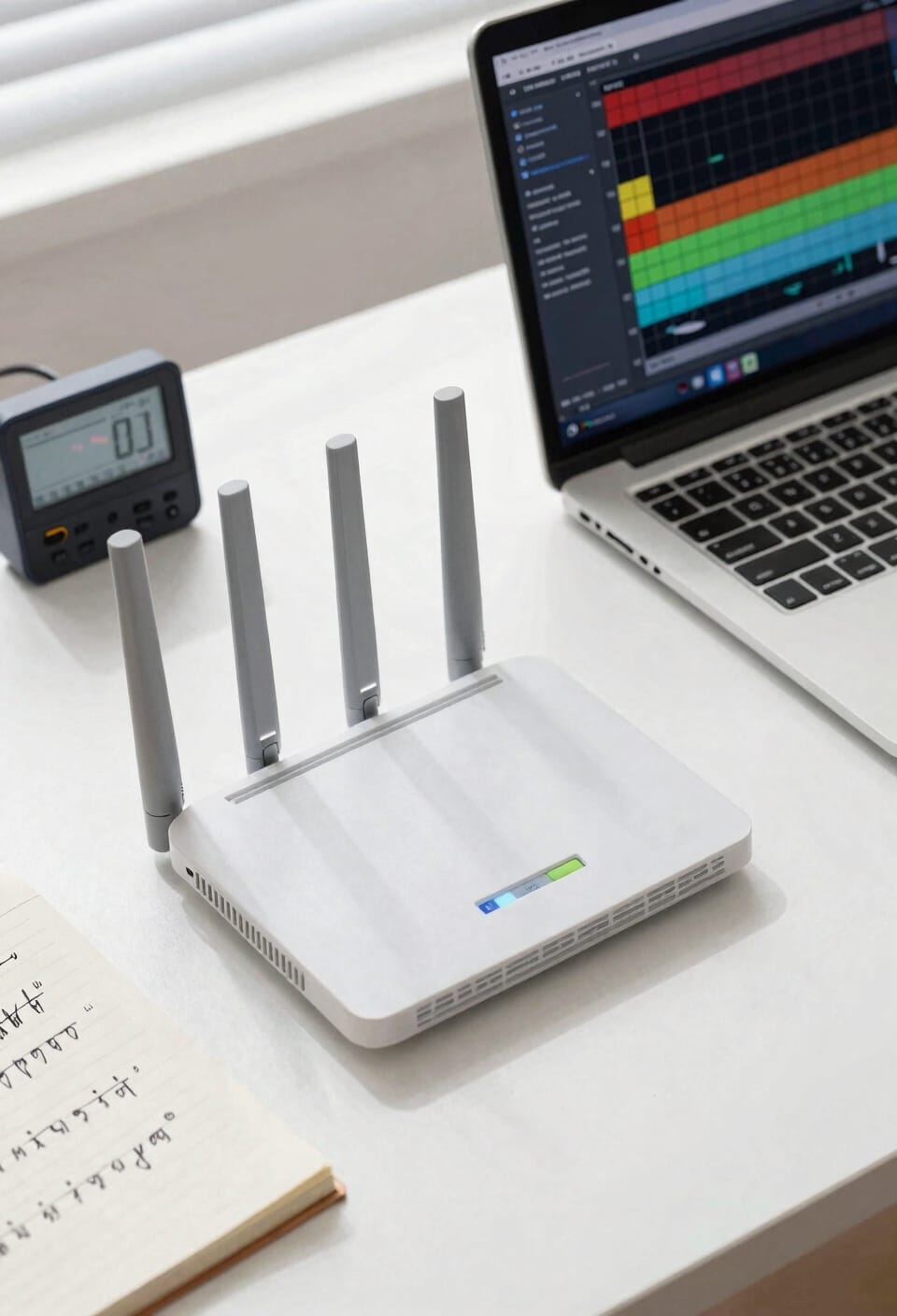
Most routers let you choose which WiFi channel you’re broadcasting on, and I’d argue this single setting might be the easiest way to squeeze better performance out of your existing setup. Think of channels like radio stations—your neighbors are probably using the same ones you are, which creates congestion. I recommend grabbing a channel scanning app to run interference mapping in your home. It’ll show you which channels are least crowded. Generally, I’d stick with channels 1, 6, or 11 on 2.4 GHz since they don’t overlap with each other. For 5 GHz, you’ve got way more options. Jump into your router’s settings and switch channels. You might be shocked how much this alone improves your speeds and reliability.
Choose Your WiFi Band: 2.4 GHz vs. 5 GHz
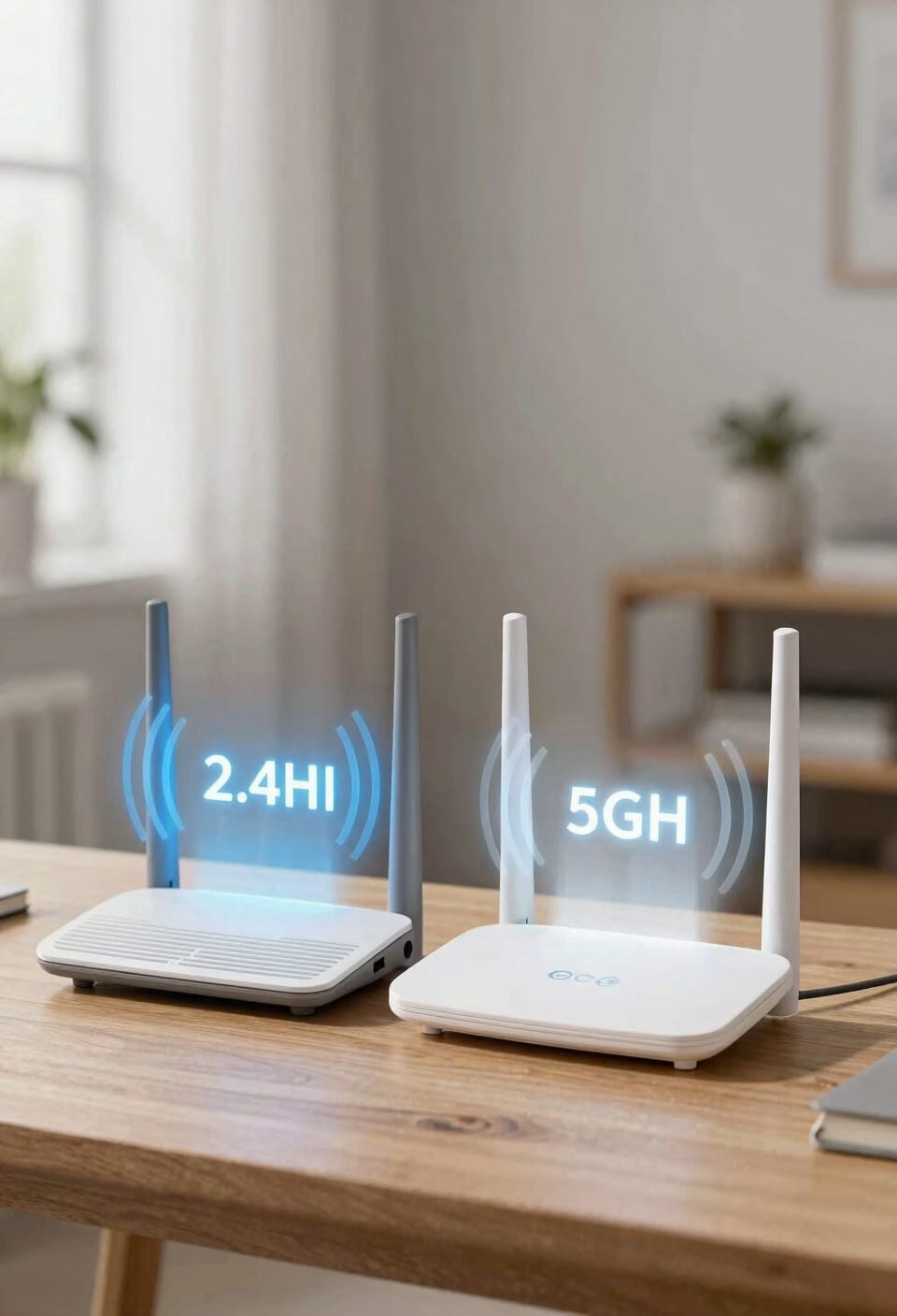
Once you’ve picked your channel, you’ve got another choice to make: which frequency band your devices should use. Here’s the thing: 2.4 GHz travels farther but attracts more interference from microwaves and Bluetooth devices. The 5 GHz band moves data faster with fewer neighbors crowding the airwaves, though it doesn’t penetrate walls quite as well.
Look, most modern routers use band steering—they automatically shuffle your devices between 2.4 and 5 GHz based on what’ll work best. You’re basically weighing interference tradeoffs: do you want range or speed? I’d connect devices close to your router on 5 GHz for cleaner signals, and save 2.4 GHz for stuff farther away that needs the extra reach.
Upgrade Your Router’s Antennas for Better Range
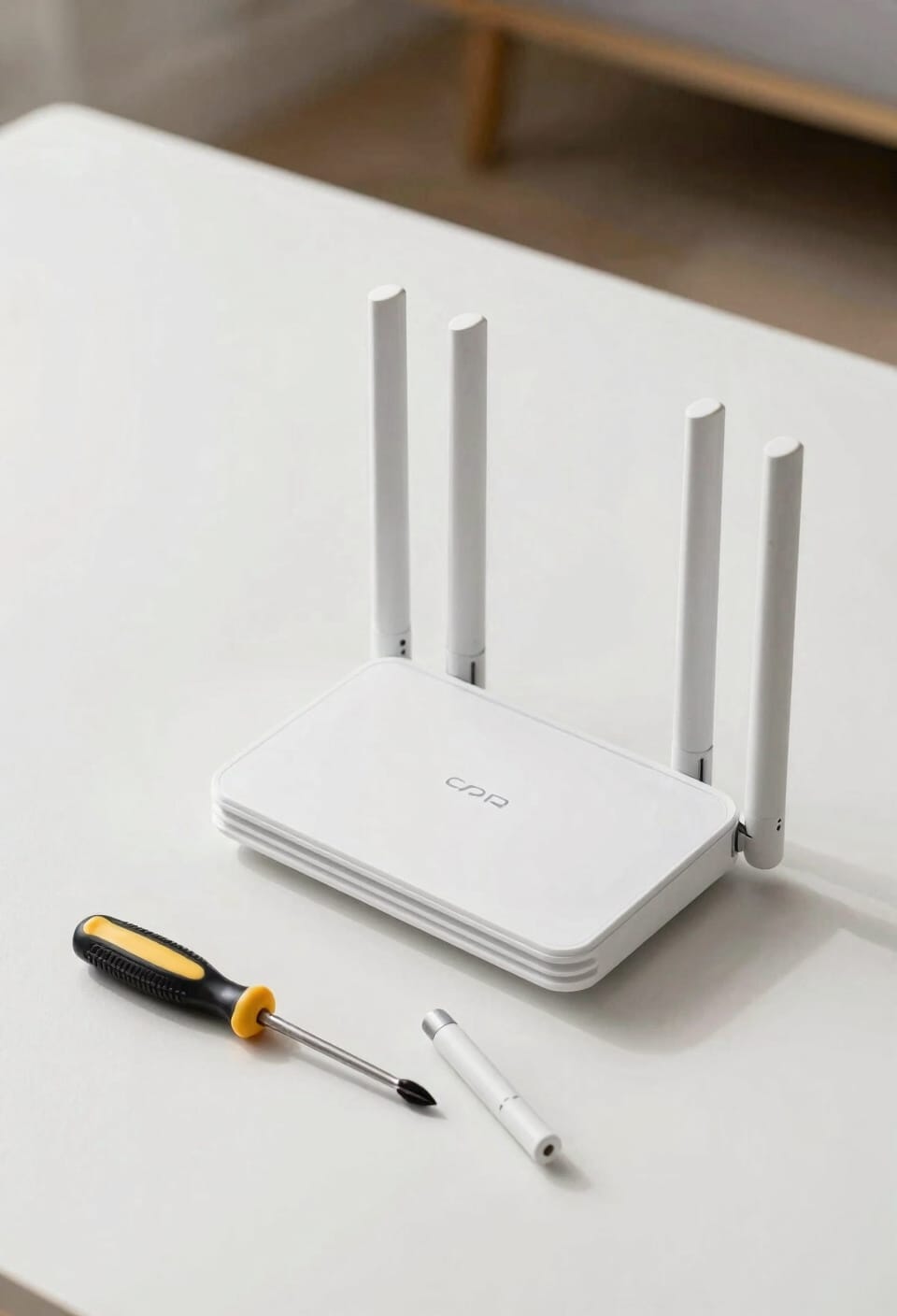
Your router’s antenna might be its weakest link—and swapping it out is one of the easiest wins you’ll get. Most routers ship with mediocre stock antennas that don’t do much for antenna gain, which is basically how focused and powerful your signal becomes. I’d recommend replacing them with high-gain or directional models that actually push your signal where you need it. You’ll also want quality coax cables—those are the connectors linking antenna to router—since cheap ones bleed signal like a leaky faucet. Dual-band antennas let you optimize both 2.4 GHz and 5 GHz simultaneously. It’s not glamorous, but swapping antennas costs thirty bucks and takes five minutes. Sometimes the simplest fix works best.
Check If Your Router Supports Beamforming
While upgrading your antennas helps push signal farther, there’s another router feature that can work even smarter—beamforming, which is basically a technology that focuses your WiFi signal like a spotlight instead of scattering it in all directions like a lamp. Now, here’s the thing: not all routers have this feature, so you’ll need to check your router compatibility first. Look at your manual or the manufacturer’s website to see if beamforming is listed in the specs. The beamforming benefits are real—it steers signals around interference and straight toward your devices, boosting your signal strength where you actually need it. If your router supports it, enable it in the settings menu. You’ll notice better performance, especially in rooms where WiFi usually struggles.
Turn Off Devices That Jam Your Signal
Before you blame your router for weak WiFi, take a look around your home—because I’d bet money you’ve got signal-jamming devices sitting right next to it, and you didn’t even realize they were the culprits. Microwaves, cordless phones, and baby monitors all operate on the same 2.4 GHz frequency your WiFi uses, creating interference that’ll tank your connection faster than you can say “signal jammer.” Here’s the thing: you don’t need to throw these devices out. Just turn them off when you’re not using them, or switch your phone to airplane mode during important work. That alone often fixes problems people spend hours troubleshooting. It’s the easiest win you’ll get today.
Reduce Reflections From Mirrors and Glass
Now, here’s something I didn’t expect to learn until I’d already wasted a Saturday moving my router around like a lost piece of furniture: mirrors and glass tabletops are basically tiny WiFi assassins. Those shiny surfaces bounce your signal everywhere except where you actually need it. If you’ve got a decorative mirror near your router, that metal backing’s reflecting your WiFi signal right back at you like some kind of cruel joke. The fix? Add curtains to block reflections, or use decals on glass surfaces to break them up. You don’t need anything fancy—even frosted film works. I know it sounds weird, but your connection will thank you.
Extend Your Signal With a WiFi Range Extender
Sometimes the simplest solution to a dead WiFi zone isn’t repositioning your router or swapping out antennas—it’s calling in reinforcement. A WiFi range extender picks up your existing signal and rebroadcasts it to reach those stubborn corners of your home. Now, placement tips matter here—stick it halfway between your router and the dead zone, elevated and away from interference sources. Check your power settings too; most extenders let you dial in transmission strength through their app or web interface. You’re fundamentally creating a relay system that bypasses obstacles like water pipes. It’s not the fanciest solution, but it works when you need coverage fast without rewiring anything.
Know When to Buy a New Router
While a range extender can patch up dead zones, there’s a point where throwing more hardware at an aging router becomes counterproductive. If your router’s warranty status has expired and it’s older than five years, replacement beats repair. Look for routers with future proofing features like WiFi 6 support, which handles more devices and reduces interference better than older standards. I’d also check whether your current model still receives firmware updates from the manufacturer—outdated security patches leave you vulnerable. New routers often include beamforming technology that steers signals around obstacles more intelligently. If you’re constantly troubleshooting interference despite optimization efforts, that’s your sign. A modern router isn’t just faster; it’s genuinely smarter about managing the electromagnetic chaos in your home.
Frequently Asked Questions
Can Dimmable LED Lights Really Interfere With My Wifi Signals?
Yes, dimmable LED lights really can interfere with your WiFi. Their LED drivers generate electromagnetic noise that disrupts signals on the same frequencies your router uses, especially on 2.4 GHz bands.
How Do I Access My Router Settings to Optimize Performance?
I’ll access my router’s admin panel by typing its IP address into my browser, logging in with credentials, then adjusting channels through the network map and enabling performance tweaks like beamforming.
What’s the Difference Between High-Gain and Directional Antenna Types?
I’d say high-gain antennas boost your signal’s strength like a telegraph amplifier, while directional ones focus it toward specific areas. Directional types leverage beamforming benefits and antenna polarization, giving you better coverage where you need it most.
Should I Update My Router Firmware, and How Often?
You should update your router firmware regularly. I’d recommend checking monthly for security patches and new features. Most manufacturers release firmware updates on varying schedules, so I suggest enabling automatic updates if available to stay protected.
When Is a Wifi Range Extender Better Than Buying a New Router?
I’d recommend a range extender when it’s cheaper and you’re seeking a temporary solution. However, you’ll face a coverage versus throughput tradeoff—extenders boost range but halve your bandwidth, so weigh your priorities carefully.
Conclusion
Look, you’ve got the tools now. You’ve moved your router, picked your channel, maybe grabbed a range extender. Here’s the thing—sometimes you’ll fix one problem and coincidentally fix another. Your speeds improve. Interference vanishes. You’ll wonder why you didn’t do this sooner. And honestly? That’s the whole point. You deserve WiFi that actually works, and now you know how to make it happen.